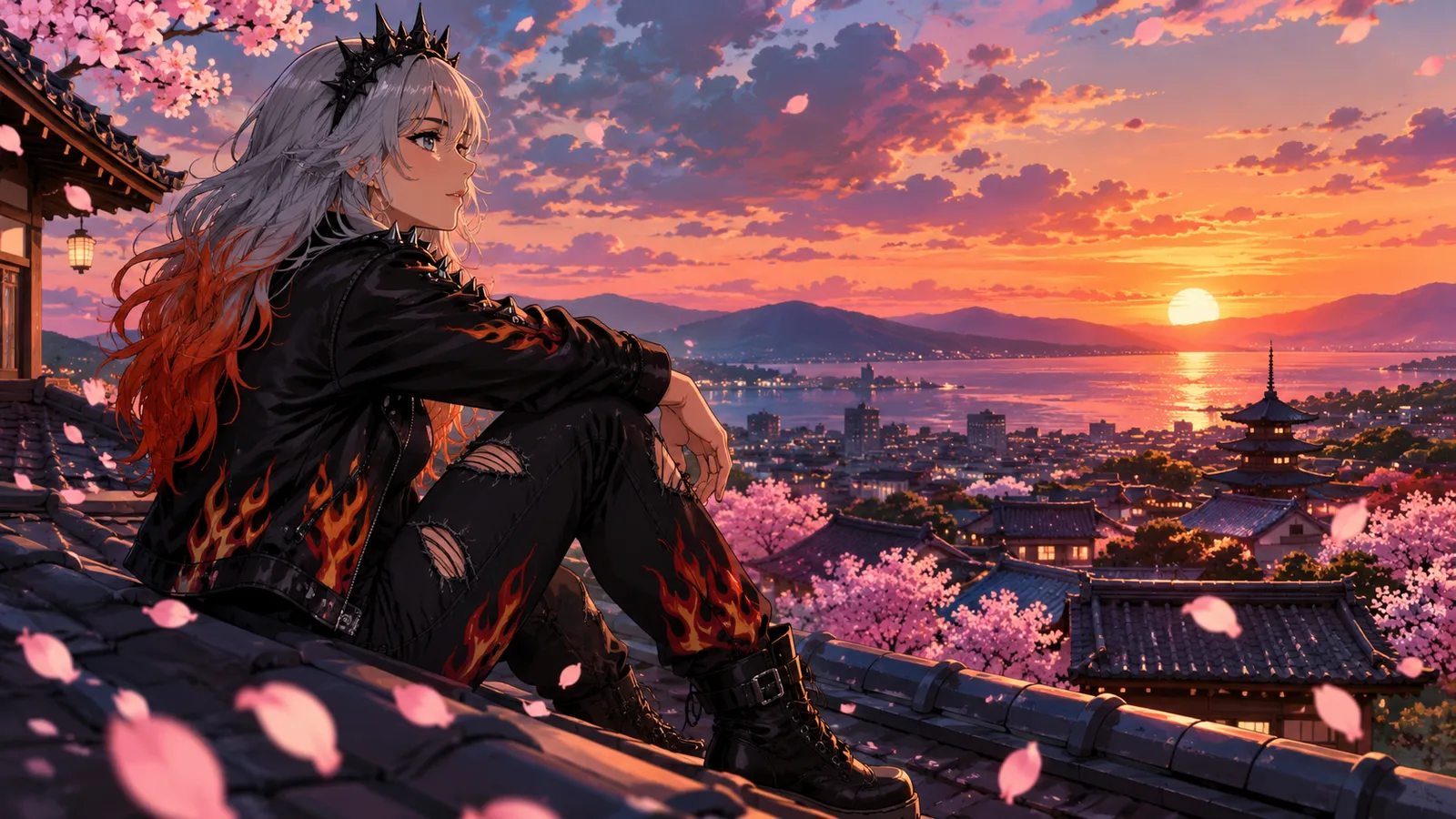
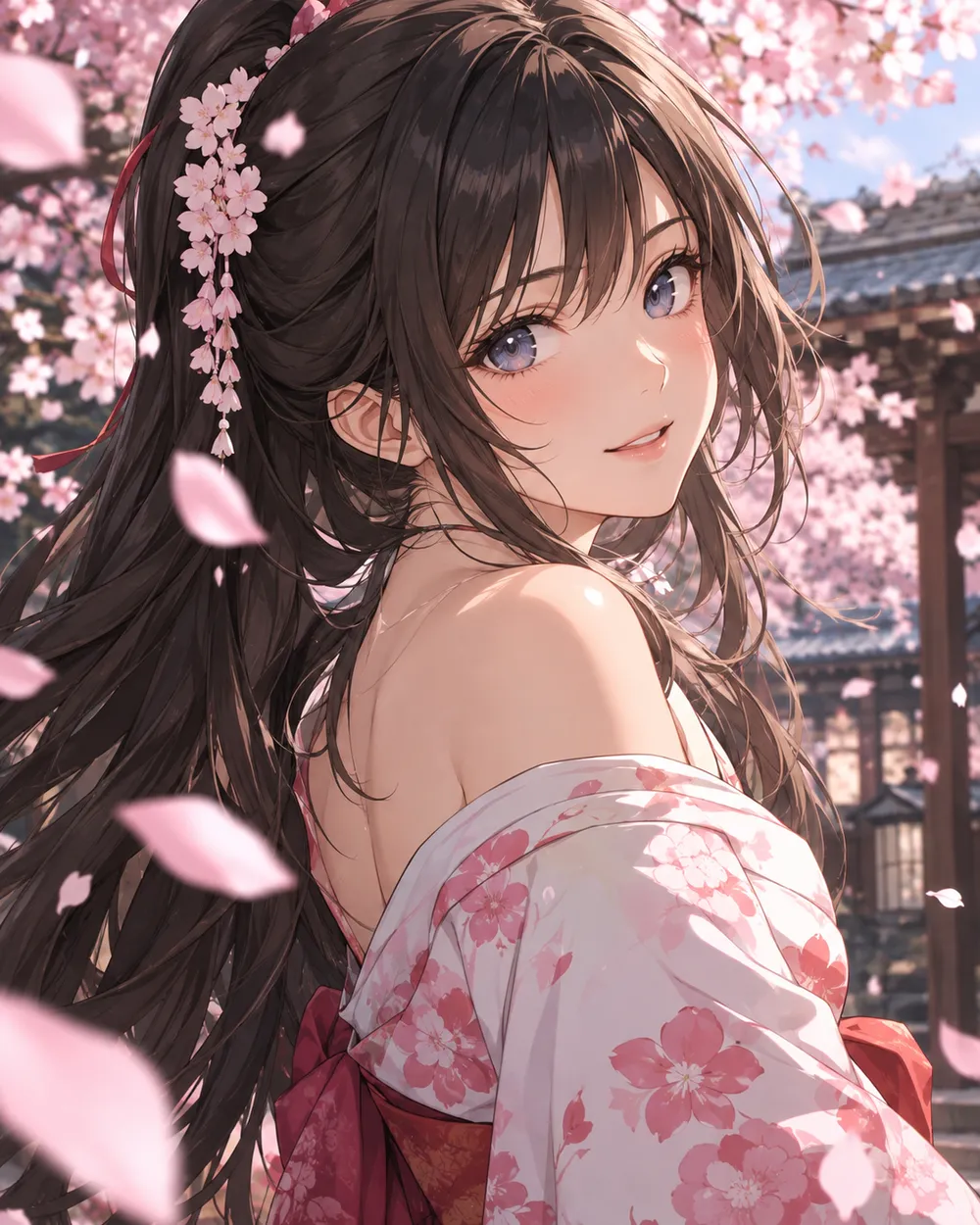
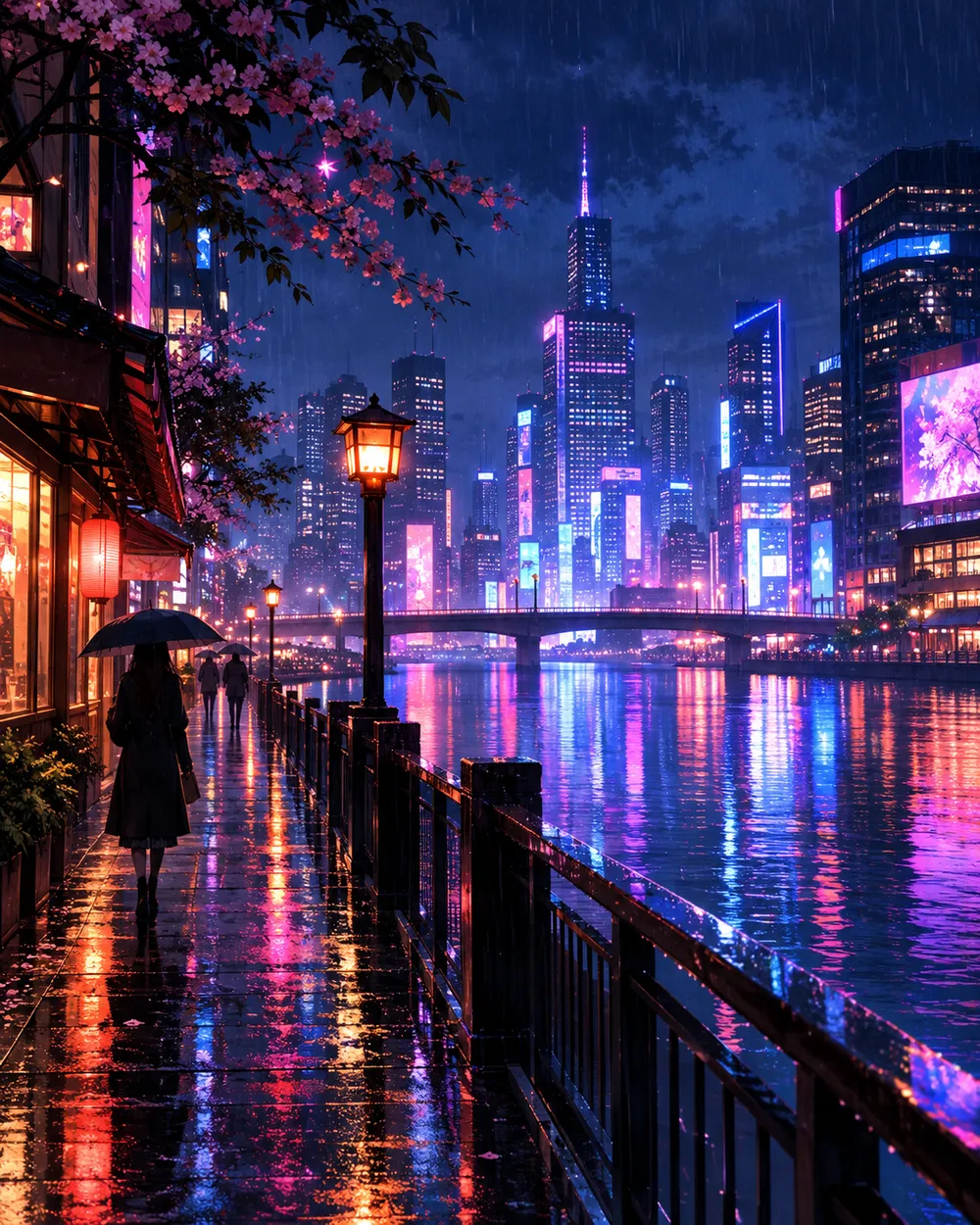
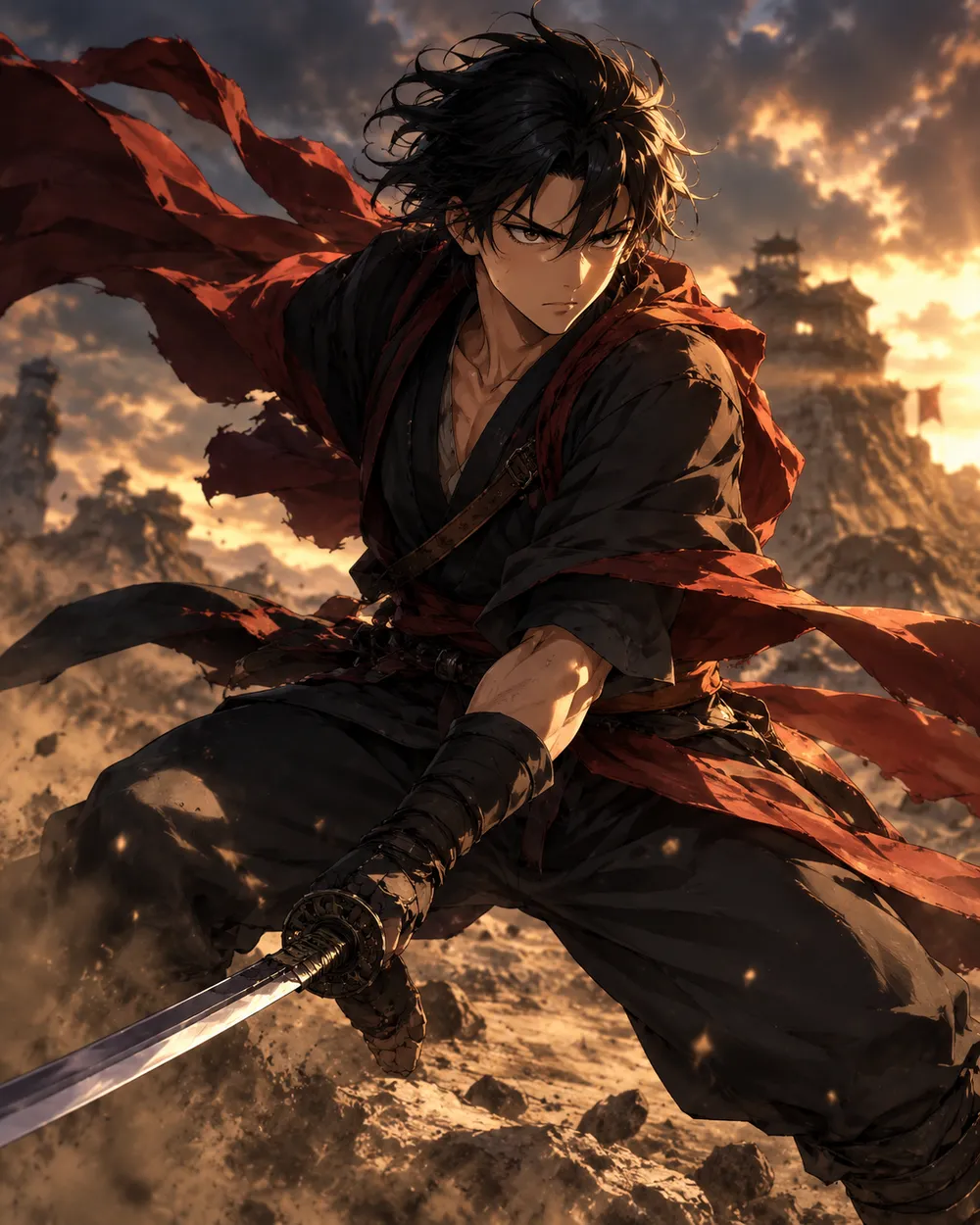
Seasonal preset pack

AI Anime Video Generator

Animate a finished anime still with a small, controlled motion that protects the character design and line art.

Animate an anime still into a five-second clip with a head turn, camera pan or falling petals. Six motion presets for consistent line art.

  • Browser-based, no install
  • Secure checkout
  • No watermark on paid exports

Generation uses purchased credits

Anime-style still animated with a slow camera pan and falling petals
6 presets

Choose a preset

Pick a direction, apply the prompt to the workspace, then edit one detail at a time.

  • Cherry blossom anime AI video preset

    Cherry Blossom Turn

    A slow turn with falling petals.

  • Neon city anime AI video preset

    Neon City Pan

    A lateral pan across a rainy skyline.

  • Battle stance anime AI video preset

    Battle Stance

    Hair and fabric move; the pose holds.

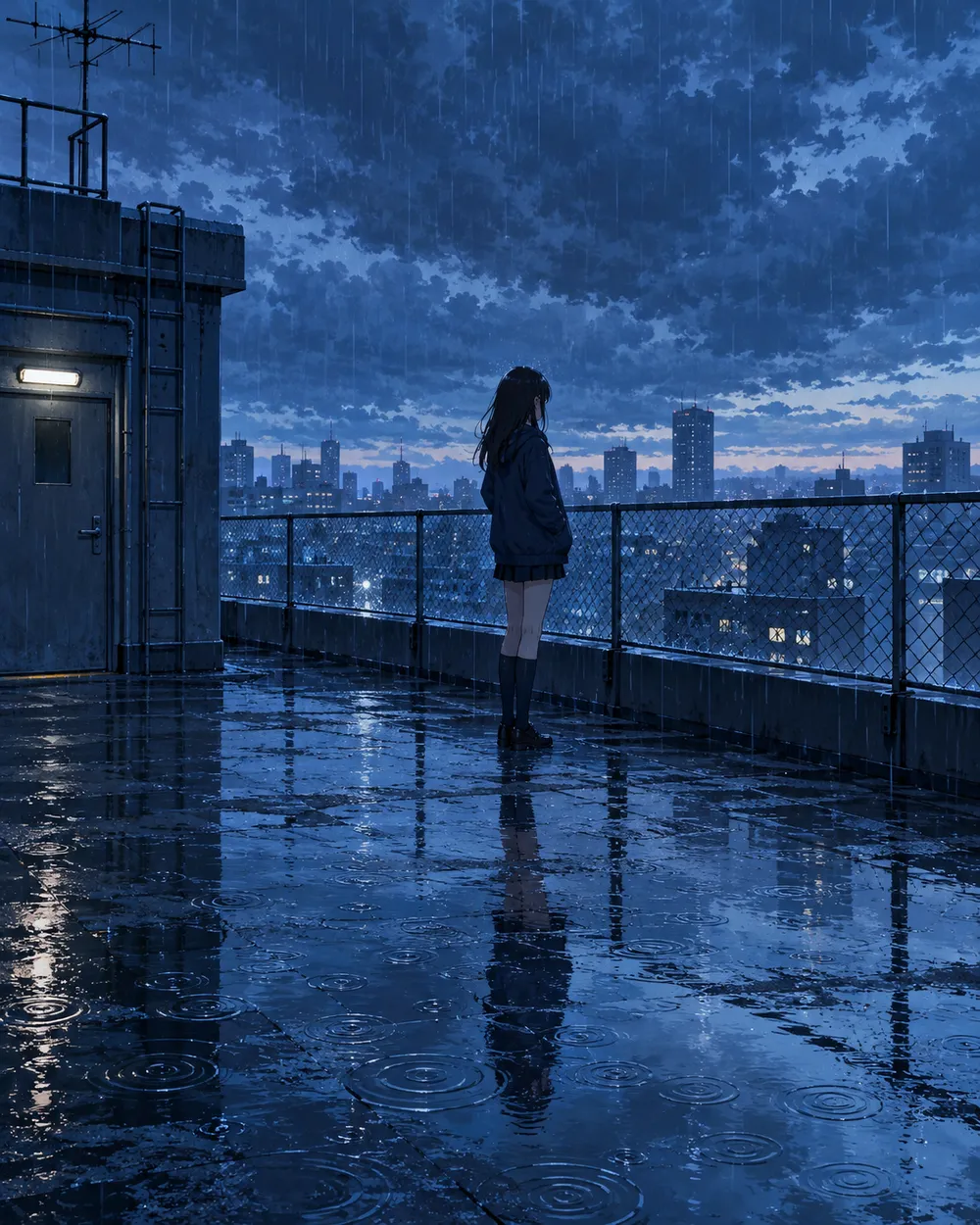
  • Rainy rooftop anime AI video preset

    Rainy Rooftop

    Rain, reflections and a still character.

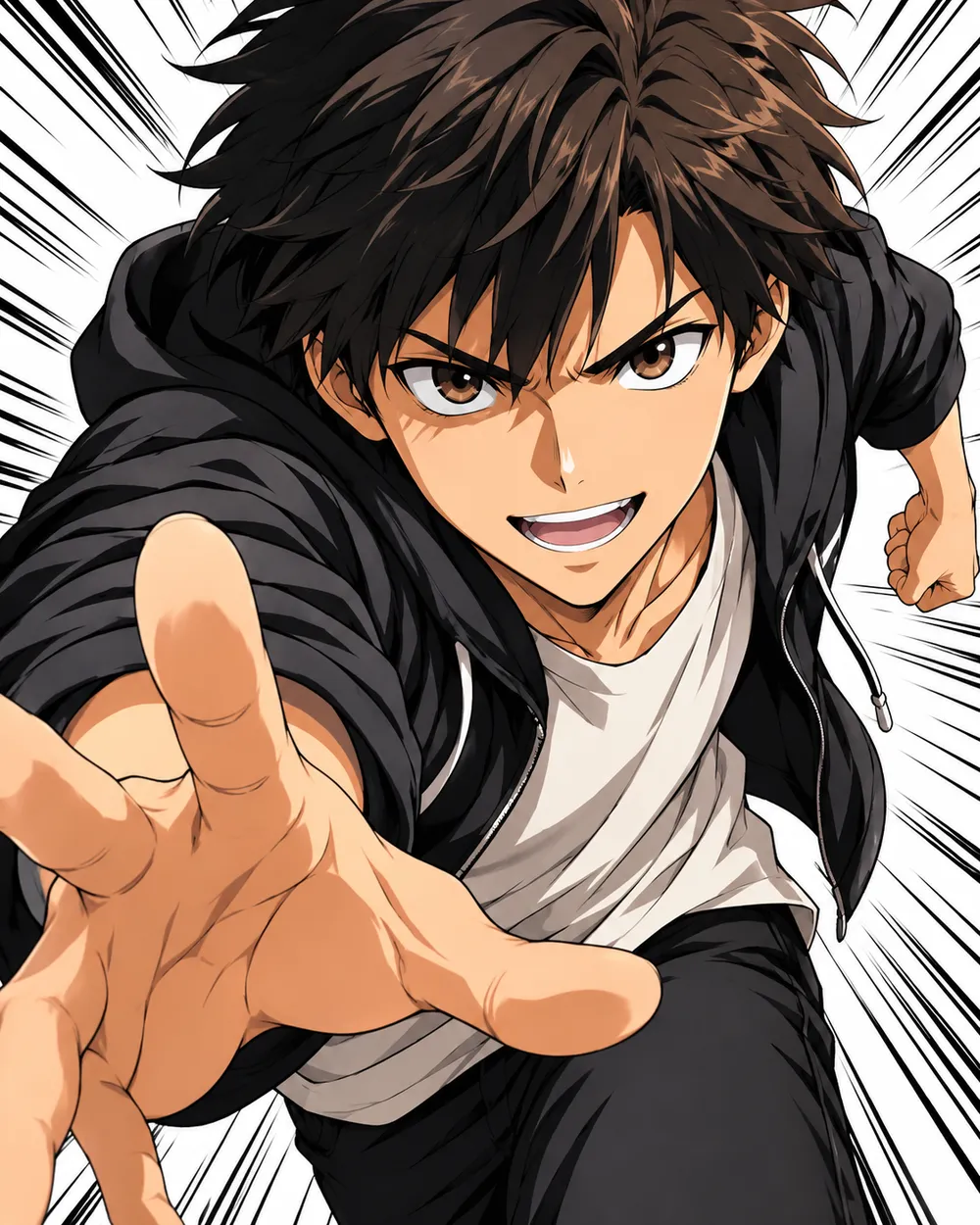
  • Manga speed lines anime AI video preset

    Manga Speed Lines

    A dramatic push-in with speed lines.

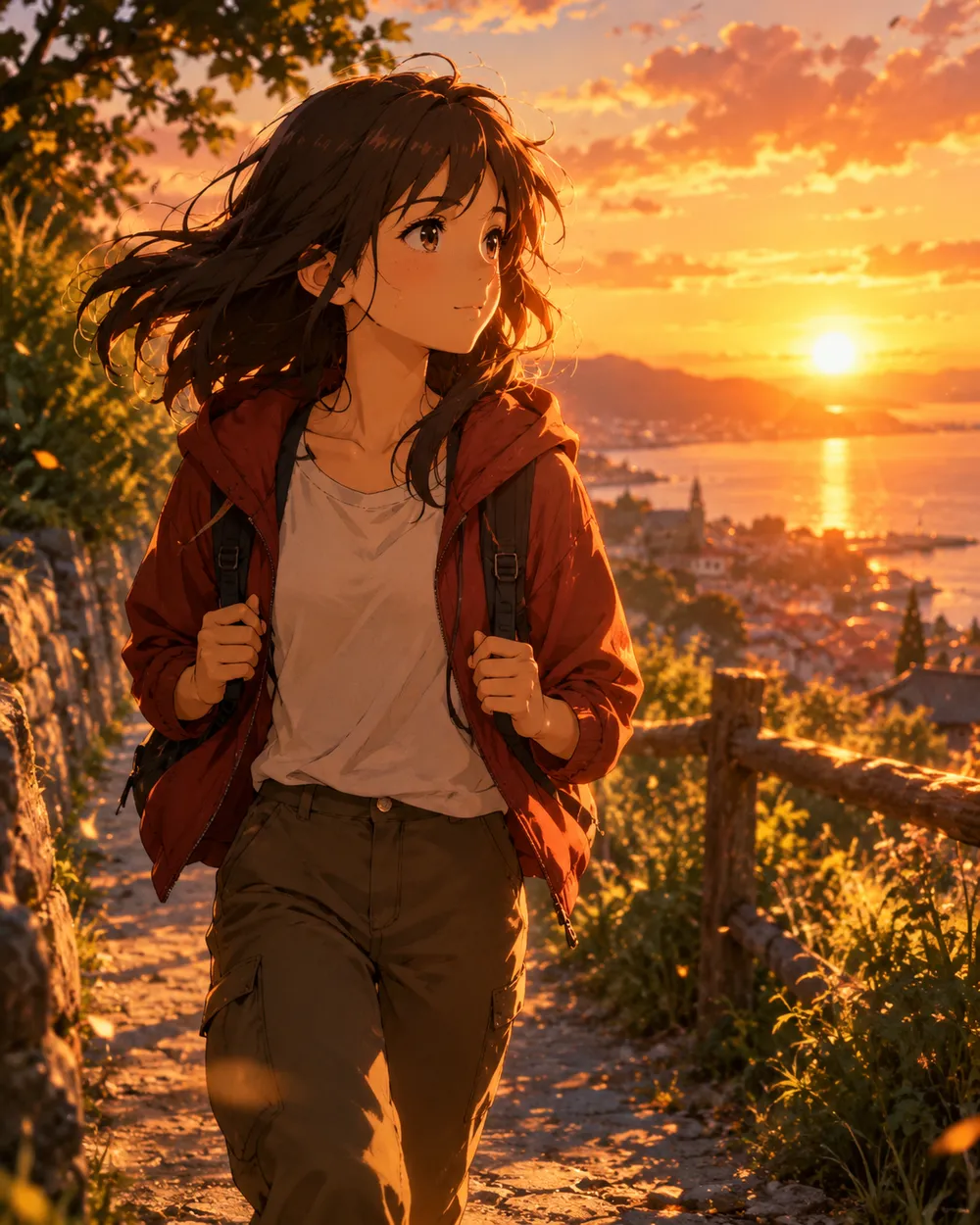
  • Sunset walk anime AI video preset

    Sunset Walk

    A slow tracking shot at golden hour.

Video Generator

Upload a first frame or paste one public image URL. Private and share-page links will fail.

(Optional)

Upload an ending frame or paste one public image URL if you want the motion to land on a target shot.

Cost 1 credits

0 / 2000

Camera presets

Add a camera direction to your prompt. These are prompt snippets, not a separate 3D model mode.

15s
4s15s

Generation Controls

These are the shared controls across all three workflow lanes.

2 options
Fast

Uses the faster route when available.

Generate Sound

Include synchronized audio when the provider supports it.

Cost 150 creditsRemaining 0 credits
Preview

Nothing generated yet

Video generation uses purchased credits. The workspace shows the estimate before you submit.

How it works

  1. 1

    Choose a look

    Start from a preset or write your own direction.

  2. 2

    Upload a photo

    Use a clear, front-facing photo that you have permission to edit.

  3. 3

    Generate and refine

    Run the job, review the result, and change one variable per retry.

Start with a still that already works

A good anime still has a clear character silhouette, a readable face and a simple background. If the still is crowded or the character is small, the video model has less information to work with. Crop to the character before animating.

Keep the still at the highest resolution you have. The video model will resize it, but a clean source preserves line quality. Avoid images with heavy compression artifacts or text.

Motion that respects line art

Anime line art is less forgiving than photographic texture. Large motion can warp the face and hands. Start with a head turn, a blink, moving hair or a camera move. Avoid full-body running or fighting unless you are prepared to retry.

If the line art shimmers, reduce the motion and add a stability rule. A slow push-in with moving hair is usually cleaner than a fast action shot. Keep the camera move in one direction.

Style consistency across clips

If you need several clips of the same character, use the same still as the reference and keep the prompt structure identical. Change only the motion sentence. That gives you a consistent set without retraining a character model.

For a longer sequence, generate each shot separately and edit them together. A five-second clip per shot is easier to control than a single long generation.

Frequently asked questions

  1. 1

    Does this generate anime from text?

    You can use text-to-video, but image-to-video from an existing anime still is more consistent. The still carries the character design and line style.

  2. 2

    Can I keep the same character across clips?

    Yes. Use the same still as the reference and keep the prompt structure identical. Change only the motion sentence. That gives you the best chance of a consistent set.

  3. 3

    Why does the face warp?

    Large or fast motion gives the model more chances to drift. Reduce the motion, shorten the duration and add a stability rule. A slow head turn is easier than a run cycle.

  4. 4

    Can I use a copyrighted character?

    Only if you have the rights. The acceptable use policy applies. For original characters, you control the design and the usage rights.

  5. 5

    What duration should I use?

    Start with five seconds. Short clips are cheaper to iterate and easier to keep stable. Extend only after the motion works.

  6. 6

    Can I add sound later?

    Yes. Most social clips are edited with sound in a separate editor. Generating a silent clip first gives you more control over the final mix.

Guides and prompt breakdowns

Related workflows

Start with a tested preset

Open the workspace, apply a preset, and see the credit estimate before you generate.