Seasonal preset pack

AI Halloween Video Generator

Turn a Halloween still into a five-second clip with one clear motion: a head turn, drifting fog or a slow push-in.

Animate a Halloween still into a five-second clip with a head turn, drifting fog or a slow push-in. Six motion presets and a hosted workspace.

  • Browser-based, no install
  • Secure checkout
  • No watermark on paid exports

Generation uses purchased credits

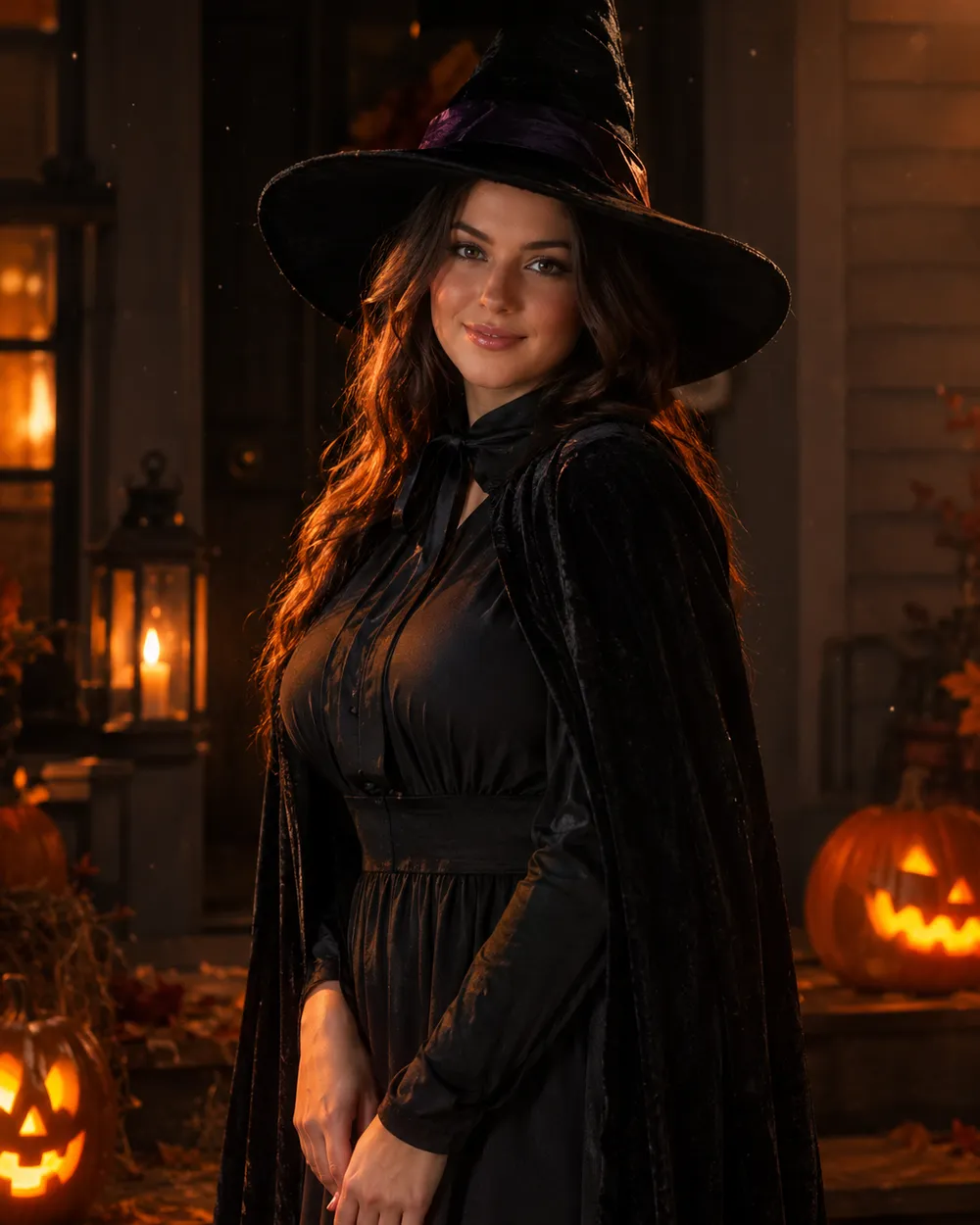
Cinematic Halloween portrait animated with fog and a slow camera push-in
6 presets

Choose a preset

Pick a direction, apply the prompt to the workspace, then edit one detail at a time.

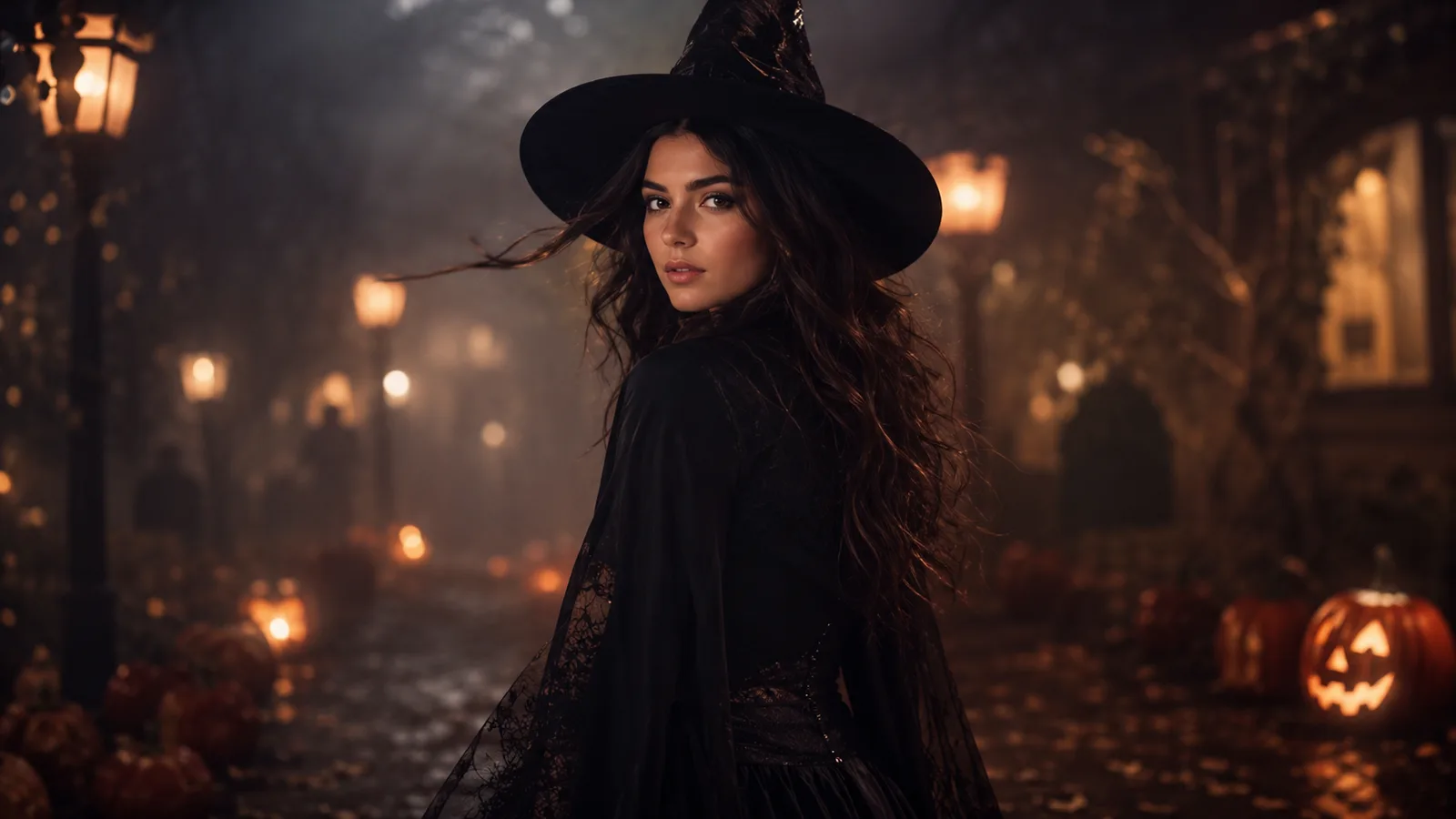
  • Midnight turn Halloween AI video preset

    Midnight Turn

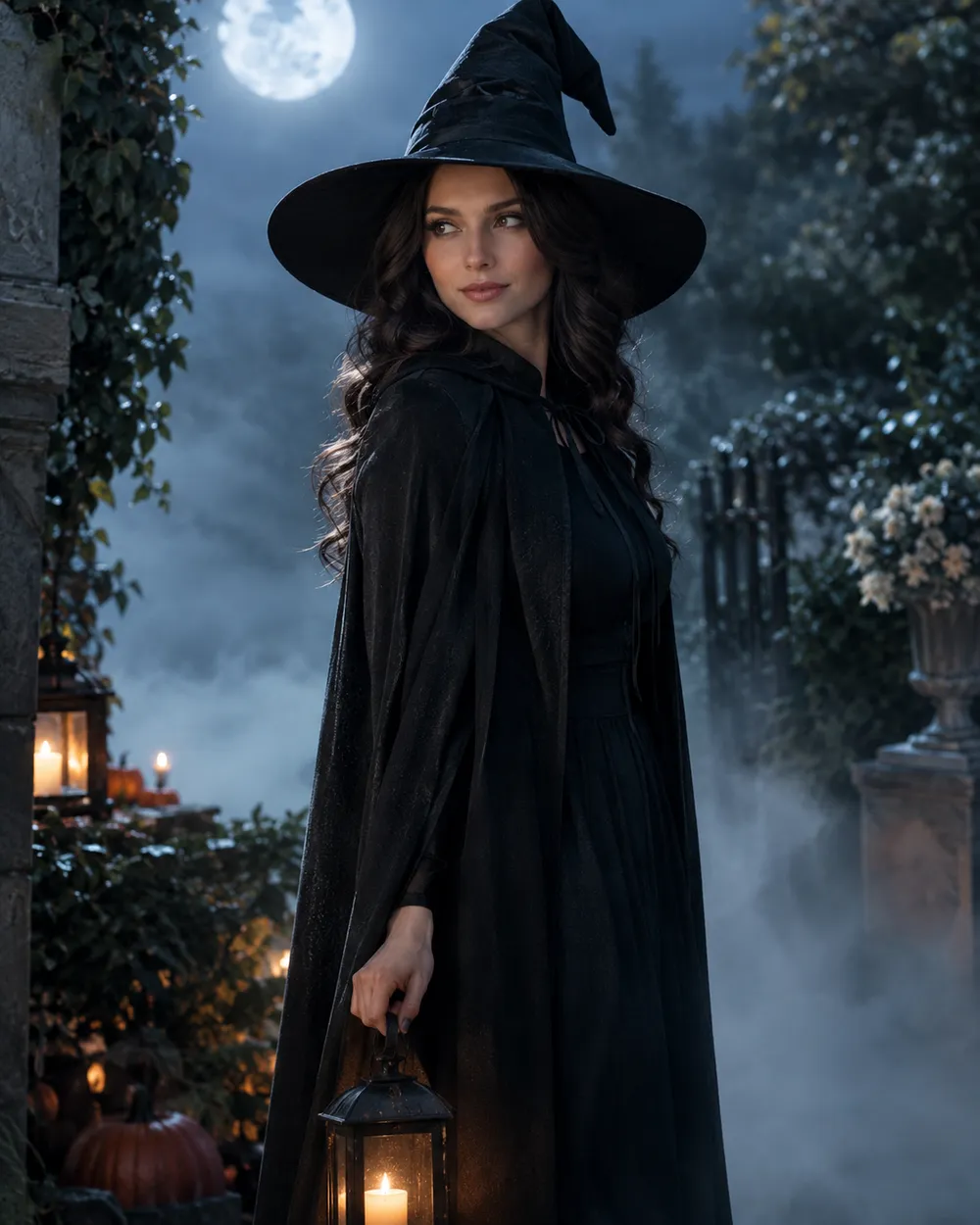
    A slow head turn with drifting fog.

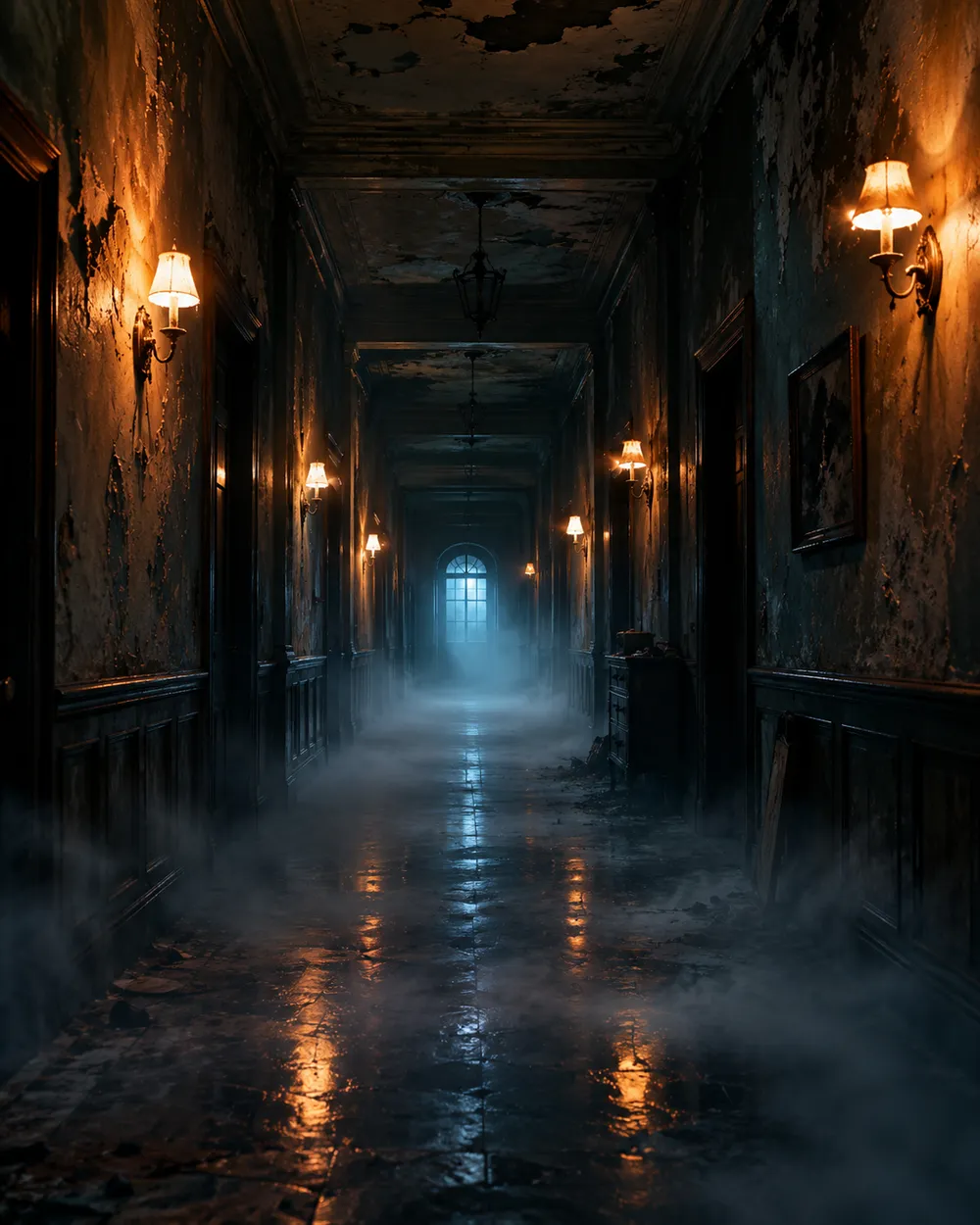
  • Haunted hallway Halloween AI video preset

    Haunted Hallway

    Fog rolls in; the camera glides forward.

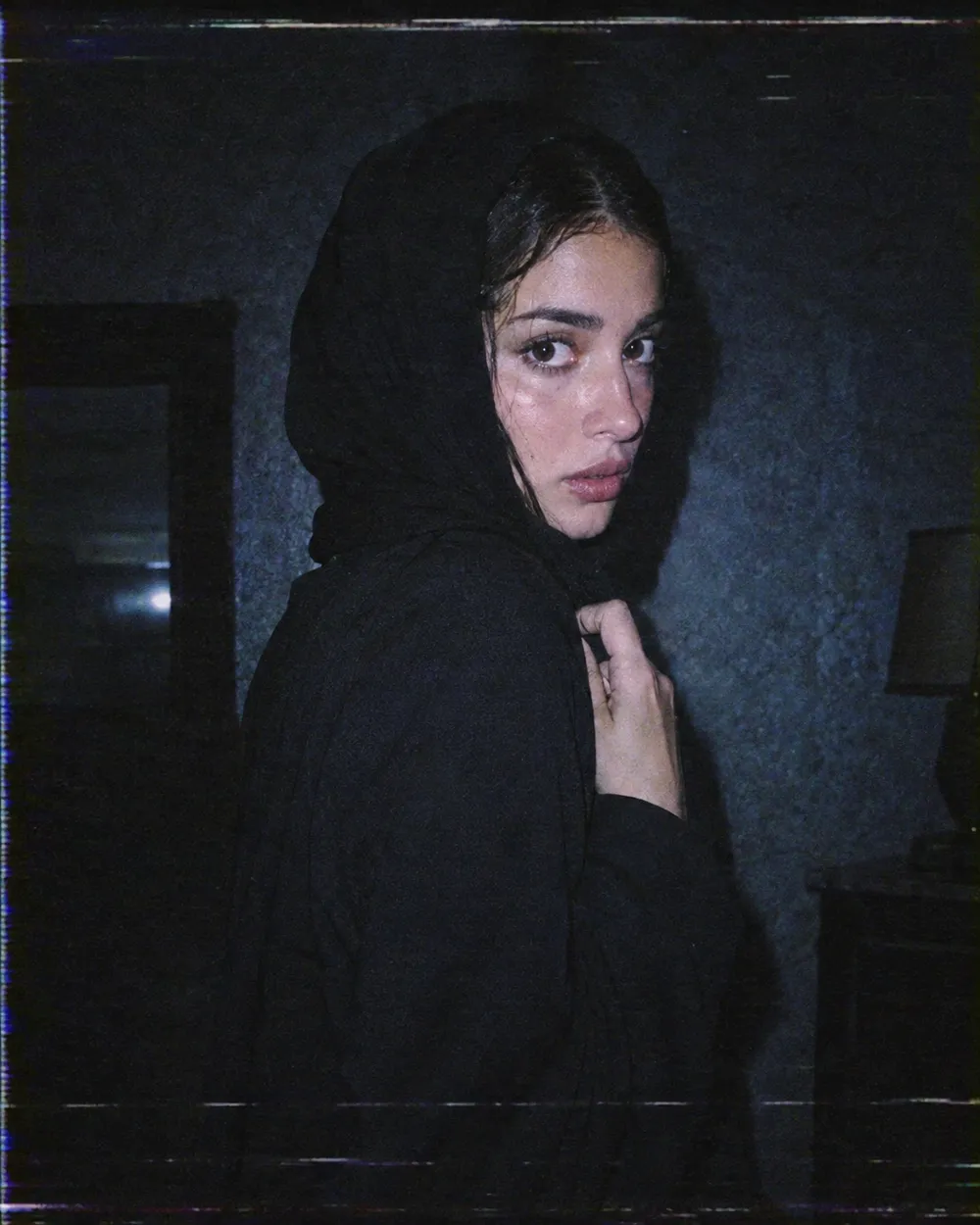
  • VHS horror Halloween AI video preset

    VHS Horror

    Analog tracking wobble and a cold flash.

  • Pumpkin glow Halloween AI video preset

    Pumpkin Glow

    Warm light flickers; the subject smiles.

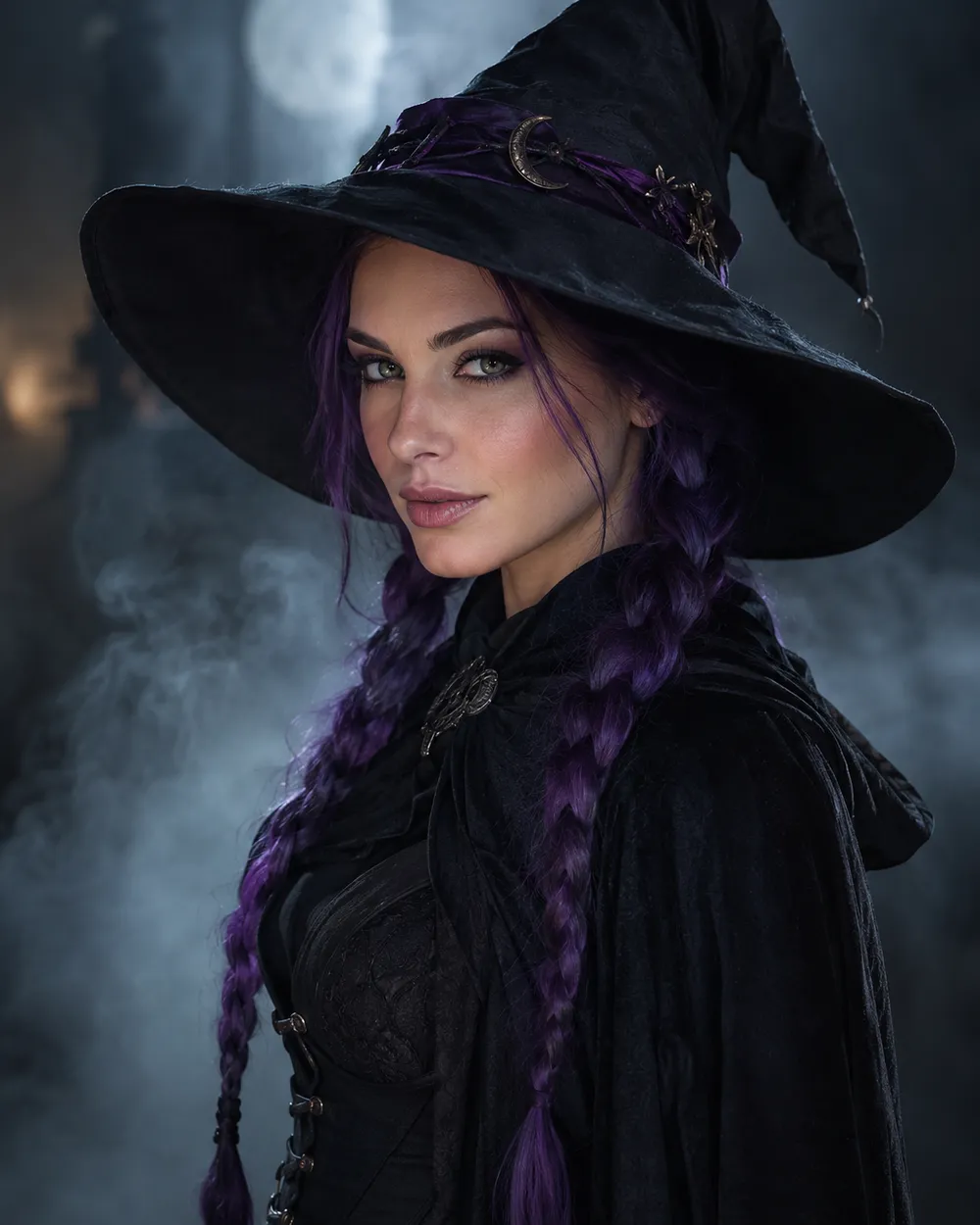
  • Floating fog Halloween AI video preset

    Floating Fog

    A slow orbit around a still portrait.

  • Candle reveal Halloween AI video preset

    Candle Reveal

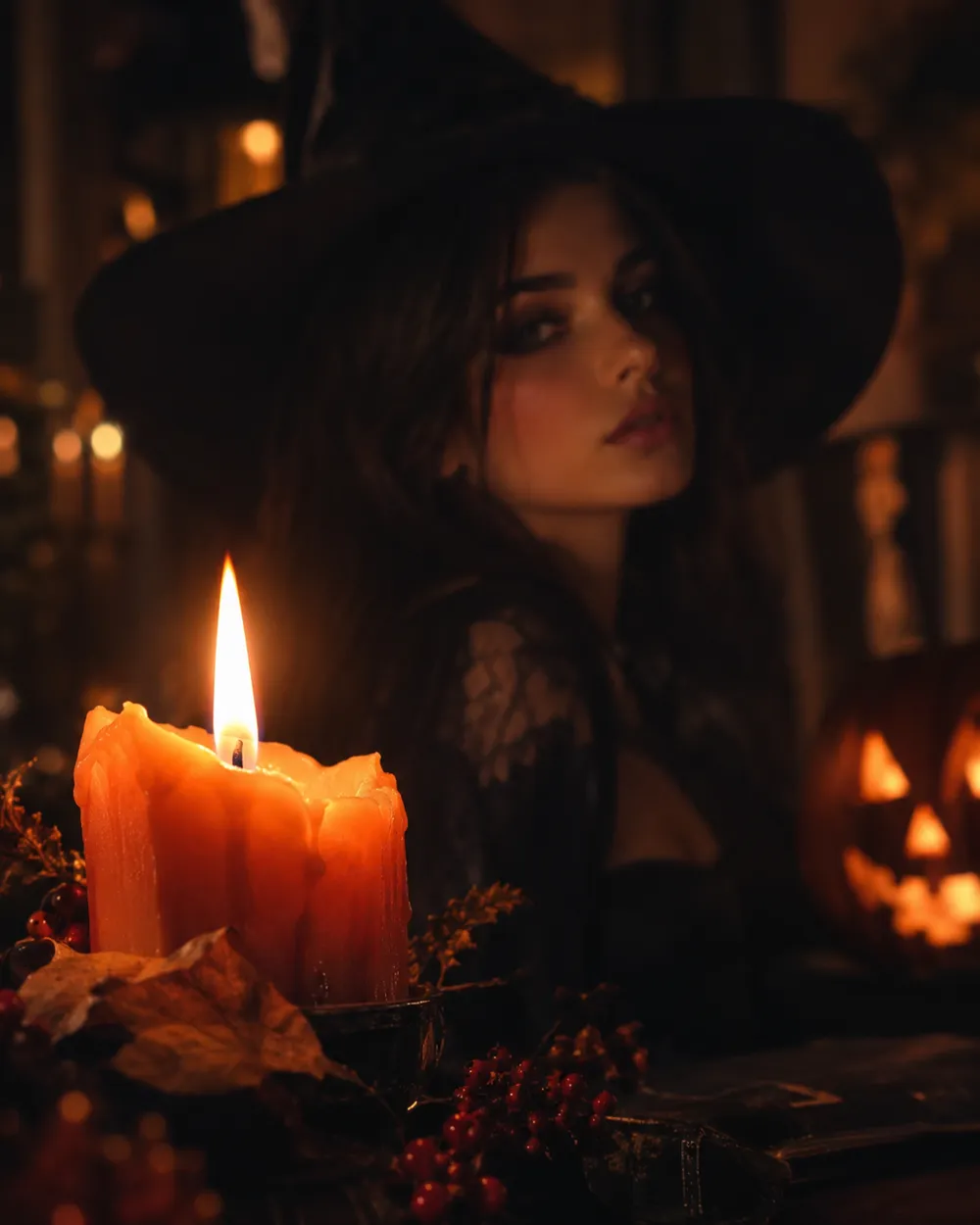
    Start on a detail, end on the face.

Video Generator

Upload a first frame or paste one public image URL. Private and share-page links will fail.

(Optional)

Upload an ending frame or paste one public image URL if you want the motion to land on a target shot.

Cost 1 credits

0 / 2000

Camera presets

Add a camera direction to your prompt. These are prompt snippets, not a separate 3D model mode.

15s
4s15s

Generation Controls

These are the shared controls across all three workflow lanes.

2 options
Fast

Uses the faster route when available.

Generate Sound

Include synchronized audio when the provider supports it.

Cost 150 creditsRemaining 0 credits
Preview

Nothing generated yet

Video generation uses purchased credits. The workspace shows the estimate before you submit.

How it works

  1. 1

    Choose a look

    Start from a preset or write your own direction.

  2. 2

    Upload a photo

    Use a clear, front-facing photo that you have permission to edit.

  3. 3

    Generate and refine

    Run the job, review the result, and change one variable per retry.

Why subtle motion works better

Image-to-video models are good at small, continuous changes. They are less reliable when a single shot has to contain a costume change, a walk, a new character and a camera cut. A subtle head turn keeps the identity stable and gives the viewer enough motion to stop scrolling.

Start with a five-second clip. If the result is stable, extend the duration or add one more motion. If it is unstable, remove motion instead of adding more instructions. A clean blink is better than a distorted wave.

The Halloween video trend, without the hype

Seasonal AI video trends usually combine a recognizable costume, a practical light source and one uncanny motion. The effect works because the scene feels almost normal. You do not need a jump scare or a complex transformation. A portrait that slowly turns toward the camera in a foggy garden is enough.

If you are making a TikTok or Shorts cover, generate a vertical still first, then animate it. Keep the face in the upper third so the platform UI does not cover it. Export a clean version without text and add captions in the editor.

Prompt structure for image-to-video

Use four parts: reference lock, motion, environment, stability rules. The reference lock says to keep the face, costume and proportions. The motion says what moves and how fast. The environment says what changes in the background. The stability rules exclude cuts, extra characters, warped hands and text.

If the model supports audio, decide whether you need it before generating. Audio can increase cost, and most social clips are muted anyway. A clean silent clip is usually the better first version.

Frequently asked questions

  1. 1

    How long should a Halloween AI video be?

    Start with five seconds. A single clear motion is easier to control and cheaper to iterate than a longer scene. Extend only after the short clip is stable.

  2. 2

    Do I need a source image?

    Image-to-video produces the most consistent results when you start from a still. You can also use text-to-video, but identity and costume consistency are harder to control.

  3. 3

    Which video model does Animate AI use?

    The hosted video workspace uses Seedance 2.0 through the configured provider. The workspace exposes duration, resolution, audio and motion options before you submit.

  4. 4

    How much does a clip cost?

    The cost depends on duration, resolution and whether you use audio or video references. The workspace shows the credit estimate before generation. A five-second 720p fast clip starts at about 50 credits.

  5. 5

    Can I use the video on TikTok or YouTube?

    Review the Terms of Service and the model provider’s usage rules. Also follow the platform’s disclosure rules for synthetic media.

  6. 6

    Why does the face change during the clip?

    Long or complex motion gives the model more chances to drift. Use a shorter duration, a smaller motion and a stronger reference lock. Keep the camera move simple.

Guides and prompt breakdowns

Related workflows

Start with a tested preset

Open the workspace, apply a preset, and see the credit estimate before you generate.