
The AI Halloween Video Trend: 5-Second Prompts That Work
Why subtle motion beats complex action in AI Halloween videos, plus six image-to-video prompts for head turns, fog, VHS looks and candle reveals.
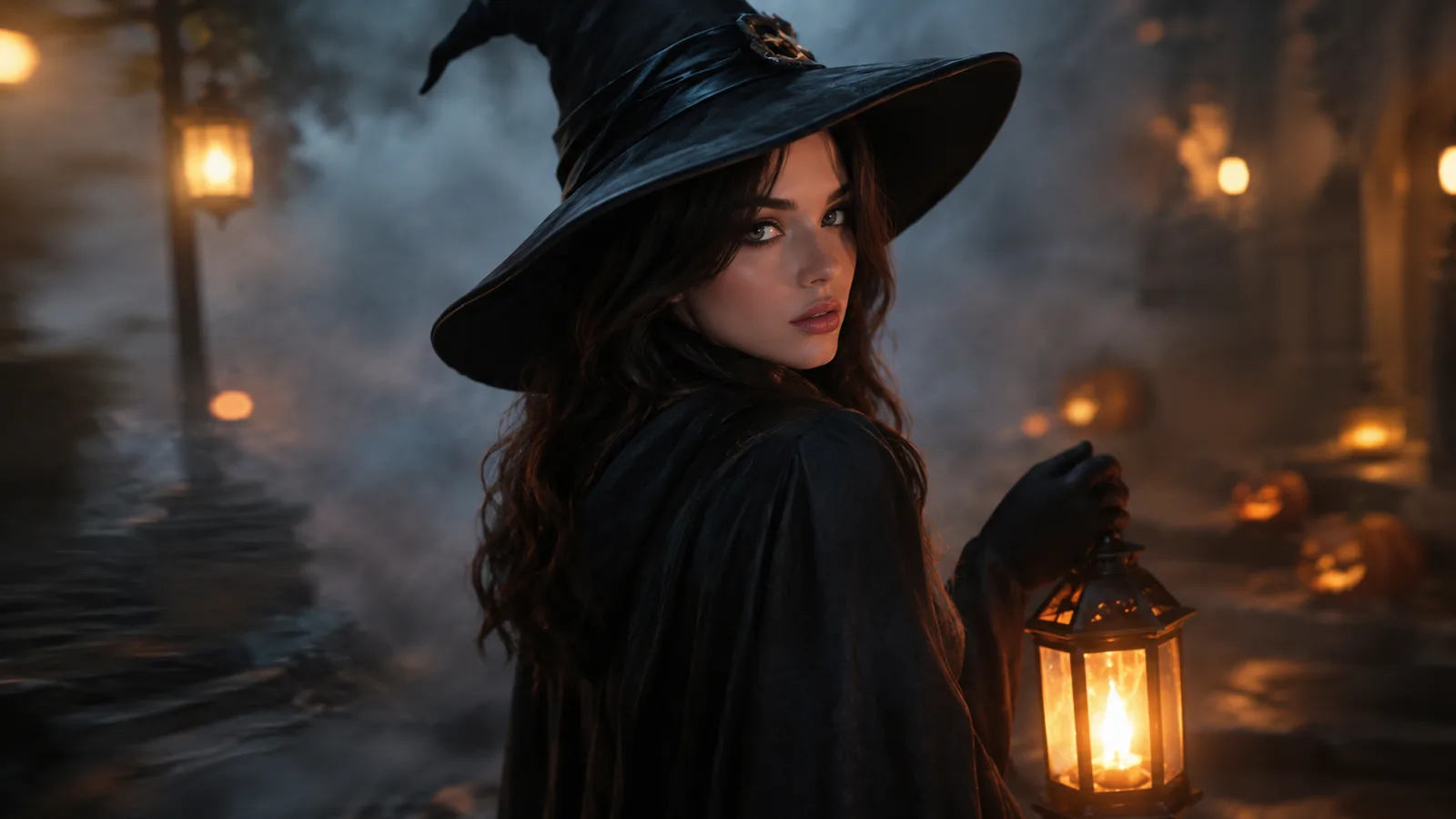
The Halloween AI video trend looks complicated when it works. A portrait turns its head, fog drifts behind the shoulders, a lantern flickers, and the clip stops before the illusion breaks. The secret is not a complex prompt. The secret is a short clip with one clear motion.
This guide explains the format and gives you six image-to-video prompts you can run in Animate AI's hosted video workspace. The same presets are available on the AI Halloween video generator page. Video generation uses purchased credits; the workspace shows the estimate before you submit.
Why five seconds is the right length
Image-to-video models are best at continuous, small changes. They are less reliable when a single shot has to contain a costume change, a walk, a new character and a camera cut. A five-second clip gives the model a narrow job: keep the face, move one thing, stop.
Short clips also protect your budget. A five-second 720p fast clip starts at about 50 credits. If the first version drifts, you can retry with a smaller motion instead of paying for a longer generation that fails in more ways.
Start with five seconds. If the result is stable, extend the duration or add a second motion. If it is unstable, remove motion. A clean blink is better than a distorted wave.
The one-motion rule
Pick exactly one primary motion per clip:
- A head turn toward the camera.
- A blink and a small smile.
- Hair moving in a gentle breeze.
- Fog drifting behind the subject.
- A candle or lantern flickering.
- A slow camera push-in or orbit.
You can combine a primary motion with an environmental motion (hair plus fog), but do not add a third. Every extra motion is another chance for the face or hands to drift.
Try a motion preset
Prompt lab
6 tested directions
Pick a preset, edit the prompt, then copy it or open the workspace with the prompt already loaded.
426 characters · Generation uses purchased credits
The lab above loads a five-second motion prompt. You can edit the motion sentence, copy the prompt, or open the workspace with the prompt already applied. The workspace then asks for a source still, duration, resolution and audio settings.
The four-part video prompt
Use the same structure as the image prompts, with one change: the first part is now a reference lock for the starting frame.
- Reference lock. “Use the provided image as the exact starting frame. Keep the face, costume, hairstyle and body proportions consistent.”
- Motion. “The subject slowly turns their head toward the camera.”
- Environment. “Soft fog drifts behind the subject. A gentle breeze moves loose hair.”
- Stability and exclusions. “Slow push-in. Stable anatomy and lighting. No cuts, no text, no watermarks.”
The reference lock is what prevents the model from redesigning the character. The motion sentence should be short. The environment sentence should describe what changes around the subject, not what changes on the subject.
Six prompts that work
1. Midnight Turn
Use the provided image as the exact starting frame. Create a five-second cinematic Halloween portrait animation. Keep the face, costume and body proportions consistent. The subject slowly turns their head toward the camera with a subtle mysterious expression. A gentle breeze moves loose hair. Soft fog drifts behind the subject. The camera performs a slow push-in. Maintain stable anatomy and lighting. No text or watermarks.
2. Haunted Hallway
Use the provided image as the starting frame. Animate a slow forward camera glide through a dim hallway. Fog rolls along the floor, wall lamps flicker gently and the subject holds still. Keep architecture, costume and lighting consistent. No cuts, no extra characters, no text.
3. VHS Horror
Use the provided image as the starting frame. Add subtle VHS tracking wobble, analog grain and a slow handheld drift. The subject blinks and looks slightly off-camera. Keep the face and costume stable. No scene cuts, no text overlays.
4. Pumpkin Glow
Use the provided image as the starting frame. Animate warm pumpkin light flickering on the subject's face. The subject gives a small smile and looks toward the light. Keep the background and costume consistent. Add gentle floating dust. No text or watermarks.
5. Floating Fog
Use the provided image as the exact starting frame. Create a slow orbit camera move around the subject while fog drifts through the scene. Keep the face, costume and anatomy stable. Use cinematic lighting and a smooth, continuous five-second shot. No cuts, no text.
6. Candle Reveal
Use the provided image as the starting frame. Begin on a candle or costume detail, then slowly tilt up to reveal the subject's face. Keep the lighting warm and consistent. Add subtle candle flicker and dust. No cuts, no text or watermarks.
What to fix when the clip drifts
- Face changes: shorten the clip, reduce the motion, repeat the reference lock.
- Hands warp: hide the hands in the source still or crop them out before animating.
- Background melts: use a simpler still with fewer objects. Ask for a slow camera move instead of a scene transformation.
- Clip looks like a slideshow: add one environmental motion, such as fog or flickering light, but keep the subject still.
- Too much motion: remove the camera move first. A locked camera with a head turn is easier to control.
Do not solve a drift problem by adding more instructions. Remove the part that is failing.
Audio, captions and platform rules
Most social clips are watched with sound off. Generate a silent clip, then add captions and music in your editor. If the workspace offers audio generation, decide whether you need it before you run the job; audio can increase the cost.
If you publish synthetic media, follow the platform's disclosure rules. The acceptable use policy and content moderation policy apply to video uploads as well as images.
From still to clip in four steps
- Generate or upload a Halloween still with a clear face and a simple background.
- Pick one motion preset from the AI Halloween video generator page.
- Set the duration to five seconds and choose the resolution that fits your platform.
- Review the clip at full size; if it drifts, shorten the motion and retry.
Frequently asked questions
How long should the clip be?
Start with five seconds. Short clips are cheaper and easier to keep stable. Extend only after the motion works.
Why does the face warp?
Large or fast motion gives the model more chances to drift. Reduce the motion and add a stability rule to the prompt.
Can I use the clip on TikTok?
Review the Terms of Service and the platform's synthetic-media disclosure rules before posting.
Do I need a source image?
Image-to-video produces the most consistent results when you start from a still. Text-to-video works, but identity and costume consistency are harder to control.
How much does a clip cost?
It depends on duration, resolution, audio and references. A five-second 720p fast clip starts at about 50 credits. The workspace shows the estimate before generation.
The bottom line
The AI Halloween video trend is not about doing more. It is about doing one thing cleanly. A still with a clear face, one motion, one environmental detail and a short duration will beat a complicated prompt almost every time.
Open the AI Halloween video generator when you have a still ready. If you need the still first, start with the AI Halloween costume generator.
Was this guide useful?
AI Halloween Video Generator
Turn a Halloween still into a five-second clip with one clear motion: a head turn, drifting fog or a slow push-in.
Read guide