Seasonal preset pack

Pumpkin Pet Costume Generator

Turn a pet photo into a pumpkin, glow dinosaur or tiny ghost portrait while preserving breed, fur and markings.

Turn a pet photo into a pumpkin, glow dinosaur, butter stick or ghost costume portrait while preserving breed, fur and markings.

  • Browser-based, no install
  • Secure checkout
  • No watermark on paid exports

Generation uses purchased credits

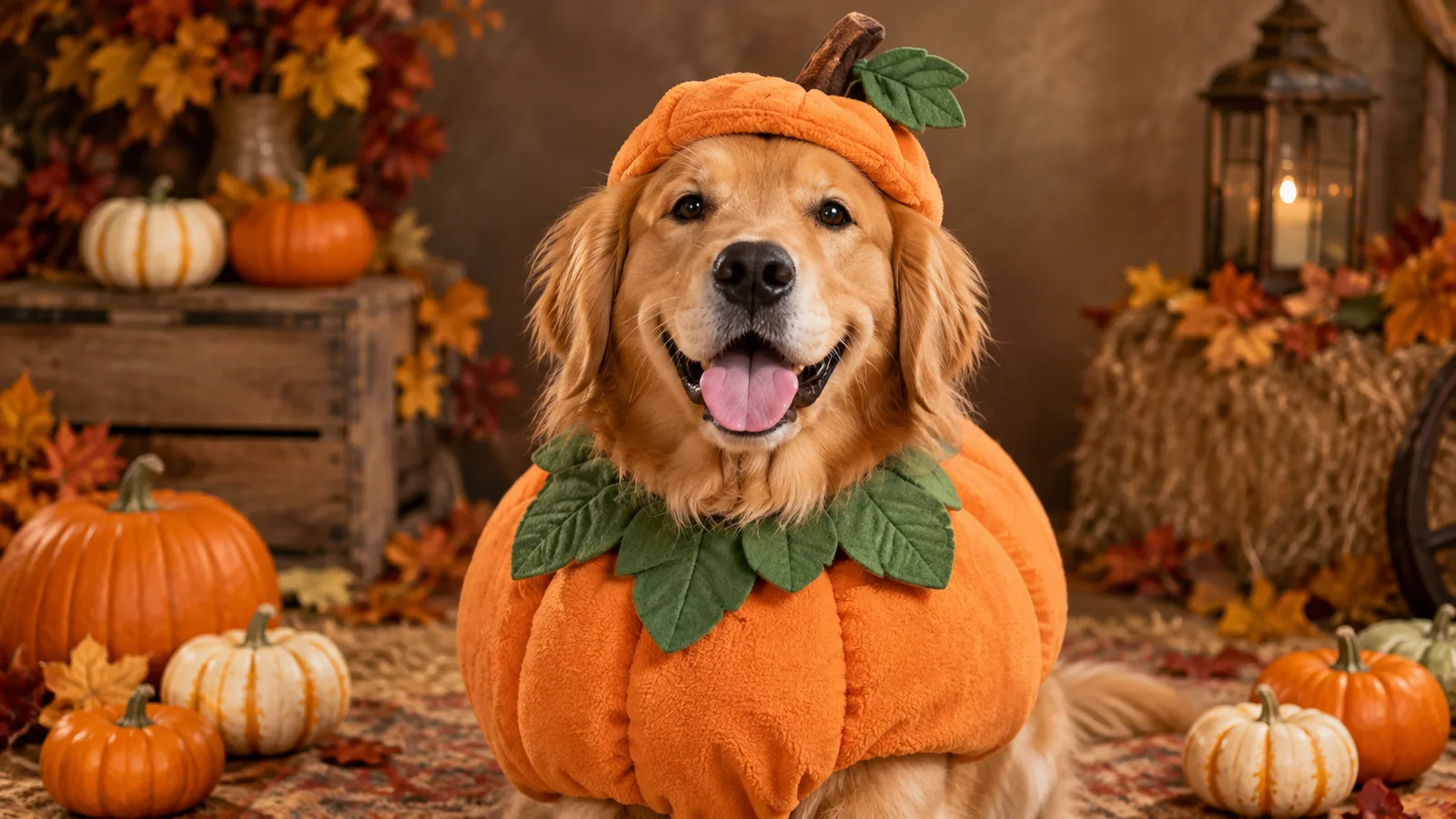
Pet portrait in a pumpkin costume with warm autumn studio light
6 presets

Choose a preset

Pick a direction, apply the prompt to the workspace, then edit one detail at a time.

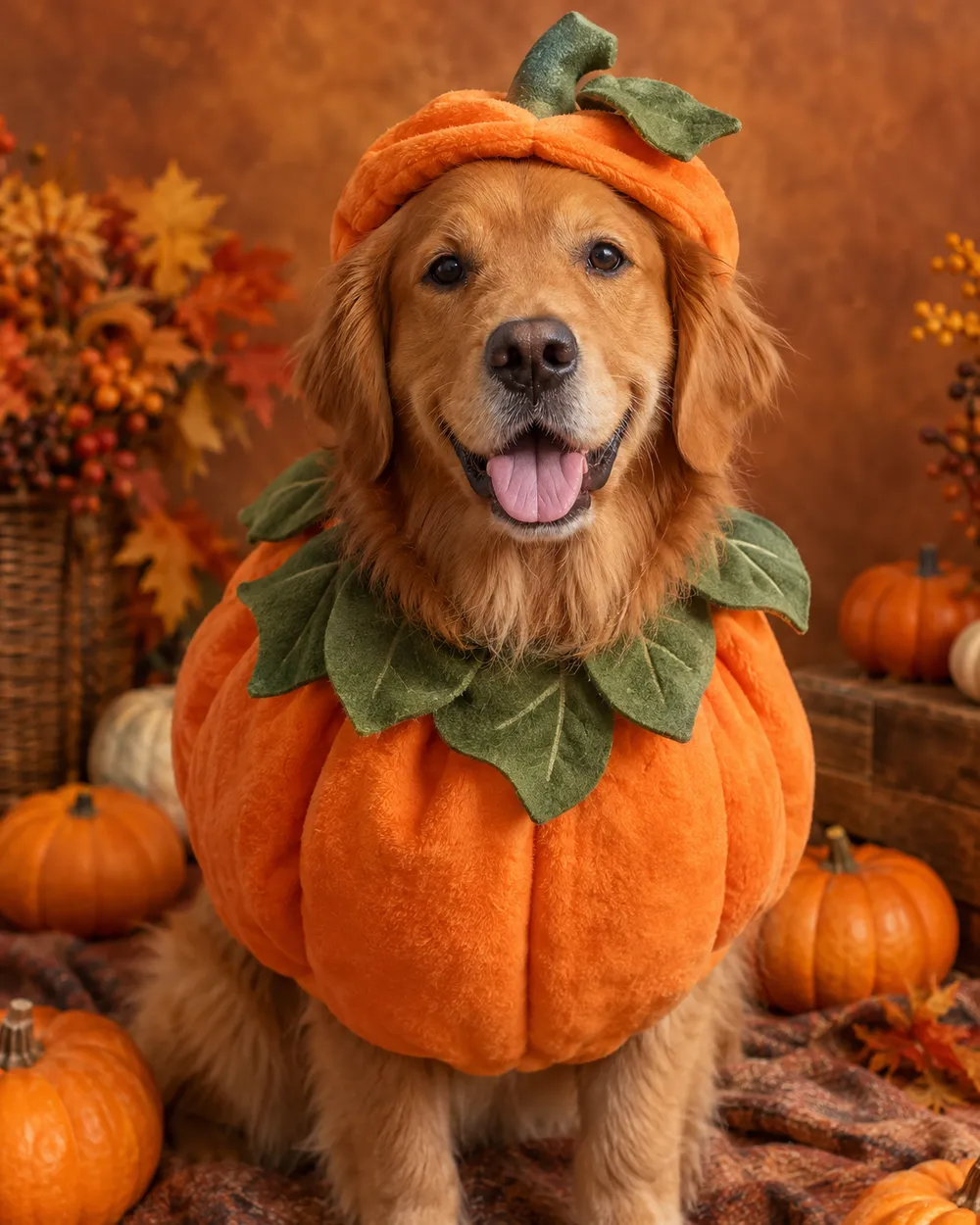
  • Pumpkin pet costume AI portrait

    Pumpkin Pet

    A soft pumpkin costume with a leaf collar.

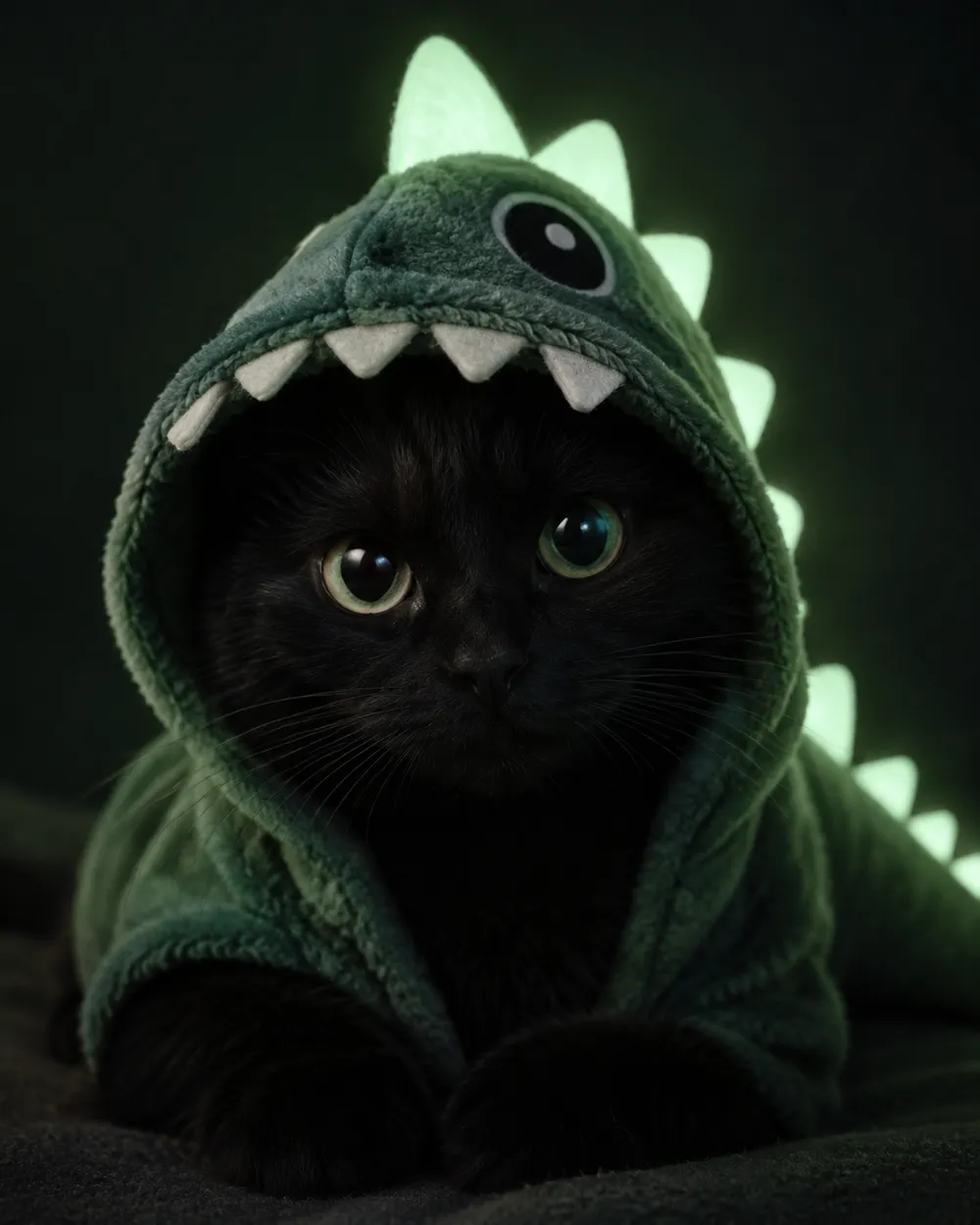
  • Glow in the dark dinosaur pet costume portrait

    Glow Dinosaur

    A gentle green glow, no harsh costume.

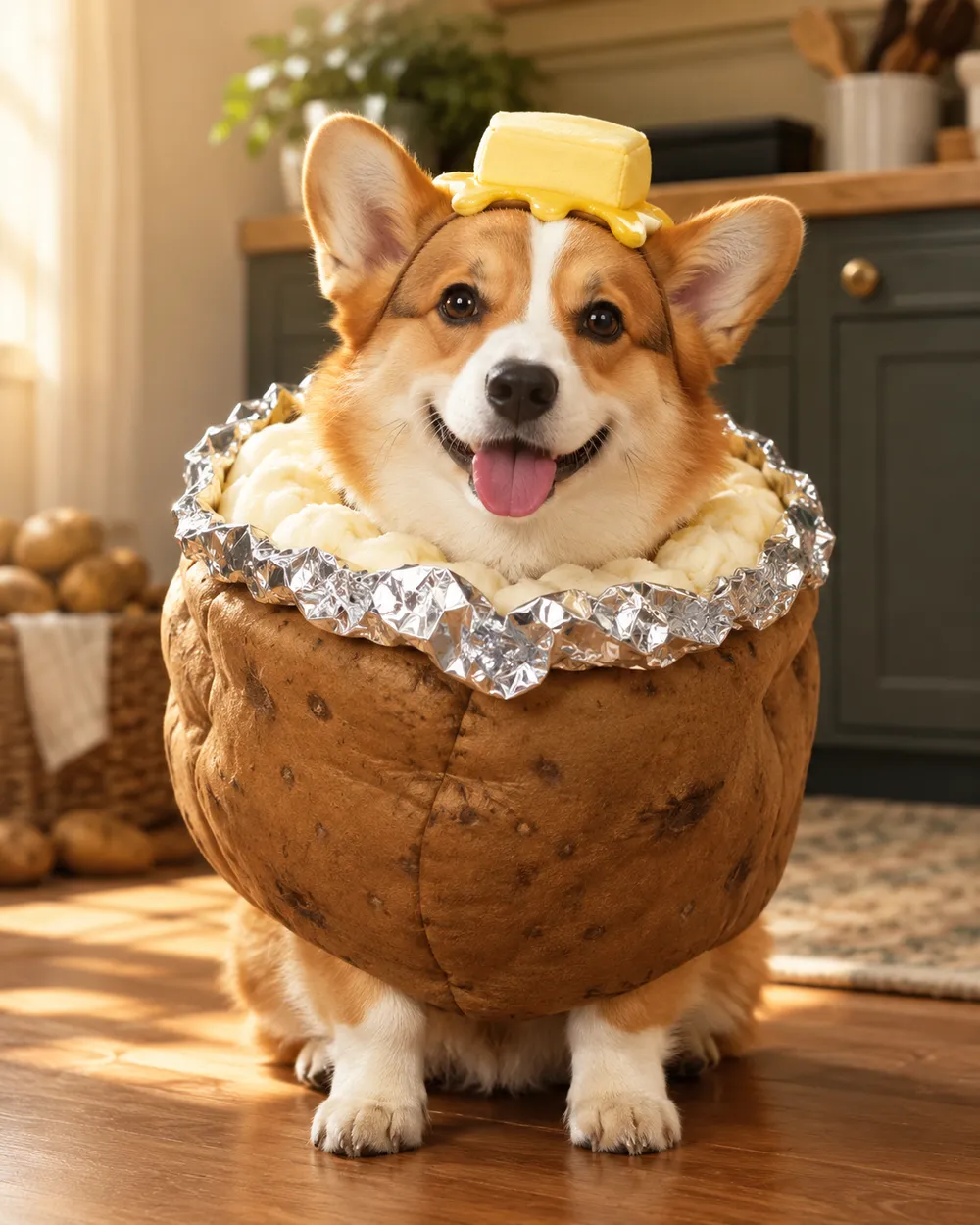
  • Baked potato pet costume AI portrait

    Baked Potato

    A playful potato costume with foil details.

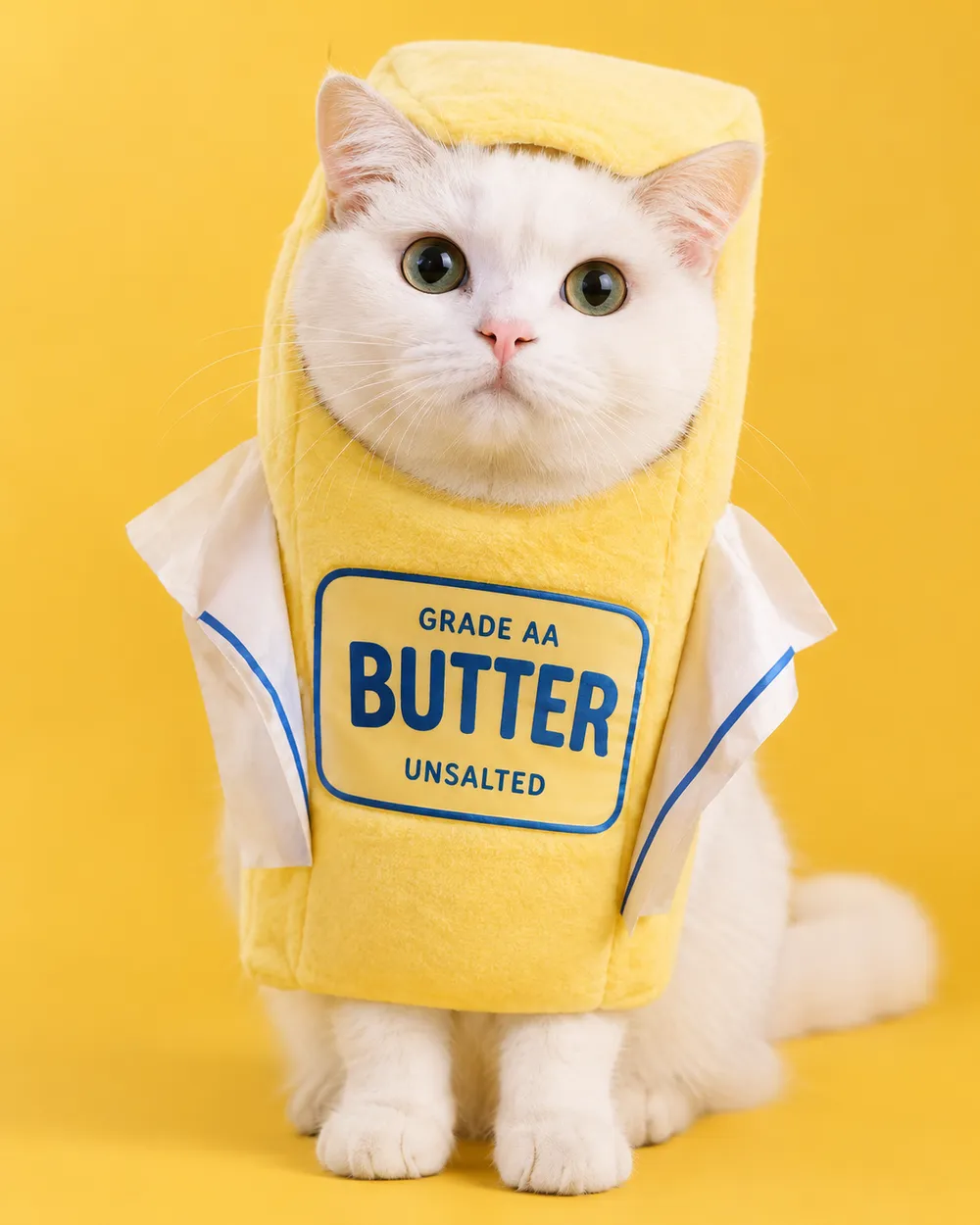
  • Stick of butter pet costume AI portrait

    Stick of Butter

    A bright yellow costume for a funny card.

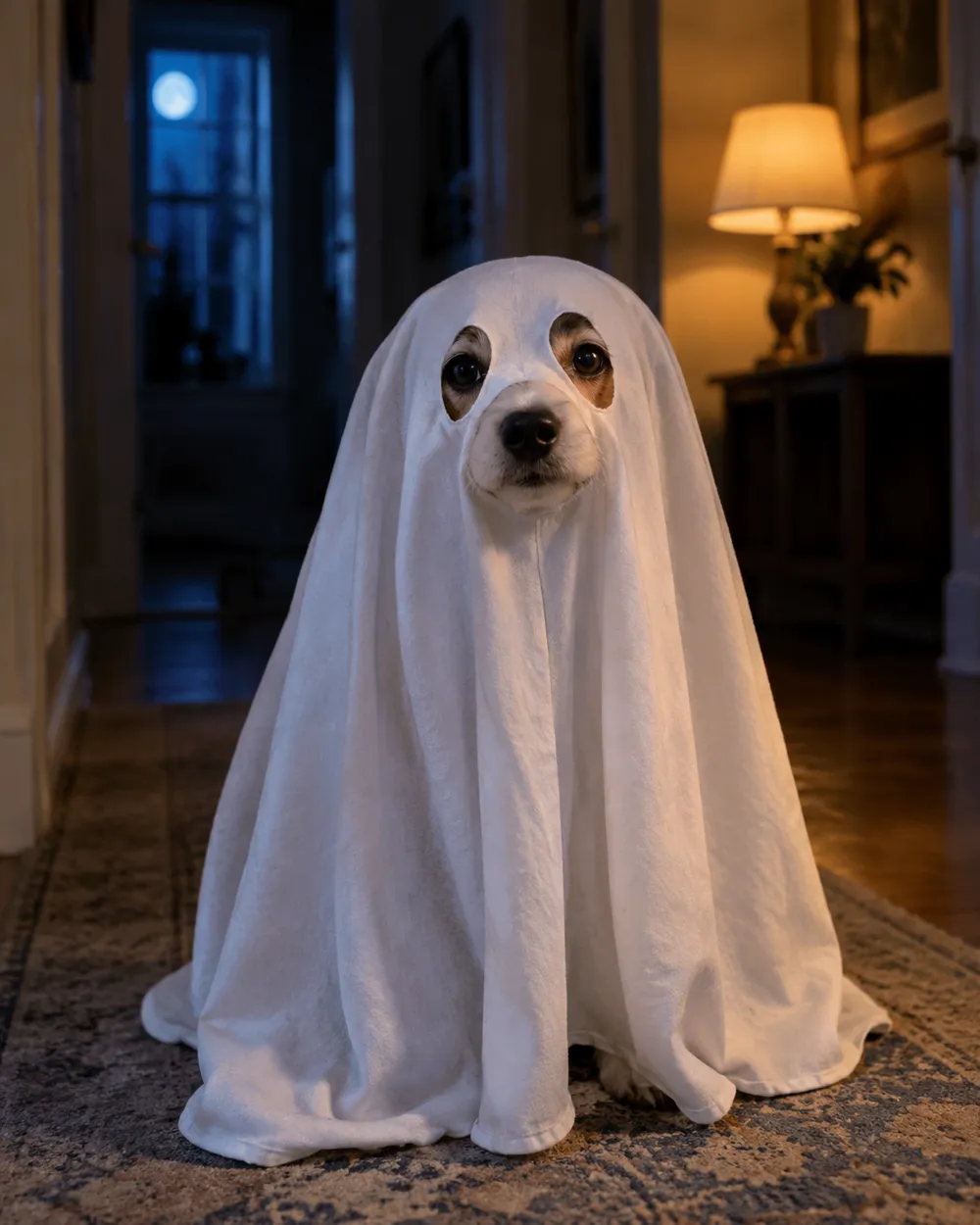
  • Tiny ghost pet costume AI portrait

    Tiny Ghost

    A soft sheet ghost with eye holes.

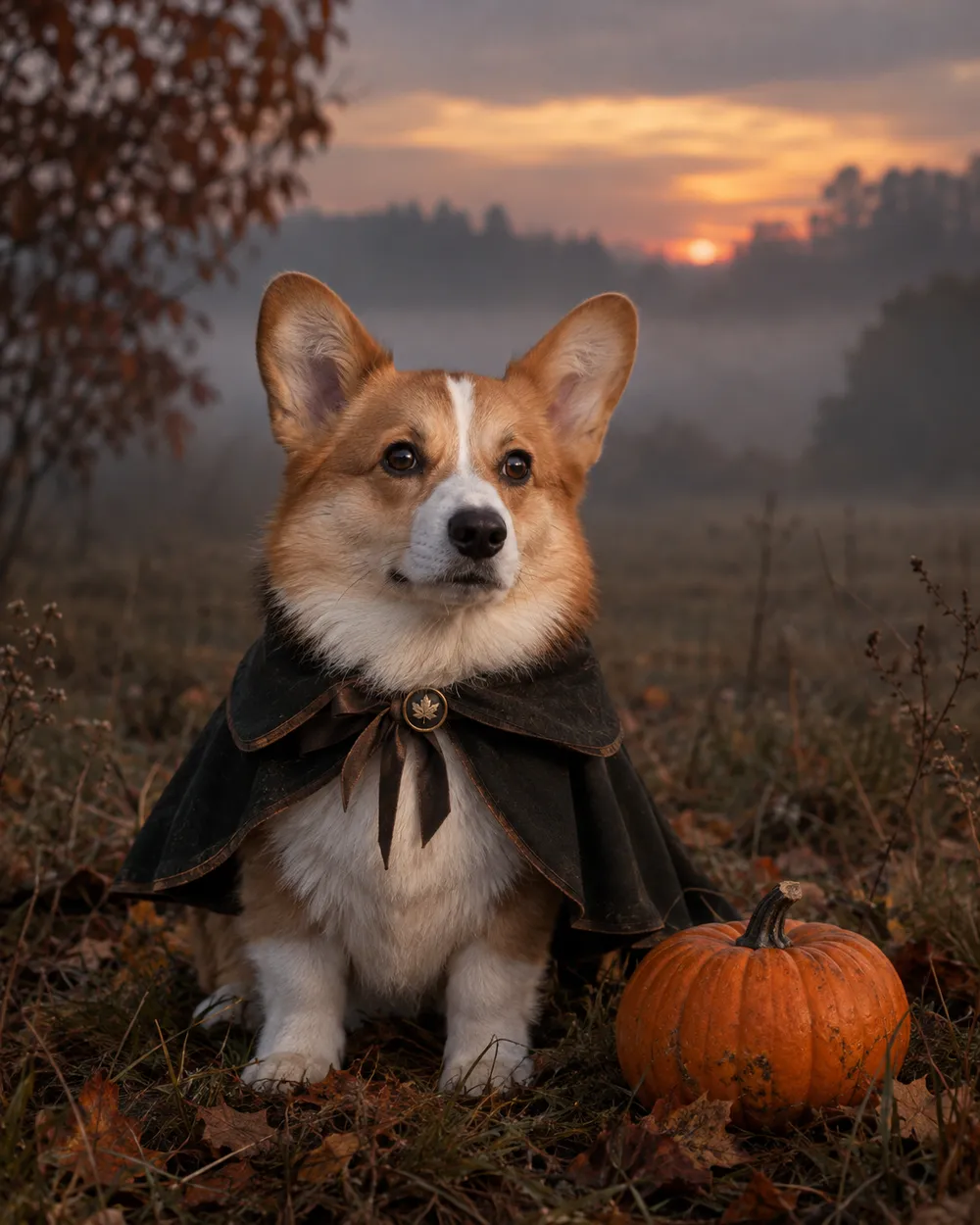
  • Headless rider inspired pet costume portrait

    Headless Rider

    A cape and a pumpkin prop, no gore.

Generation Mode

Model

Quick Select

Source Image URL

UploadWe accept JPEG, PNG or WEBP formats up to 10MB.
or
(Optional)

Cost 1 credits

0 / 4000

Resolution

Aspect Ratio

Output Format

Web Search

Allow the provider to call web search for current information when supported.

Cost 5 creditsRemaining 0 credits
Preview
SampleSample Animate AI still

A sample image stays here until you run your first generation.

How it works

  1. 1

    Choose a look

    Start from a preset or write your own direction.

  2. 2

    Upload a photo

    Use a clear, front-facing photo that you have permission to edit.

  3. 3

    Generate and refine

    Run the job, review the result, and change one variable per retry.

What to preserve in a pet portrait

The identity rules for pets are different from human portraits. Preserve breed, fur color, markings, eye color, ear shape and body proportions. Do not let the model change the species or add a second animal. Keep the costume away from the eyes and mouth so the face remains readable.

Paws are a common failure point. Ask for natural paws and avoid complex poses. A seated or standing portrait with the pet facing the camera is easier to control than an action shot.

Costume ideas that work as images

The strongest pet costumes have a simple silhouette: a pumpkin, a butter stick, a ghost sheet or a dinosaur hood. These shapes read at thumbnail size and do not require the model to invent a complex garment. A cape or a small prop can add character without covering the animal.

If you want a funny card, pair a simple costume with a deadpan expression and a clean studio background. If you want a spooky card, use a dim hallway or a misty field with a cool rim light.

Pet safety and consent

These images are generated. Do not force a real animal into a costume for a photo if it causes stress. If you use a real costume, choose a soft, loose-fitting option and supervise the animal. Never cover the eyes, mouth or nose.

Only upload a pet photo you have permission to use. If the pet belongs to a client or a friend, confirm the intended use before publishing.

Frequently asked questions

  1. 1

    Is this safe for my pet?

    The image is generated, so the pet does not wear anything. If you also use a real costume for a photo, choose a soft, loose-fitting costume and supervise the animal. Never cover the eyes, mouth or nose.

  2. 2

    Will the generator keep my pet’s markings?

    The presets ask the model to preserve breed, fur color, markings and anatomy. A clear, well-lit photo improves the result. Review the output before publishing.

  3. 3

    Can I make a glow-in-the-dark dinosaur costume?

    Yes. The Glow Dinosaur preset adds a soft green glow and a dinosaur hood without changing the species. You can edit the glow strength in the prompt.

  4. 4

    Can I generate two pets in one image?

    It is possible, but two pets are harder to control. Generate each pet separately, then combine them in an editor if you need a group card.

  5. 5

    Can I use the image on a product or listing?

    Review the Terms of Service and the model provider’s rules before commercial use. If the pet belongs to a customer, get permission first.

  6. 6

    Which pet photo works best?

    Use a front-facing photo with even light, a clear view of the face and no other animals. A simple background makes the costume edit cleaner.

Guides and prompt breakdowns

Related workflows

Start with a tested preset

Open the workspace, apply a preset, and see the credit estimate before you generate.