
Photo to Cartoon Video: The Order of Operations
Why the order matters: convert the still to a cartoon style, approve it, then animate. Plus style strength, motion vocabulary and the drift checks that catch a bad conversion.
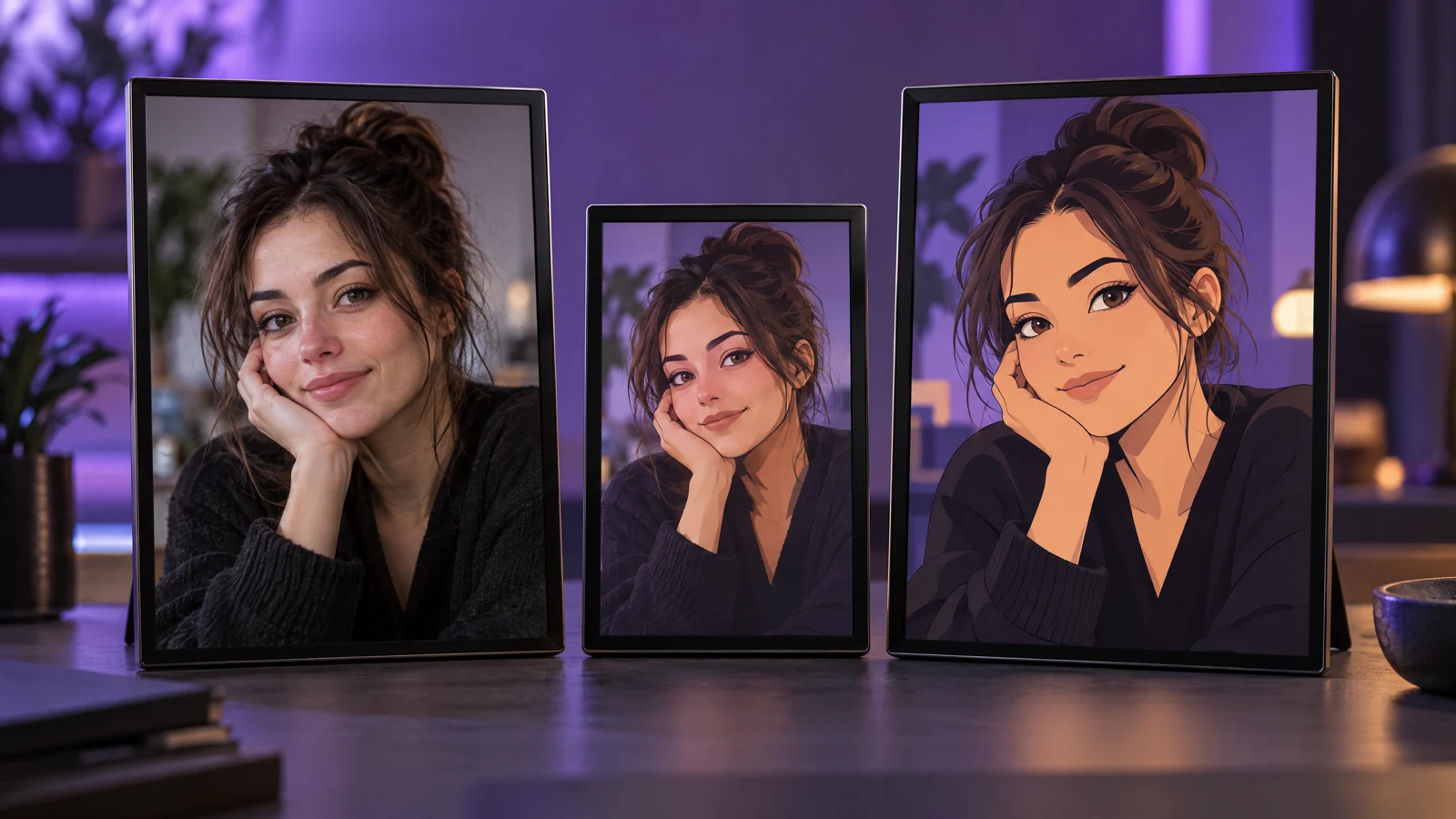
There are two ways to turn a photo into a cartoon video, and only one of them works.
Wrong order: animate the photo and ask the video prompt to make it look like a cartoon. The style flickers, the face drifts, and you cannot tell which failure came from the styling and which from the motion.
Right order: convert the still to a cartoon image first, approve that image, then animate it. Each step is checked on its own, and a bad result costs an image generation rather than a video generation.
Step 1: Convert the still
Use the image editor with the photo as the source. The prompt that holds identity best names the style and then locks the person:
Convert the uploaded photo into a clean 2D cartoon illustration with soft cel shading and a restrained palette. Keep the person's face shape, hairstyle, eye colour, clothing colours and pose exactly as in the photo. Keep the same framing and background layout. No text, no extra characters.
What to avoid in the conversion prompt:
- Studio names. "Pixar style", "Ghibli style" and similar pull in specific character designs and often a different face.
- Style stacking. "Watercolour anime with 3D shading and comic line art" produces mud.
- Big scene changes at the same time. Restyle and re-stage in separate passes.
Step 2: Approve the still before animating
Check the converted image, because video will preserve its flaws frame after frame:
- Face: still recognisably the same person, same age.
- Proportions: head-to-body ratio unchanged.
- Clothing: colours and layers kept.
- Hands: five fingers, no fused shapes.
- Background: simplified, not replaced.
If the still fails, regenerate it. Do not try to fix a wrong style in the video prompt — the video model cannot restyle consistently over time.
Step 3: Animate with cartoon-appropriate motion
Cartoons tolerate bigger motion than photos and punish warping more. Good choices:
- A bouncy walk cycle.
- An exaggerated head turn with a reaction expression.
- A cape, skirt or hair swinging.
- A camera pan across a cartoon background.
- A comic-book push-in with speed lines.
Animate the provided cartoon still. The character walks forward with a light, bouncy step, hair and jacket swinging with the motion. Keep the line style, character design, colours and proportions identical across every frame. Smooth 2D animation, no style shift, no cuts, no text.
Prompt lab
Edit a tested prompt before you generate
Pick a direction, change the details to match your source, then copy it or open the workspace with the prompt already loaded.
Stylized, still recognizable.
Browsing and copying prompts is free. Generation uses purchased credits, and the workspace shows the credit cost before you run a job.
Step 4: Watch for these four failures
- Style flicker. Half the clip looks hand-drawn, half looks 3D. Cause: the animation prompt re-describes the style. Remove style words from the video prompt; they belong in the conversion.
- Face swap. The cartoon person becomes someone else. Cause: motion too large or clip too long. Shorten.
- Line boil. Edges shimmer constantly. Cause: low-resolution source. Regenerate the still larger.
- Background morph. The room changes shape. Cause: too many objects. Simplify in the conversion step.
When to skip the two-step
If you need a cartoon of an object rather than a person — a mug, a package, a logo mark — text-to-image straight to a cartoon still is faster, and identity preservation does not matter. See the image-to-image workflow for the conversion presets.
Rights
Restyling someone else's photo does not make it yours. Use photos you have the right to use, and keep character designs original: no branded characters, no studio lookalikes. The acceptable use policy covers fan art and likeness.
Frequently asked questions
Can I keep the real face in a cartoon body?
Partly. You can keep the facial features and lose the skin texture, or keep the whole look and accept a different person. Ask for "same face shape and features" and check the result before animating.
Does the two-step cost more?
It costs one extra image generation and saves failed video generations. In practice it is cheaper, because a rejected still costs far less than a rejected clip.
Why does the cartoon version look nothing like the photo?
Usually the style words dominated the prompt. Put the identity lock first, keep the style sentence short, and reduce the style strength rather than adding more adjectives.
Was this guide useful?