
Make a Wedding Invite Video From One Photo
Turn one couple photo into a short invite clip: aspect ratio, motion that looks dignified, where the details go when the model cannot render text, and consent.
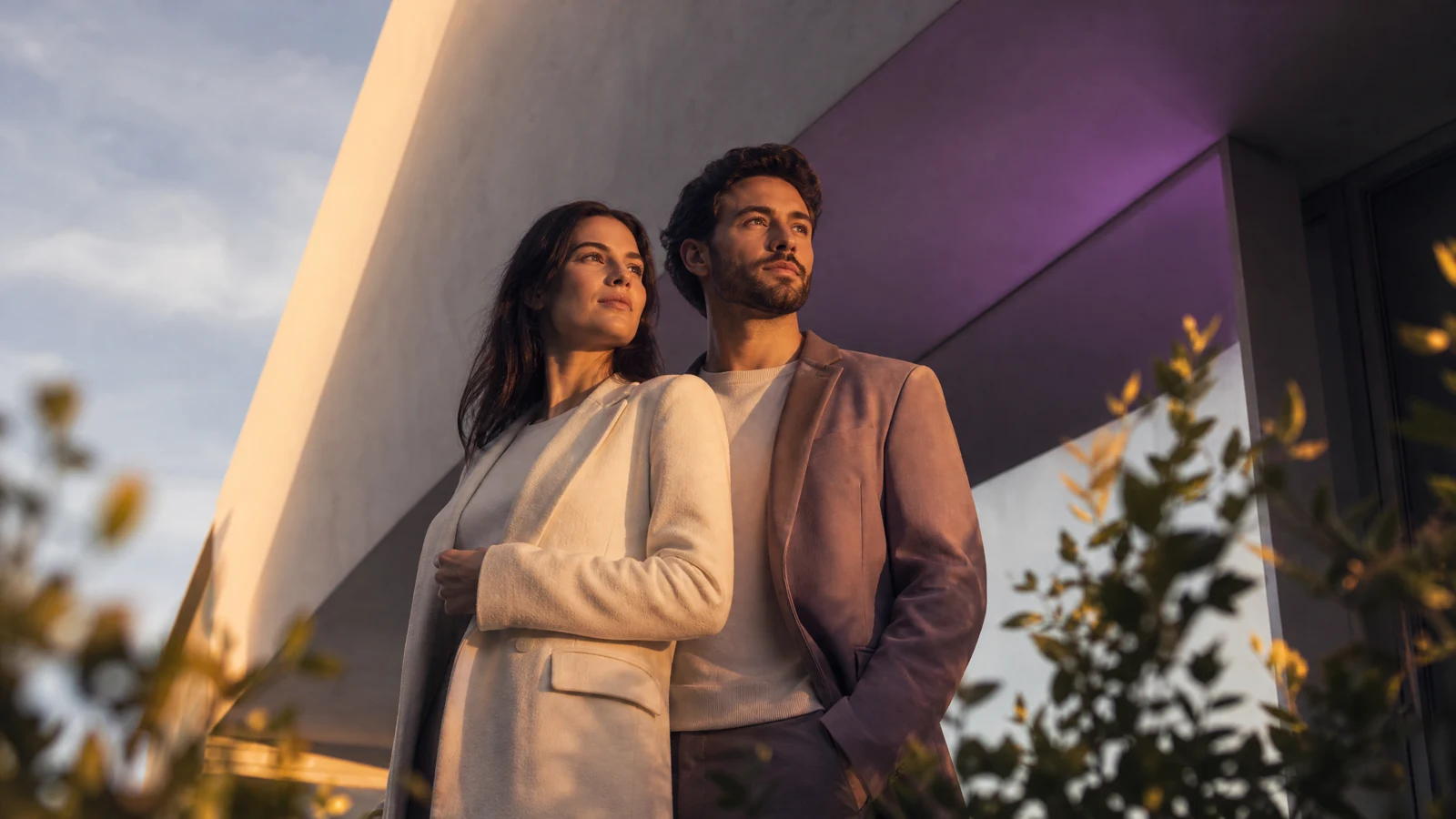
A wedding invite clip has a tighter brief than most AI video projects: it must look calm, it must not distort anyone's face, and it must fit inside a messaging app. That rules out most of the interesting motion.
This is the workflow that reliably produces something you can send. Motion presets are in the AI wedding video guide.
1. Choose the photo like a photographer
- Both people, fully in frame, faces clearly visible.
- One light direction. Indoor window light is ideal; mixed flash and tungsten is not.
- Formal or semi-formal clothing reads as an occasion without extra prompting.
- Clean background. A messy room will be in every frame of the clip.
- No heavy filters. Smoothing breaks face identity faster than noise does.
A vertical photo is a gift here: it already matches the phone screen you are sending to.
2. Pick the format before the motion
- 9:16 for WhatsApp, Instagram stories, and anything watched on a phone.
- 16:9 only if the clip is going into an email banner or a website header.
- Square if the same file must survive both.
Short is correct: four to six seconds, one slow camera move, no cuts.
3. Keep the motion dignified
Good motion for an invite:
- A slow push-in on the couple.
- A gentle lateral drift with soft foreground blur.
- Fabric and hair moving in a light breeze.
- Light shifting across the faces, warm to gold.
Bad motion for an invite:
- Spins, jumps, dance steps.
- Anything that changes clothing.
- Fast camera moves that blur the faces.
- Extra people appearing in the background.
Animate the uploaded couple photo with a very slow, steady camera push-in. Hair and light fabric move gently in a light breeze. Warm late-afternoon light shifts softly across the scene. Keep both faces, clothing and background exactly as in the photo. Calm, elegant mood, no cuts, no extra people, natural anatomy, no text.
Prompt lab
Edit a tested prompt before you generate
Pick a direction, change the details to match your source, then copy it or open the workspace with the prompt already loaded.
A quiet turn and a smile.
Browsing and copying prompts is free. Generation uses purchased credits, and the workspace shows the credit cost before you run a job.
4. Put the details outside the clip
Video models still garble lettering, and a wrong date on an invite is worse than no date. Keep the clip purely visual and put the information where it belongs:
- The date, venue and RSVP link in the message text.
- A designed caption or lower-third added in an editor.
- A second still image with the details set in clean type.
This is not a limitation to work around; it is the reliable division of labour.
5. Check before you send
- Both faces are the same people, at the start and the end.
- Hands and rings are plausible.
- Nothing in the background appeared or vanished.
- The clip loops or holds on the last frame without a jump.
- The file plays on a phone with the sound off.
6. Consent and etiquette
- Get permission from both people in the photo before generating.
- Do not use a photo of someone else's wedding.
- If you are sending it to guests, say it was made with AI. Guests notice, and the honest version is a nicer surprise.
- The acceptable use policy applies; so does the refund policy if a generation fails.
Frequently asked questions
Can I add our names and the date inside the video?
Not reliably. Generated lettering is often wrong, and a misspelled name in a wedding invite is unrecoverable. Add text in an editor or in the message itself.
How long should a wedding invite clip be?
Four to six seconds. It is long enough to feel like a moment and short enough to send without compression damage.
Can I use the same clip for the ceremony screen and stories?
Export two aspect ratios from the same source photo rather than cropping one clip into two. Cropping after generation cuts faces at the edges.
Was this guide useful?