
How to Animate a Photo With AI: The Six-Step Loop
One loop that turns any still into a clip you can publish: source check, framing, motion sentence, guards, review, and one change per retry.
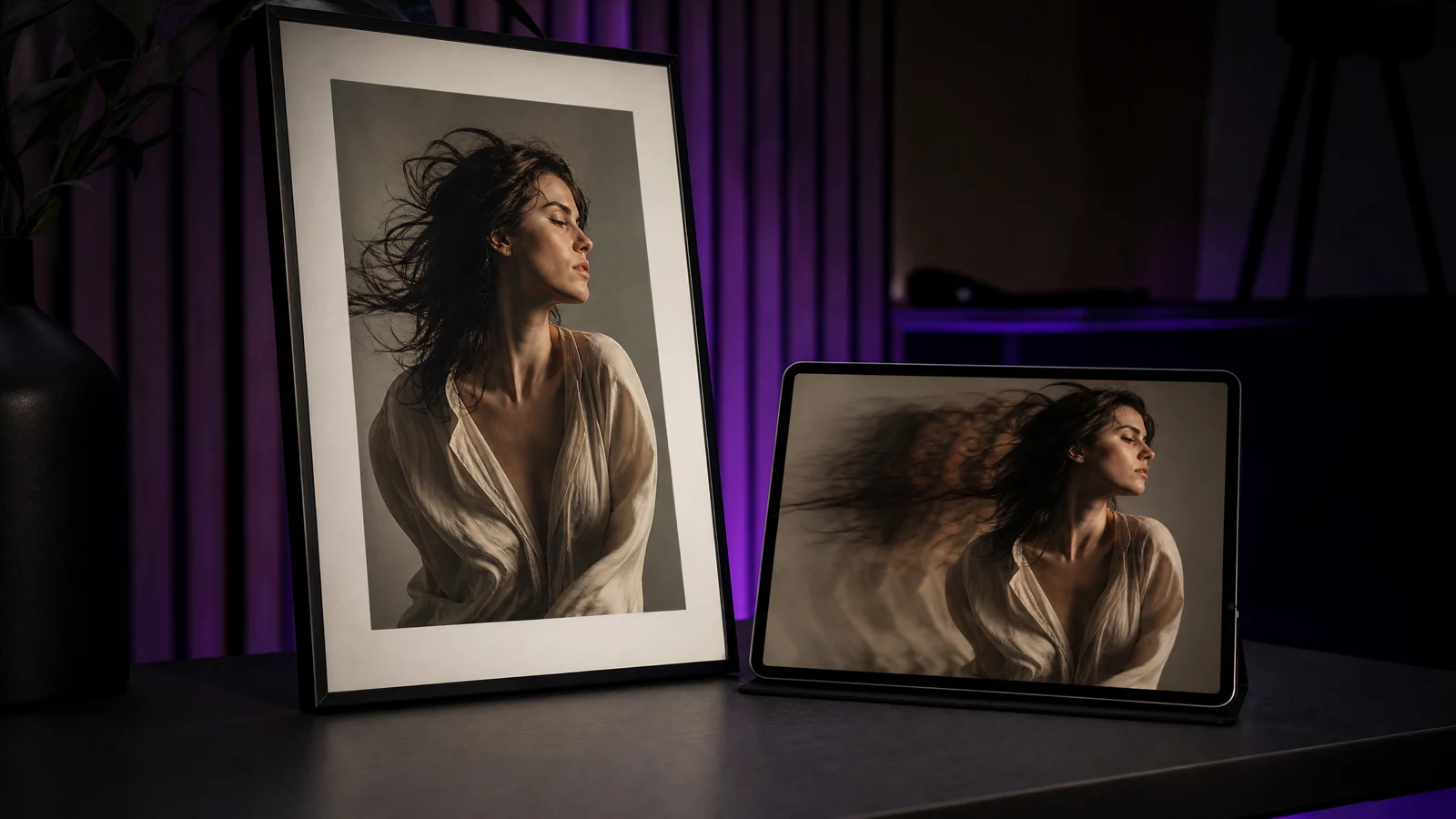
Most bad AI photo animations are not model failures. They are process failures: a photo that could never move, three motions asked for at once, a clip generated at the wrong aspect ratio, and no check before the sixth retry.
This is the loop that removes those four mistakes. It takes one photo to one clip in about ten minutes, and it works with the image-to-video guide open in a second tab.
Step 1: Pick a photo that can move
A still that animates well has four properties:
- One clear subject, not a crowd.
- The full body inside the frame if you want body motion.
- Front or side light, no heavy backlight.
- Separation between the subject and the background.
Check the hands and the hairline in the source at 100% zoom. Any distortion there will be the first thing the model exaggerates. If the photo is compressed, blurry, or heavily filtered, generate from a different photo rather than spending credits on a repair job.
Step 2: Choose one motion, not a scene
Write down the single change you want to see. One of:
- A camera move (push-in, lateral pan, orbit).
- A body motion (head turn, blink, step, wave).
- An environmental motion (wind, rain, drifting light).
One. If you want two, generate two clips and cut them together. A prompt that asks for a head turn, a camera push and falling leaves at the same time usually delivers three half-finished motions and a warped jaw.
Step 3: Write the prompt in four parts
Every reliable prompt on this site has the same skeleton:
- Reference lock. "Use the uploaded photo as the exact starting frame. Keep the face, outfit and background layout unchanged."
- Motion. "A slow, steady camera push-in."
- Texture. "Hair and fabric move slightly in a light breeze."
- Guards. "No cuts, no text, no extra people, stable anatomy."
Prompt lab
Edit a tested prompt before you generate
Pick a direction, change the details to match your source, then copy it or open the workspace with the prompt already loaded.
A calm dolly toward the subject.
Browsing and copying prompts is free. Generation uses purchased credits, and the workspace shows the credit cost before you run a job.
The lab above loads three tested presets. Copy one, change the motion sentence, keep the other three parts exactly as they are. The reference lock and the guards are what stop drift; they are not decoration.
Step 4: Match the output to where it will be used
- 9:16 for stories, reels and shorts.
- 16:9 for a landing page hero or a YouTube pre-roll.
- 1:1 for feed placements that crop both ways.
- 3:4 / 4:3 when the source photo already has that shape — cropping less in the prompt means less invented content at the edges.
Longer is not better. Three to five seconds loops cleanly, loads fast, and stays inside the autoplay limits of most platforms. Reserve longer clips for shots with a real camera move.
Step 5: Generate one clip and stop
Watch the first result once, in full, before generating again. Then run this pass list:
- Face: same person, same expression direction.
- Hands and fingers: five per hand, no extra joints.
- Edges: no shimmer along hair, glasses or shoulders.
- Background: no invented objects, no duplicated furniture.
- Text: no generated letters or logos you did not ask for.
If three or more pass, the clip is usable. Fix small issues in the edit, not in another generation.
Step 6: Fix in the right order
When the result fails, change one variable per retry — in this order:
- Shorten the clip. Most instability is late-clip drift.
- Reduce the motion. "Slow push-in" instead of "fast zoom".
- Re-read the source. Distorted hands in the still cannot be repaired by a prompt.
- Simplify the background. Fewer objects, fewer chances to melt.
- Add a negative guard. "No warping, no extra limbs, no text."
- Raise input quality. A clean, higher-resolution source beats any adjective.
Do not add "8K, masterpiece, ultra detailed". Those words do not fix anatomy, and they cost the same as a useful instruction.
When not to animate the photo
Skip image-to-video when the photo is a group shot with overlapping bodies, when the subject is smaller than a third of the frame, or when the message depends on readable text inside the image. In those cases a still with a text overlay is both cheaper and more reliable.
Generation uses purchased credits and the workspace shows the estimate before a job starts. Browsing prompts and presets is free, and the browser tools that trim or convert the finished clip run locally without an account.
Frequently asked questions
How long does one clip take to generate?
A few seconds of video is usually ready in a couple of minutes. Queue time varies with load; the workspace shows the job status, so you can leave the tab.
Can I animate a photo of a person I do not know?
Only with their permission. Uploading a real person's photo and publishing the result is a rights and privacy question, not a technical one. The acceptable use policy applies.
Why does the face change at the end of the clip?
Usually the clip is too long for the amount of motion described. Shorten it, and keep the identity sentence at the start and end of the prompt.
Was this guide useful?