
AI Video Effects That Survive Compression
Which effects keep their detail when a platform re-encodes your clip, which collapse into mush, and how to pre-compensate before uploading.
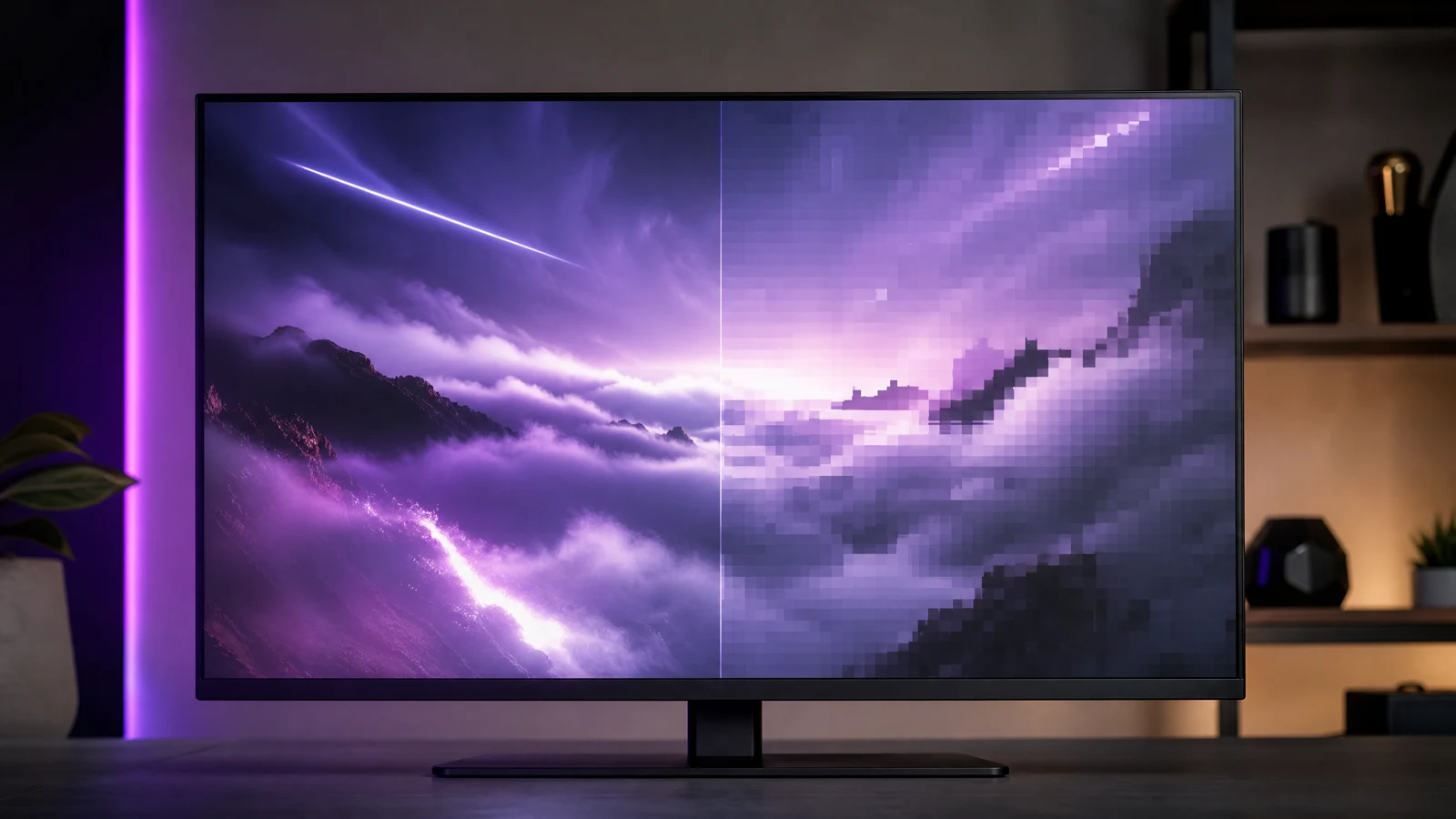
An effect can look perfect in the workspace preview and fall apart the moment the platform re-encodes it. Sparkles become noise, thin light streaks smear into grey bands, and confetti turns into coloured mush. The clip did not get worse; the bitrate did.
This is how to choose effects that hold up, and how to test them before you post. The effect presets live in the AI video effects guide.
Effects that hold up
- Lighting changes. Colour shifts, a warm sunset wash, a cooler shadow side. Low-frequency, survives everything.
- Camera moves on a detailed subject. Push-ins, orbits and pans keep the eye busy while the encoder spends bits on the subject.
- Weather with large shapes. Heavy rain streaks, drifting fog, snow at scale. Big shapes compress well.
- Depth blur. Foreground and background separation is cheap to encode and reads as expensive.
- Slow motion. Fewer changes per second means fewer prediction errors.
Effects that break
- Fine sparkles and glitter. High-frequency detail is exactly what the encoder discards first.
- Thin light rays and lens flares. Lines thinner than a few pixels turn into banding.
- Rapid flicker or strobing. Frames get merged, and the effect becomes a pulsing grey wash.
- Small text or symbols in the scene. They garble even before compression.
- Confetti and dust storms. Thousands of small moving objects are the worst case for inter-frame prediction.
Pre-compensate in the prompt
You can make an effect survive by making it bolder than you want:
- Ask for larger, slower versions of particles instead of many small ones.
- Raise contrast on lighting effects: "strong warm rim light" beats "subtle glow".
- Keep the subject large in frame so the encoder protects it.
- Prefer one strong effect over three weak ones.
- Avoid effects that depend on 1–2 pixel detail at 720p.
Re-encode before you post
Most platforms re-encode everything. Testing on your own re-encode predicts the damage:
- Export the clip at the resolution you will upload.
- Re-encode it once at a lower bitrate, or send it to yourself through the same app you will post to.
- Watch it on a phone screen, not a monitor.
- Compare the first second and the last second — drift and banding appear at the edges.
If the effect still reads on a phone after one extra encode, it will read in the feed.
Format choices that buy headroom
- 720p over 480p when the clip is for a feed; most platforms cap the upload anyway.
- Higher bitrate at the same resolution beats a larger frame that gets re-compressed.
- Short clips. A five-second clip at a given bitrate looks better than a fifteen-second one.
- Keep the source. Re-exporting from the original each time avoids generation loss.
The browser tools trim, convert and resize locally, so you can make a few test encodes without spending credits or uploading anything.
Prompt lab
Edit a tested prompt before you generate
Pick a direction, change the details to match your source, then copy it or open the workspace with the prompt already loaded.
Stretch a moment without warping it.
Browsing and copying prompts is free. Generation uses purchased credits, and the workspace shows the credit cost before you run a job.
A prompt pair for the same shot
Fragile:
Add magical sparkles and tiny glitter particles floating around the subject, with a thin lens flare crossing the frame.
Durable:
Add a slow, strong warm glow behind the subject and large drifting dust motes lit by it. Soft shadows move across the face. No small particles, no lens flare, no text.
The durable version names larger shapes and removes the two fragile elements. It also tells the model what should move, so the glow is not a static overlay.
When the effect is the whole point
If the effect cannot survive compression, change the medium instead of the bitrate: export the clip as a still sequence and animate the effect in an editor, or use a still image with a CSS/canvas effect on the page. Generated video is for motion, not for pixel-perfect particles.
Frequently asked questions
Do I lose quality by generating at 480p then uploading?
Yes, twice: once at generation and once when the platform re-encodes. Generate at the highest resolution available for anything that will be watched on a phone.
Can I fix banding after the fact?
Only partly. Slight grain or a dithering pass can mask banding; nothing restores detail that was discarded. Prevent it in the prompt instead.
Which effect looks most natural in AI video?
Lighting changes and camera moves. Both are low-frequency, both are things the model already understands from photography, and both compress without visible damage.
Was this guide useful?