メインコンテンツへ移動
季節のプリセットパック

AIアニメ動画ジェネレーター

完成したアニメの静止画を、キャラクターデザインと線画を守る小さく制御された動きでアニメーション化します。

アニメの静止画を5秒のクリップに。首振り、カメラパン、舞う花びらなど6つのモーションプリセットで線画を保ちます。

  • ブラウザで動作、インストール不要
  • 安全な決済
  • 有料書き出しは透かしなし

生成には購入済みクレジットを使用します

Anime-style still animated with a slow camera pan and falling petals
6 presets

プリセットを選ぶ

方向性を選び、プロンプトをワークスペースに適用して、一度に1つの詳細だけを編集します。

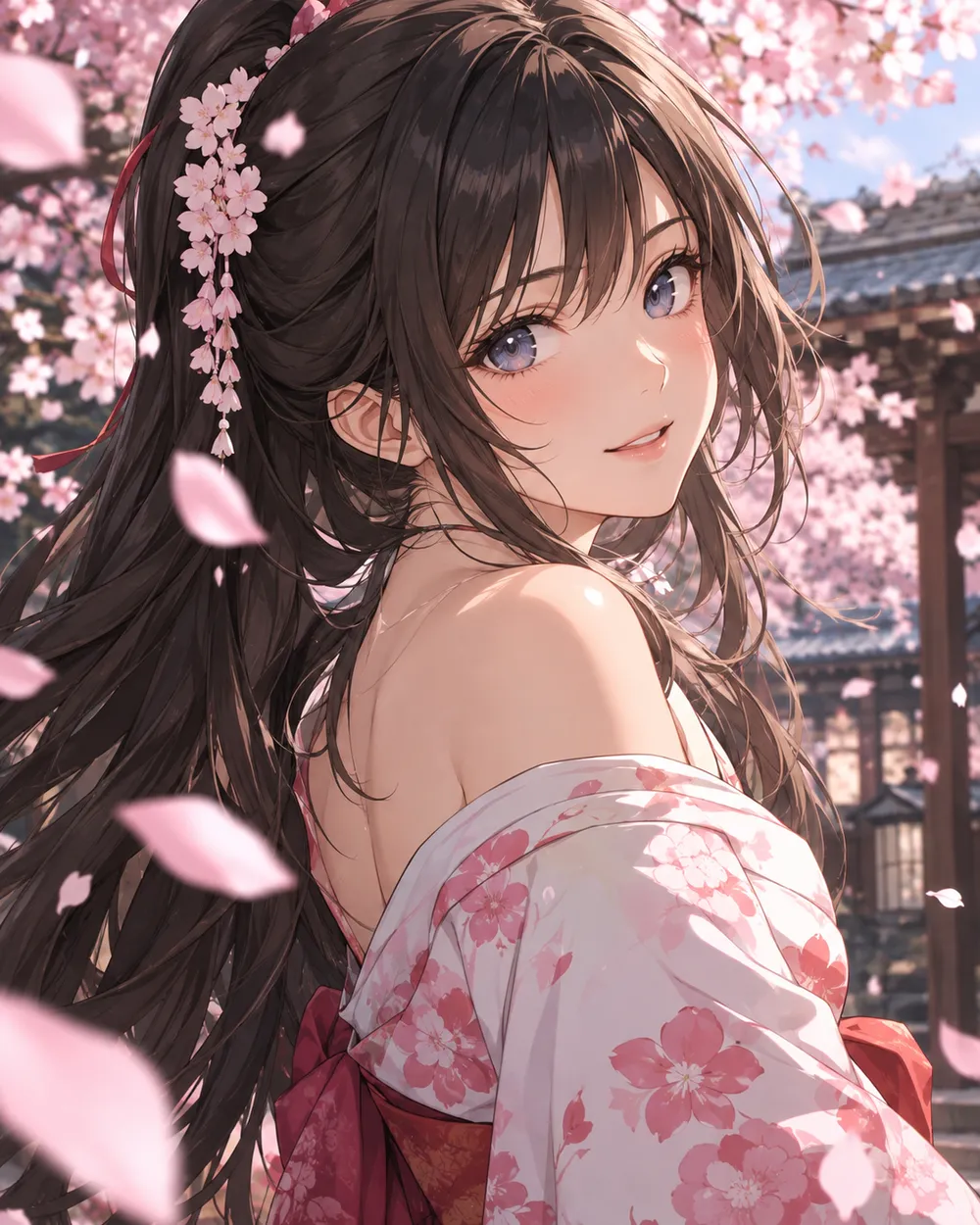
  • Cherry blossom anime AI video preset

    Cherry Blossom Turn

    A slow turn with falling petals.

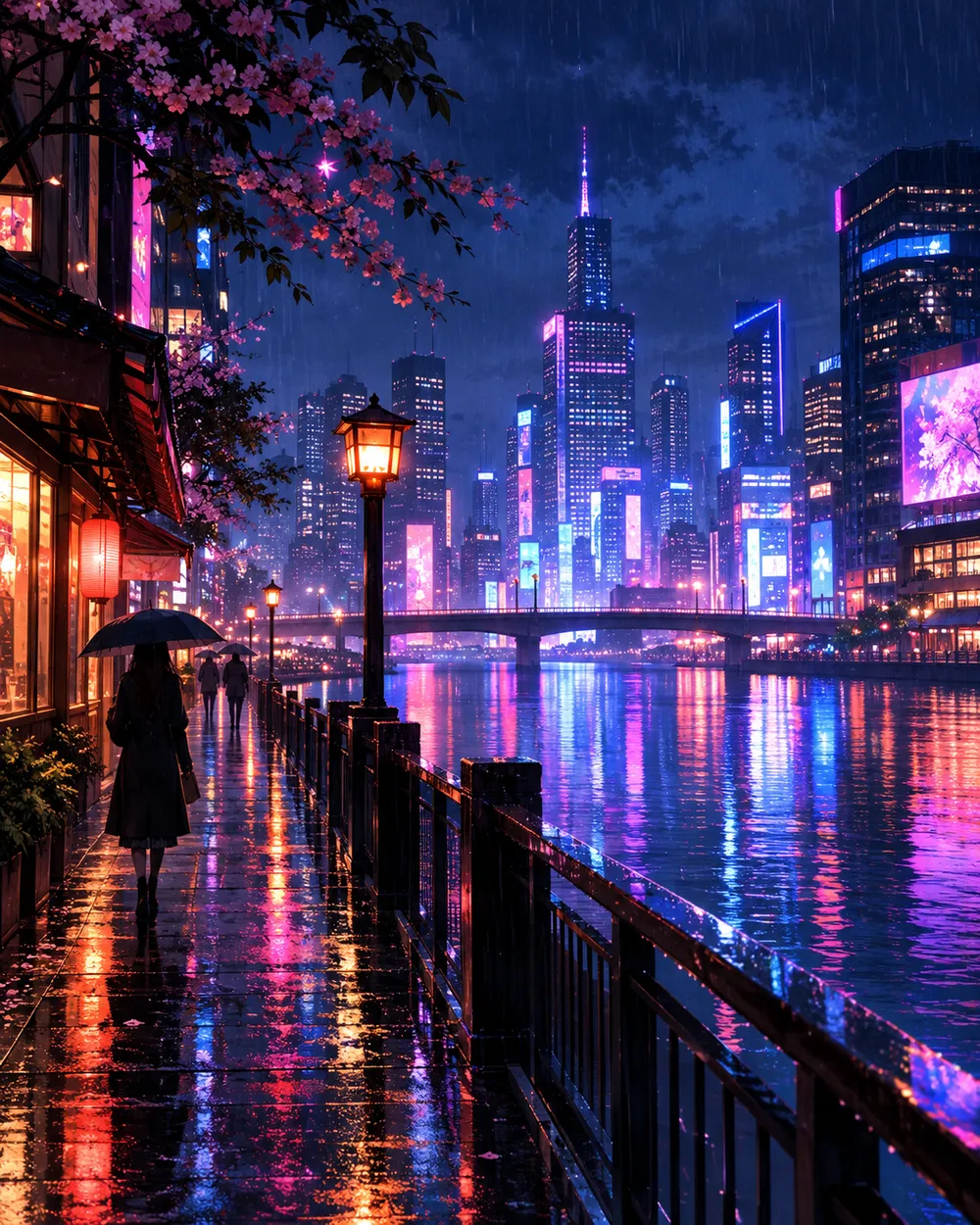
  • Neon city anime AI video preset

    Neon City Pan

    A lateral pan across a rainy skyline.

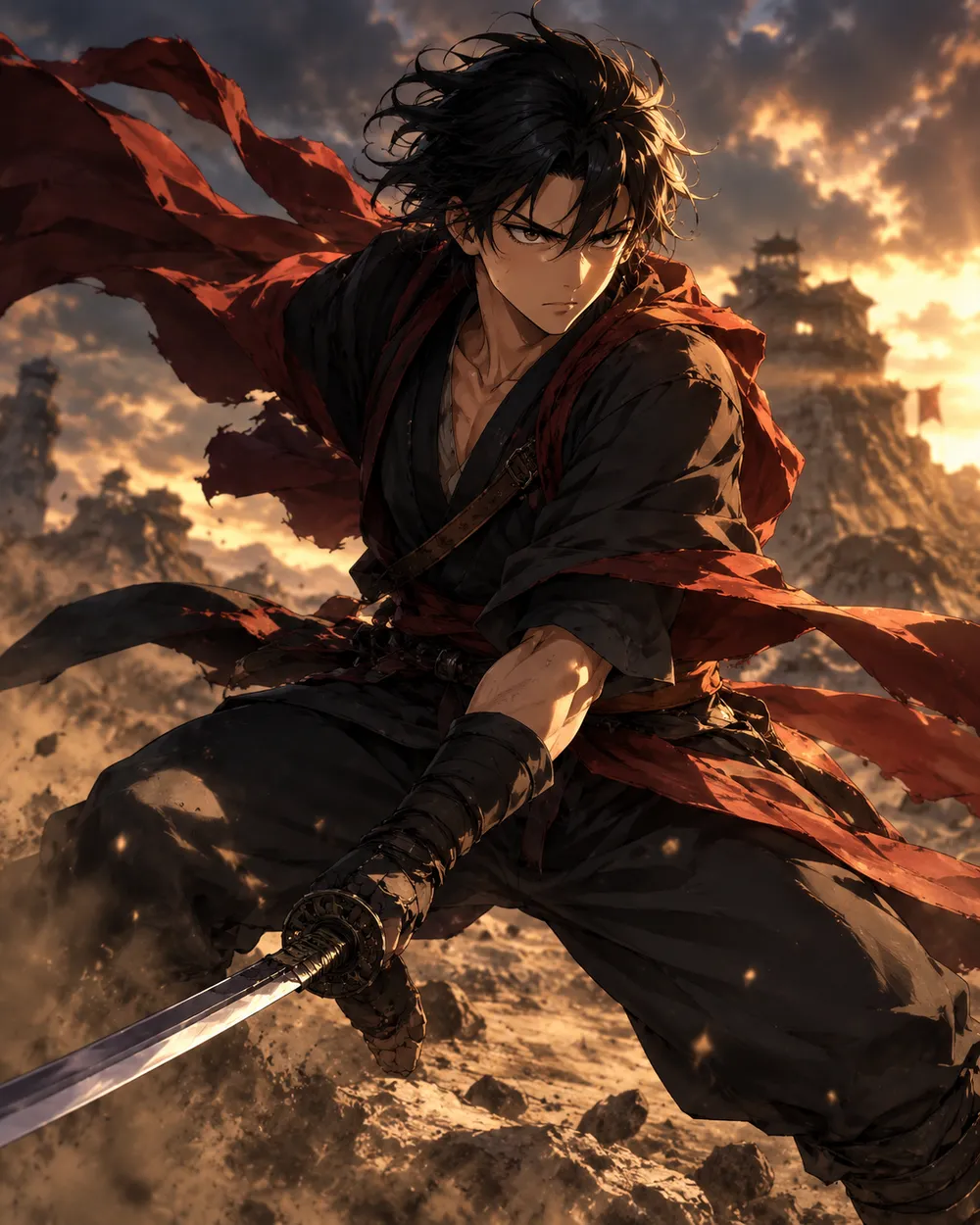
  • Battle stance anime AI video preset

    Battle Stance

    Hair and fabric move; the pose holds.

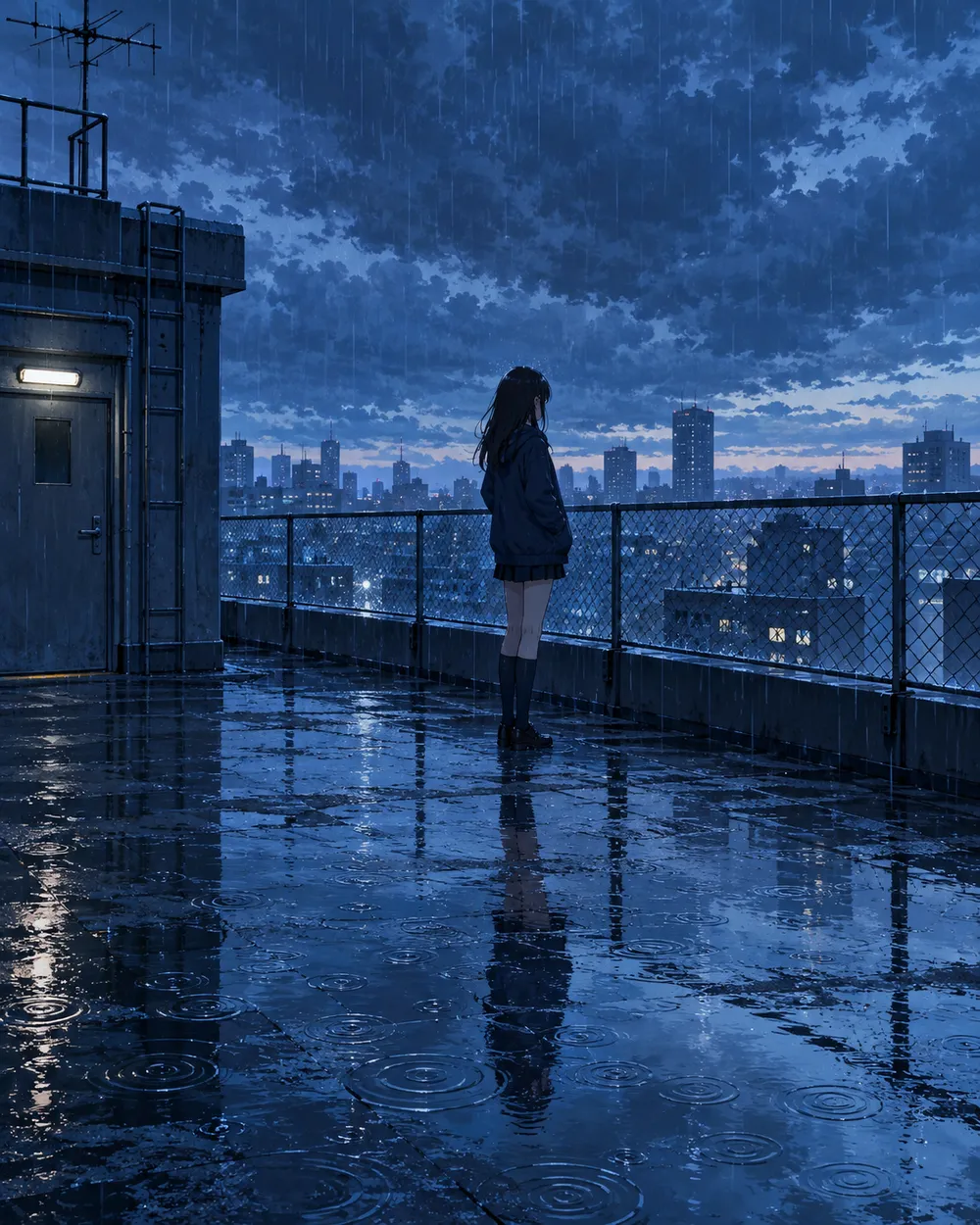
  • Rainy rooftop anime AI video preset

    Rainy Rooftop

    Rain, reflections and a still character.

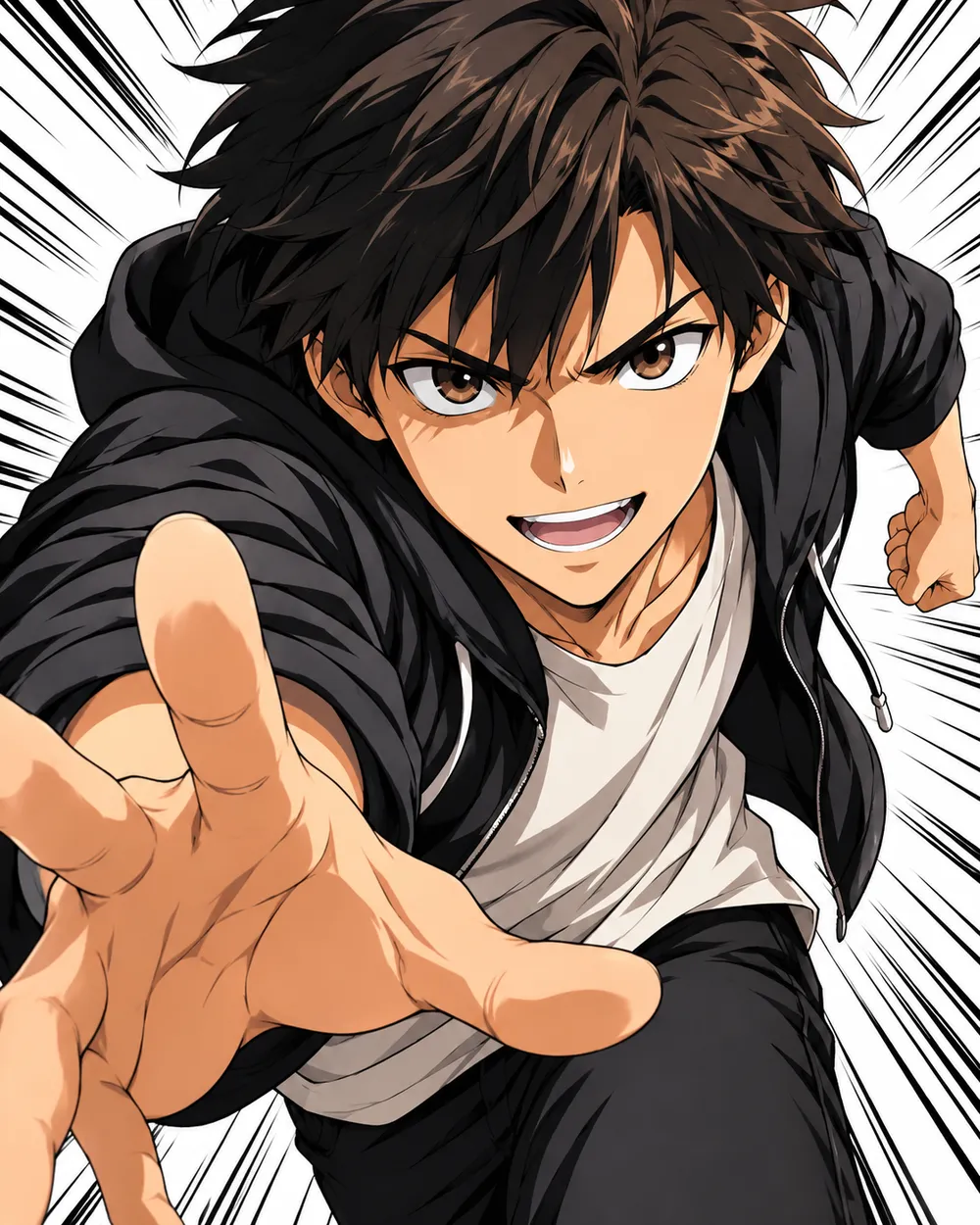
  • Manga speed lines anime AI video preset

    Manga Speed Lines

    A dramatic push-in with speed lines.

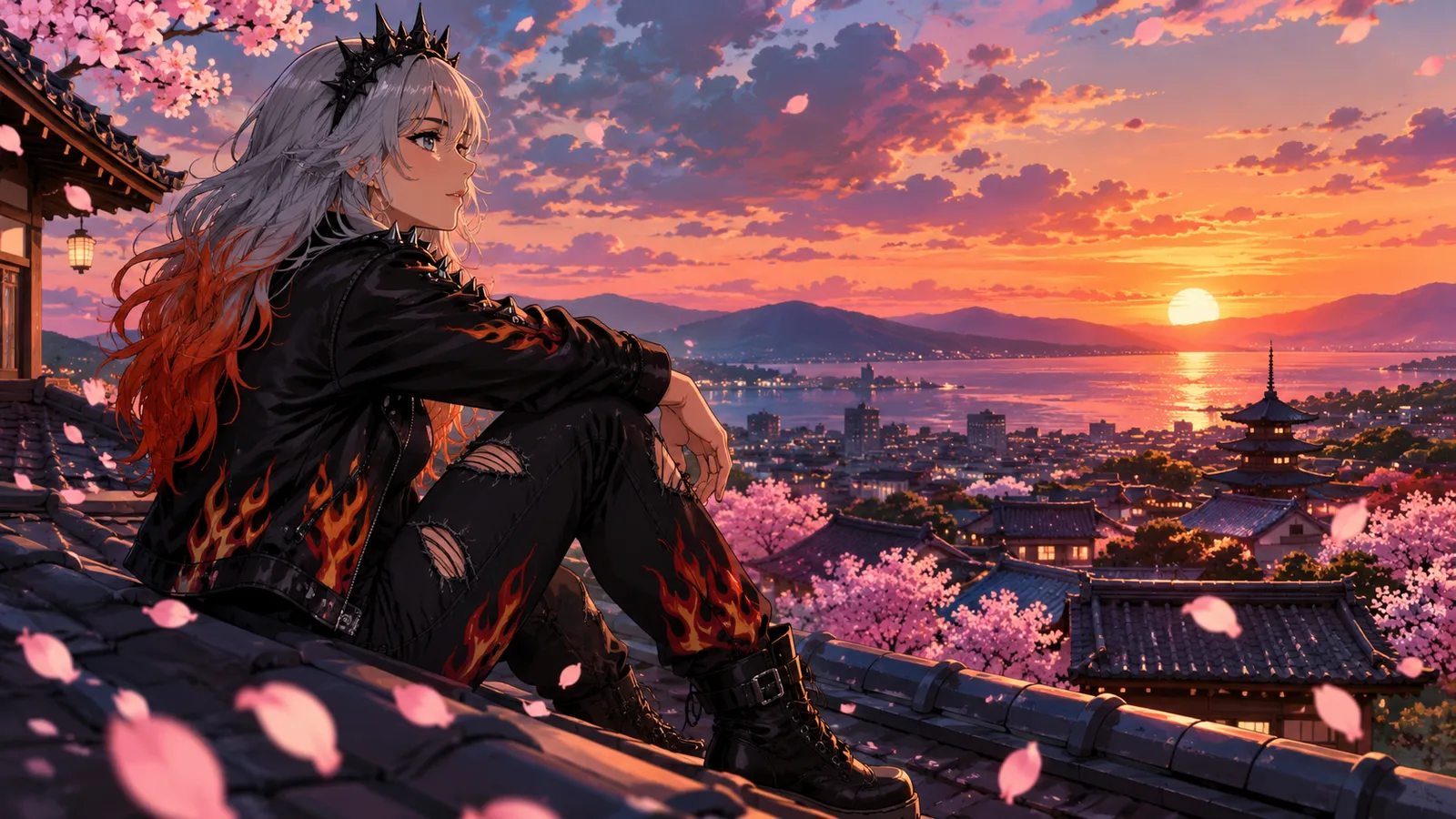
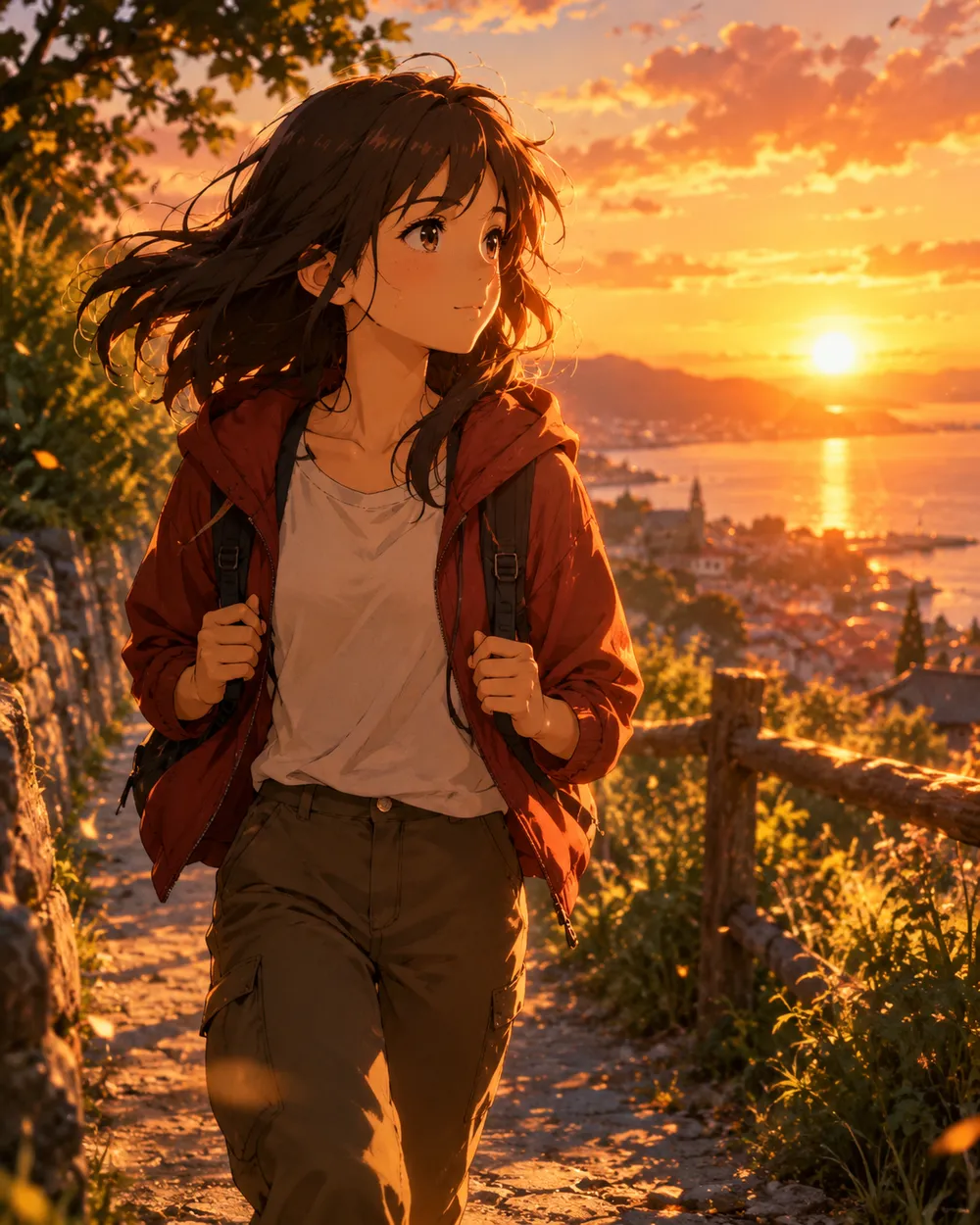
  • Sunset walk anime AI video preset

    Sunset Walk

    A slow tracking shot at golden hour.

動画ジェネレーター

最初のフレームをアップロードするか、公開された画像のURLを1つ貼り付けてください。非公開や共有ページのリンクは利用できません。

(任意)

動きを特定のショットで終わらせたい場合は、終了フレームをアップロードするか公開URLを貼り付けてください。

費用: 1 クレジット

0 / 2000

カメラプリセット

プロンプトにカメラ方向を追加します。これはプロンプト断片であり、別の 3D モデルモードではありません。

15s
4s15s

生成コントロール

これらは3つのワークフローレーンすべてで共有されるコントロールです。

2オプション
Fast

利用可能な場合、より高速なルート(Fast)を使用します。

音声を生成

プロバイダが対応している場合、同期した音声を含めます。

費用: 150 クレジット残り 0 クレジット
プレビュー

まだ何も生成されていません

動画生成には購入済みクレジットを使用します。送信前にワークスペースで見積もりを確認できます。

使い方

  1. 1

    ルックを選ぶ

    プリセットから始めるか、自分の方向性を書きます。

  2. 2

    写真をアップロード

    編集する権限がある、正面の鮮明な写真を使用してください。

  3. 3

    生成して調整

    ジョブを実行し、結果を確認し、再試行ごとに1つの変数だけを変えます。

Start with a still that already works

A good anime still has a clear character silhouette, a readable face and a simple background. If the still is crowded or the character is small, the video model has less information to work with. Crop to the character before animating.

Keep the still at the highest resolution you have. The video model will resize it, but a clean source preserves line quality. Avoid images with heavy compression artifacts or text.

Motion that respects line art

Anime line art is less forgiving than photographic texture. Large motion can warp the face and hands. Start with a head turn, a blink, moving hair or a camera move. Avoid full-body running or fighting unless you are prepared to retry.

If the line art shimmers, reduce the motion and add a stability rule. A slow push-in with moving hair is usually cleaner than a fast action shot. Keep the camera move in one direction.

Style consistency across clips

If you need several clips of the same character, use the same still as the reference and keep the prompt structure identical. Change only the motion sentence. That gives you a consistent set without retraining a character model.

For a longer sequence, generate each shot separately and edit them together. A five-second clip per shot is easier to control than a single long generation.

よくある質問

  1. 1

    Does this generate anime from text?

    You can use text-to-video, but image-to-video from an existing anime still is more consistent. The still carries the character design and line style.

  2. 2

    Can I keep the same character across clips?

    Yes. Use the same still as the reference and keep the prompt structure identical. Change only the motion sentence. That gives you the best chance of a consistent set.

  3. 3

    Why does the face warp?

    Large or fast motion gives the model more chances to drift. Reduce the motion, shorten the duration and add a stability rule. A slow head turn is easier than a run cycle.

  4. 4

    Can I use a copyrighted character?

    Only if you have the rights. The acceptable use policy applies. For original characters, you control the design and the usage rights.

  5. 5

    What duration should I use?

    Start with five seconds. Short clips are cheaper to iterate and easier to keep stable. Extend only after the motion works.

  6. 6

    Can I add sound later?

    Yes. Most social clips are edited with sound in a separate editor. Generating a silent clip first gives you more control over the final mix.

ガイドとプロンプト解説

関連ワークフロー

テスト済みのプリセットから始める

ワークスペースを開き、プリセットを適用して、生成前にクレジットの見積もりを確認できます。