Aller au contenu principal
Pack de presets saisonniers

Générateur vidéo anime IA

Animez une image anime terminée avec un mouvement court et contrôlé qui protège le design et le line art.

Animez une image anime en clip de cinq secondes : tête qui tourne, panoramique ou pétales. Six presets pour garder le line art.

  • Dans le navigateur, sans installation
  • Paiement sécurisé
  • Sans filigrane sur les exports payants

La génération consomme des crédits achetés

Anime-style still animated with a slow camera pan and falling petals
6 presets

Choisir un preset

Choisissez une direction, appliquez le prompt dans l’espace de travail, puis modifiez un détail à la fois.

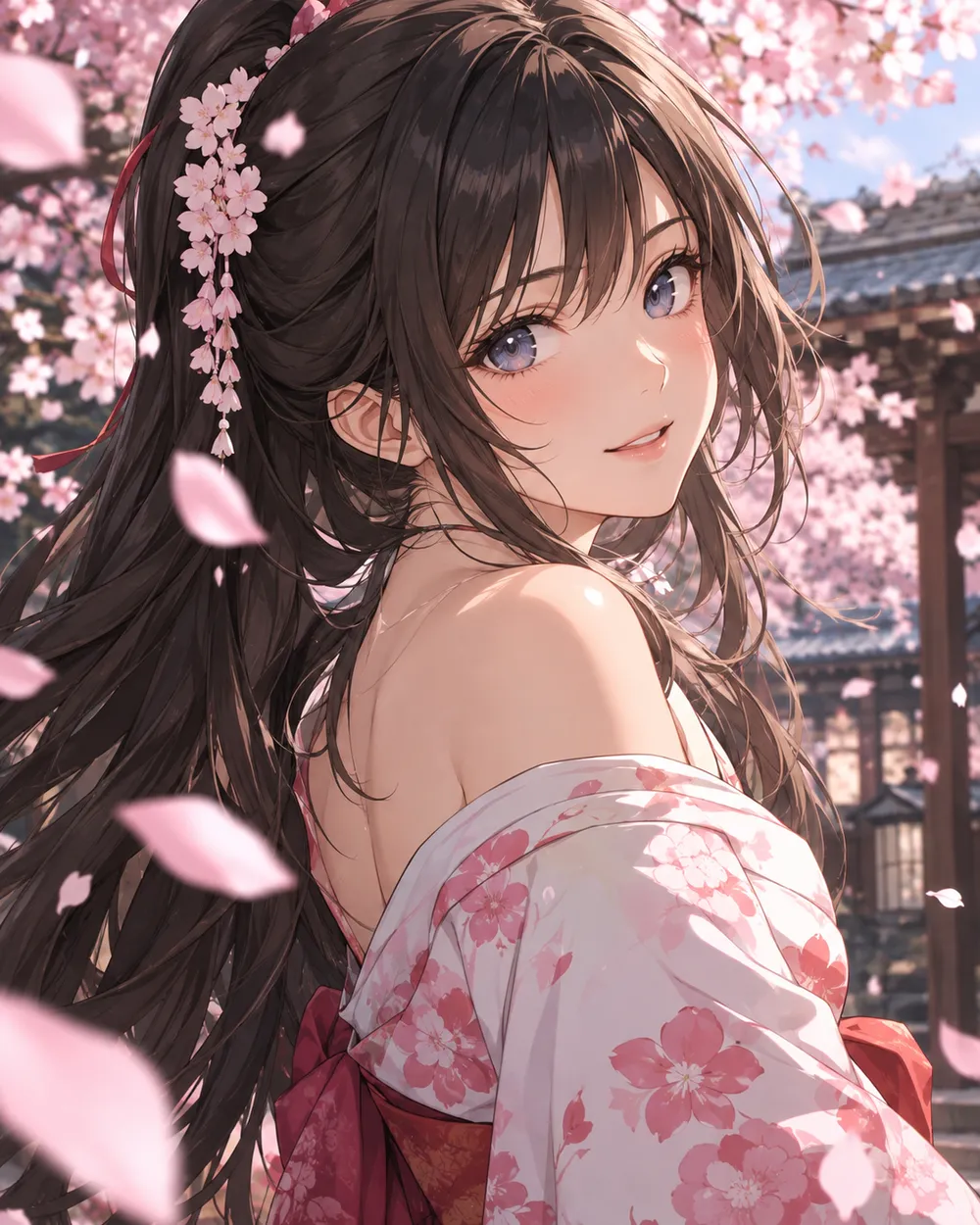
  • Cherry blossom anime AI video preset

    Cherry Blossom Turn

    A slow turn with falling petals.

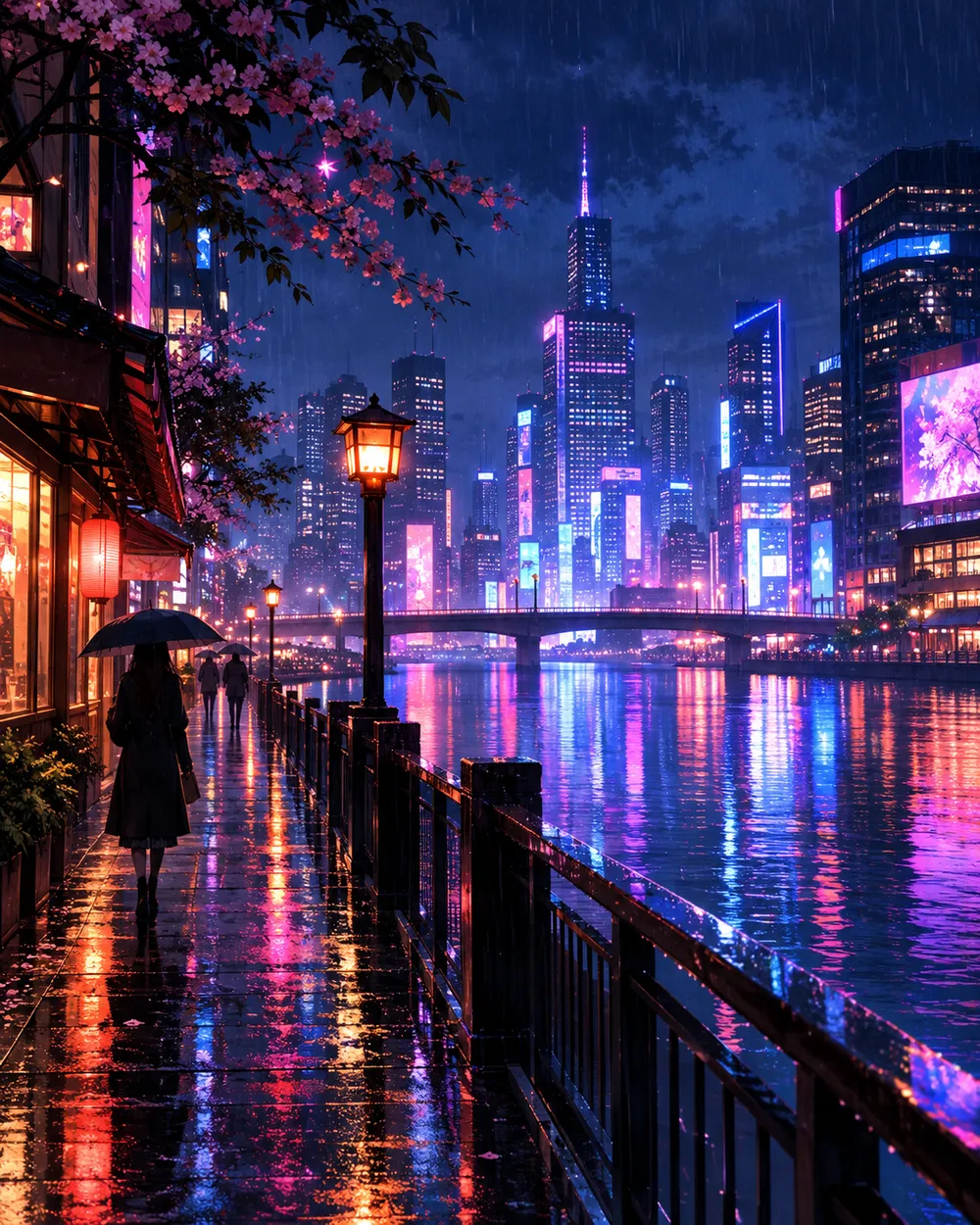
  • Neon city anime AI video preset

    Neon City Pan

    A lateral pan across a rainy skyline.

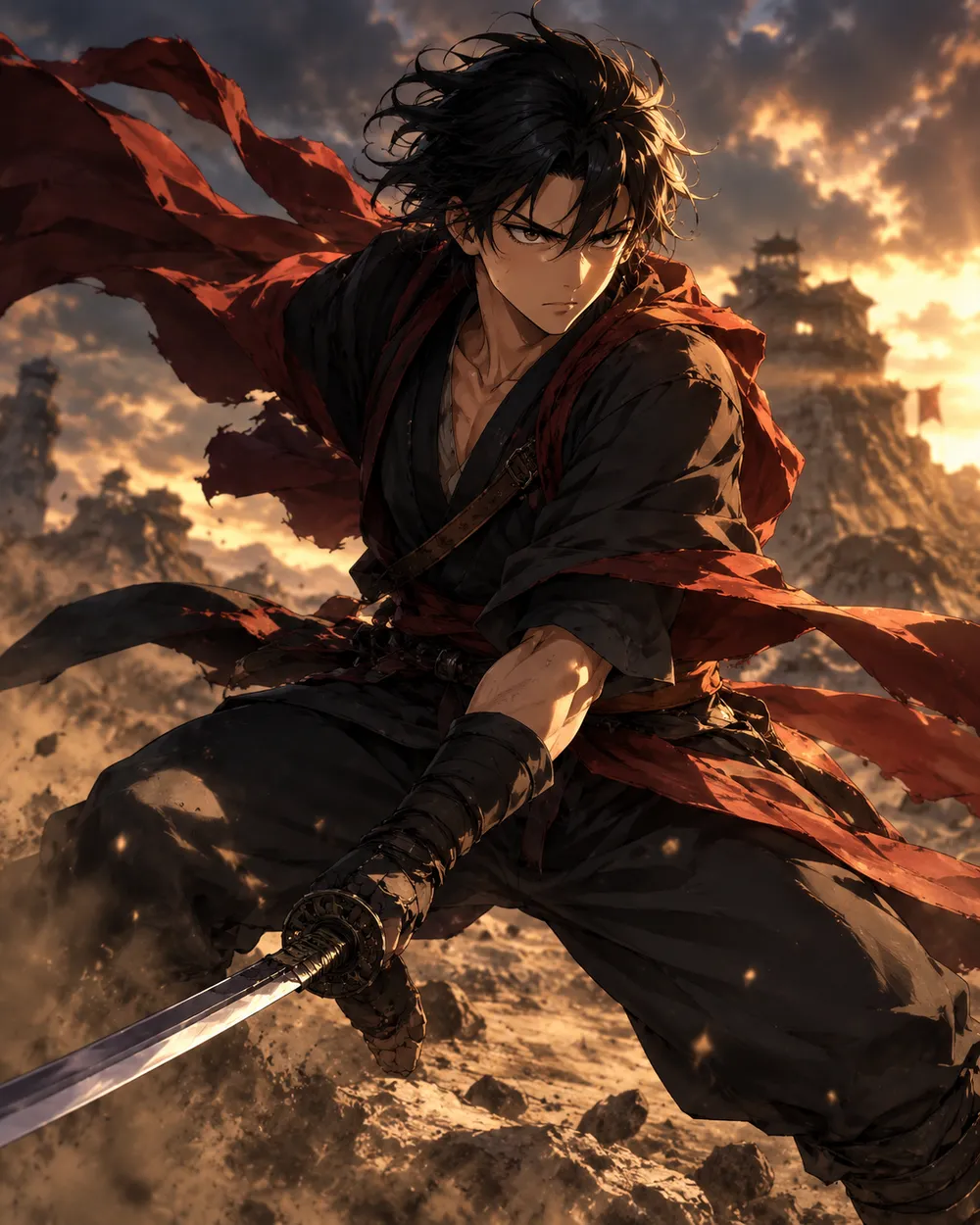
  • Battle stance anime AI video preset

    Battle Stance

    Hair and fabric move; the pose holds.

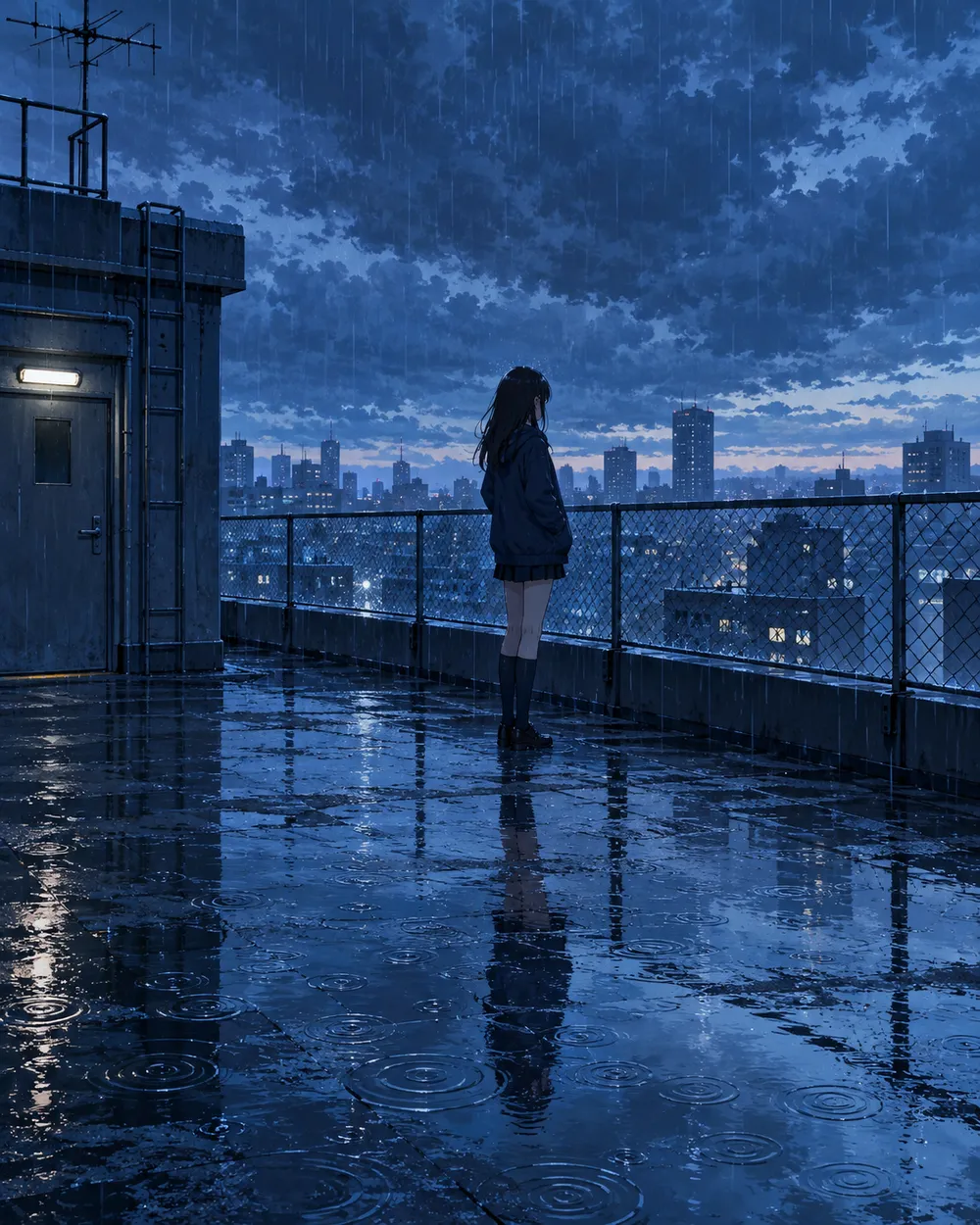
  • Rainy rooftop anime AI video preset

    Rainy Rooftop

    Rain, reflections and a still character.

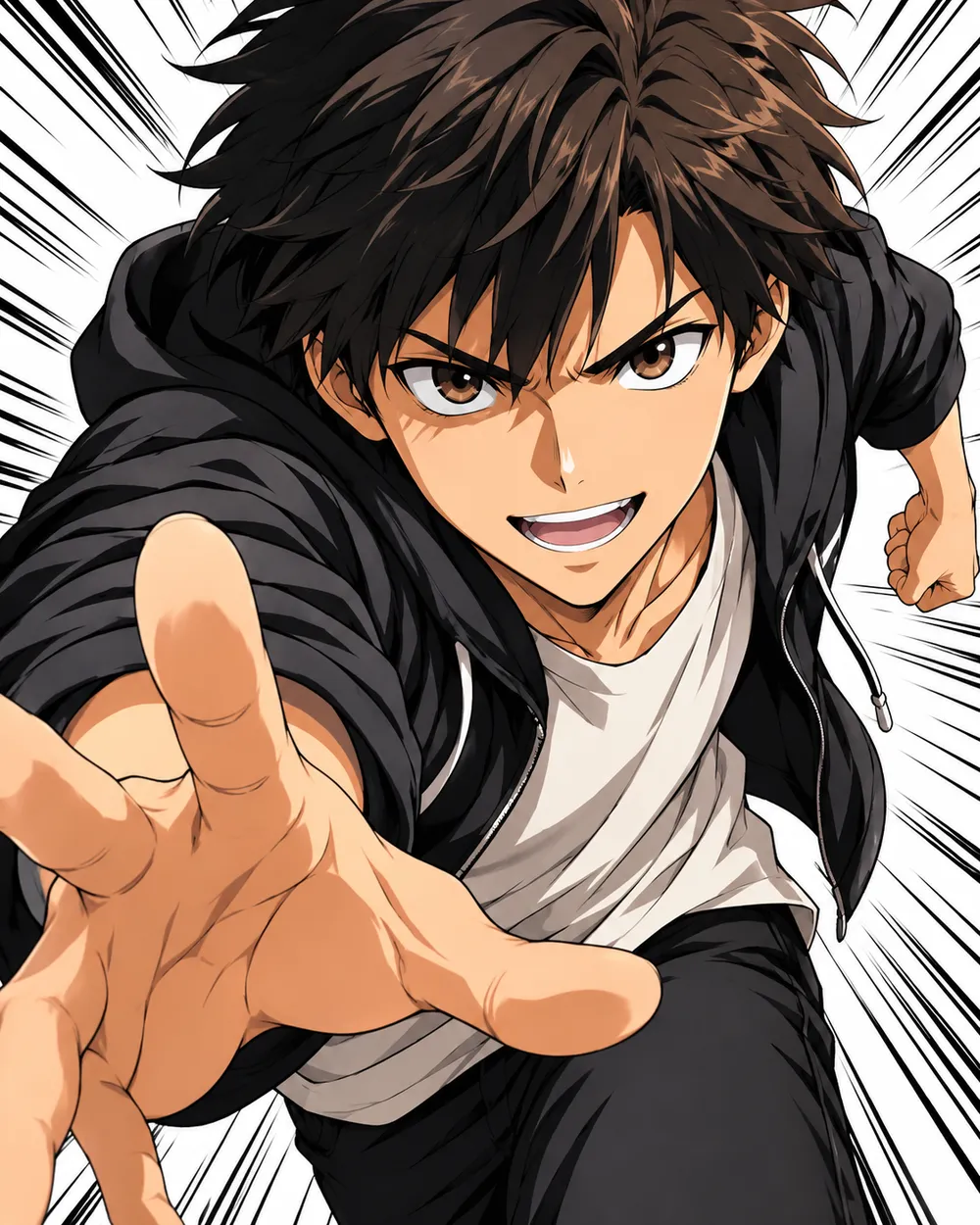
  • Manga speed lines anime AI video preset

    Manga Speed Lines

    A dramatic push-in with speed lines.

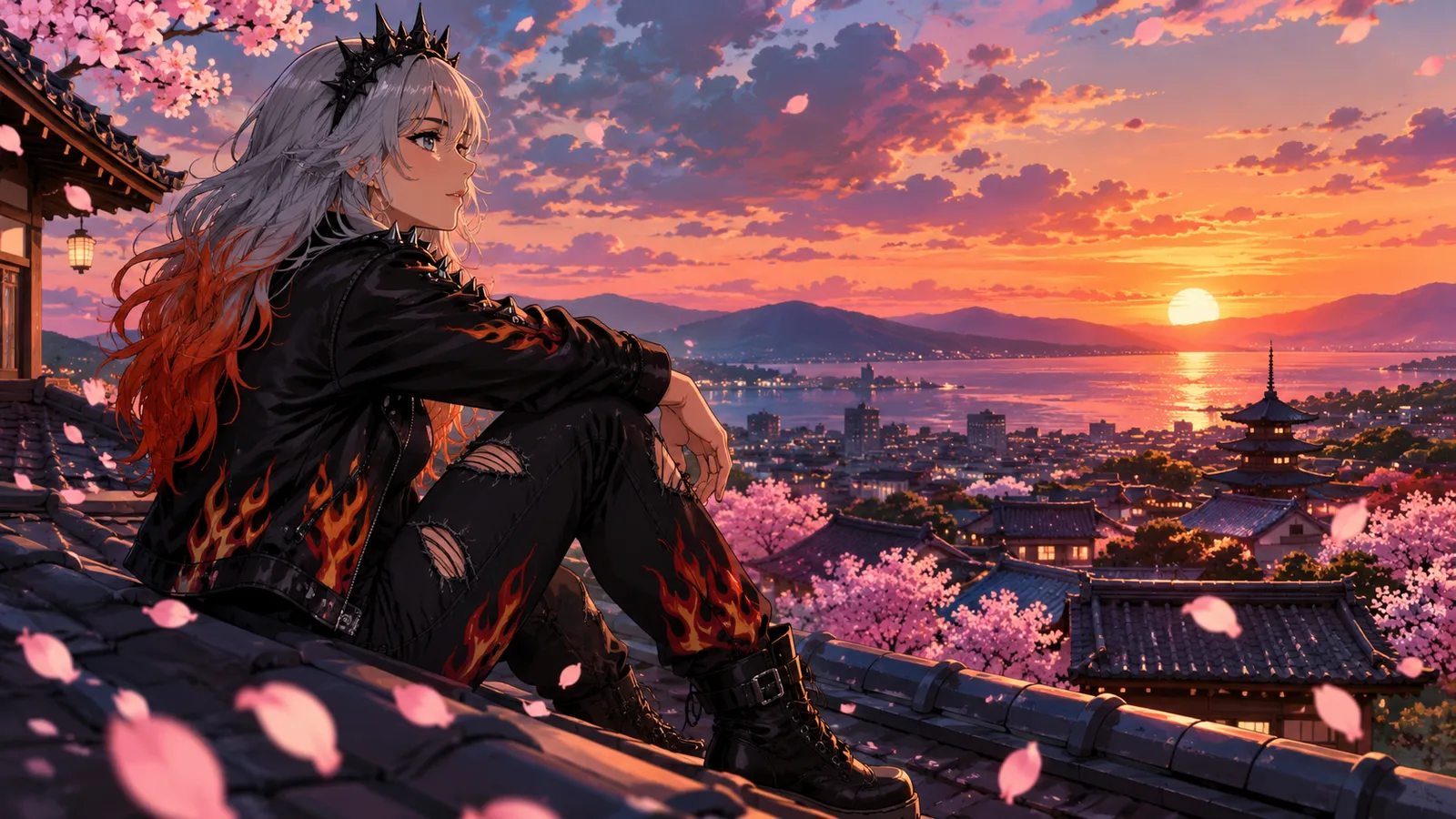
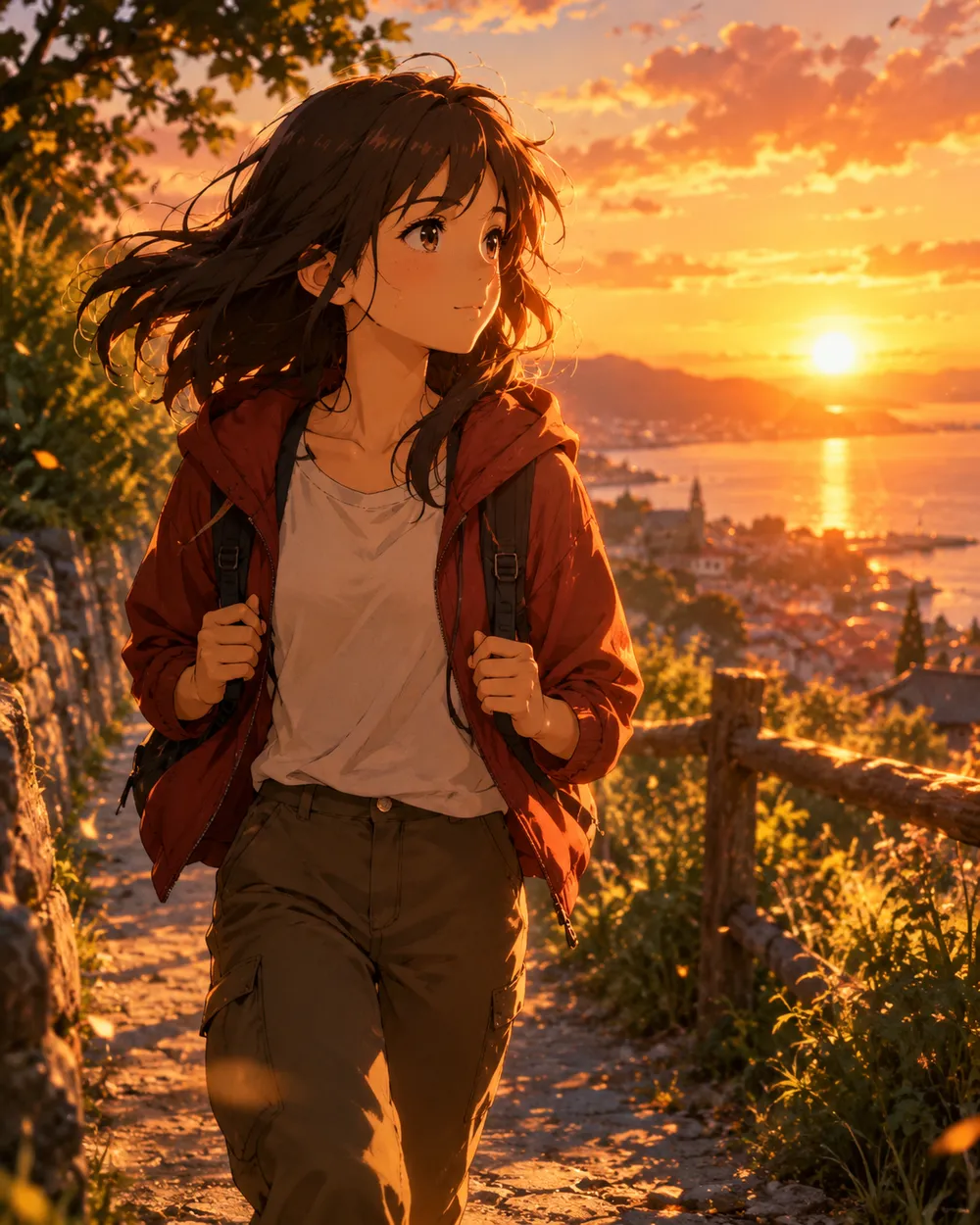
  • Sunset walk anime AI video preset

    Sunset Walk

    A slow tracking shot at golden hour.

Générateur vidéo

Téléversez une première image ou collez une URL publique d'image. Les liens privés ou de pages de partage échoueront.

(Optionnel)

Téléversez une image de fin ou collez une URL publique si vous voulez que le mouvement arrive sur un plan cible.

Coût : 1 crédits

0 / 2000

Préréglages caméra

Ajoute une direction de caméra au prompt. Ce sont des extraits de prompt, pas un mode de modèle 3D séparé.

15s
4s15s

Contrôles de génération

Ce sont les contrôles partagés entre les trois voies de workflow.

2 options
Fast

Utilise la voie plus rapide quand elle est disponible.

Générer le son

Inclure l'audio synchronisé lorsque le fournisseur le prend en charge.

Coût : 150 créditsCrédits restants : 0
Aperçu

Aucun résultat généré pour le moment

La génération vidéo consomme des crédits achetés. L’espace de travail affiche l’estimation avant l’envoi.

Comment ça marche

  1. 1

    Choisir un look

    Partez d’un preset ou écrivez votre propre direction.

  2. 2

    Importer une photo

    Utilisez une photo frontale nette que vous avez le droit de modifier.

  3. 3

    Générer et affiner

    Lancez la tâche, vérifiez le résultat et ne changez qu’une variable par essai.

Start with a still that already works

A good anime still has a clear character silhouette, a readable face and a simple background. If the still is crowded or the character is small, the video model has less information to work with. Crop to the character before animating.

Keep the still at the highest resolution you have. The video model will resize it, but a clean source preserves line quality. Avoid images with heavy compression artifacts or text.

Motion that respects line art

Anime line art is less forgiving than photographic texture. Large motion can warp the face and hands. Start with a head turn, a blink, moving hair or a camera move. Avoid full-body running or fighting unless you are prepared to retry.

If the line art shimmers, reduce the motion and add a stability rule. A slow push-in with moving hair is usually cleaner than a fast action shot. Keep the camera move in one direction.

Style consistency across clips

If you need several clips of the same character, use the same still as the reference and keep the prompt structure identical. Change only the motion sentence. That gives you a consistent set without retraining a character model.

For a longer sequence, generate each shot separately and edit them together. A five-second clip per shot is easier to control than a single long generation.

Questions fréquentes

  1. 1

    Does this generate anime from text?

    You can use text-to-video, but image-to-video from an existing anime still is more consistent. The still carries the character design and line style.

  2. 2

    Can I keep the same character across clips?

    Yes. Use the same still as the reference and keep the prompt structure identical. Change only the motion sentence. That gives you the best chance of a consistent set.

  3. 3

    Why does the face warp?

    Large or fast motion gives the model more chances to drift. Reduce the motion, shorten the duration and add a stability rule. A slow head turn is easier than a run cycle.

  4. 4

    Can I use a copyrighted character?

    Only if you have the rights. The acceptable use policy applies. For original characters, you control the design and the usage rights.

  5. 5

    What duration should I use?

    Start with five seconds. Short clips are cheaper to iterate and easier to keep stable. Extend only after the motion works.

  6. 6

    Can I add sound later?

    Yes. Most social clips are edited with sound in a separate editor. Generating a silent clip first gives you more control over the final mix.

Guides et analyses de prompts

Workflows associés

Commencez avec un preset testé

Ouvrez l’espace de travail, appliquez un preset et consultez l’estimation des crédits avant de générer.