跳到主要内容
节日预设包

万圣节 AI 照片编辑器

保留人脸和服装,替换场景,为现有照片添加雾气、灯笼或复古胶片色调。

给现有照片替换背景、添加雾气、灯笼或 VHS 色调。保留人脸和服装,只改场景,然后生成。

  • 浏览器内运行,无需安装
  • 安全结账
  • 付费导出无水印

生成消耗已购买积分

Halloween AI photo edit with fog, lanterns and a moonlit background
6 presets

选择一个预设

选一个方向,把提示词应用到工作台,然后一次只改一个细节。

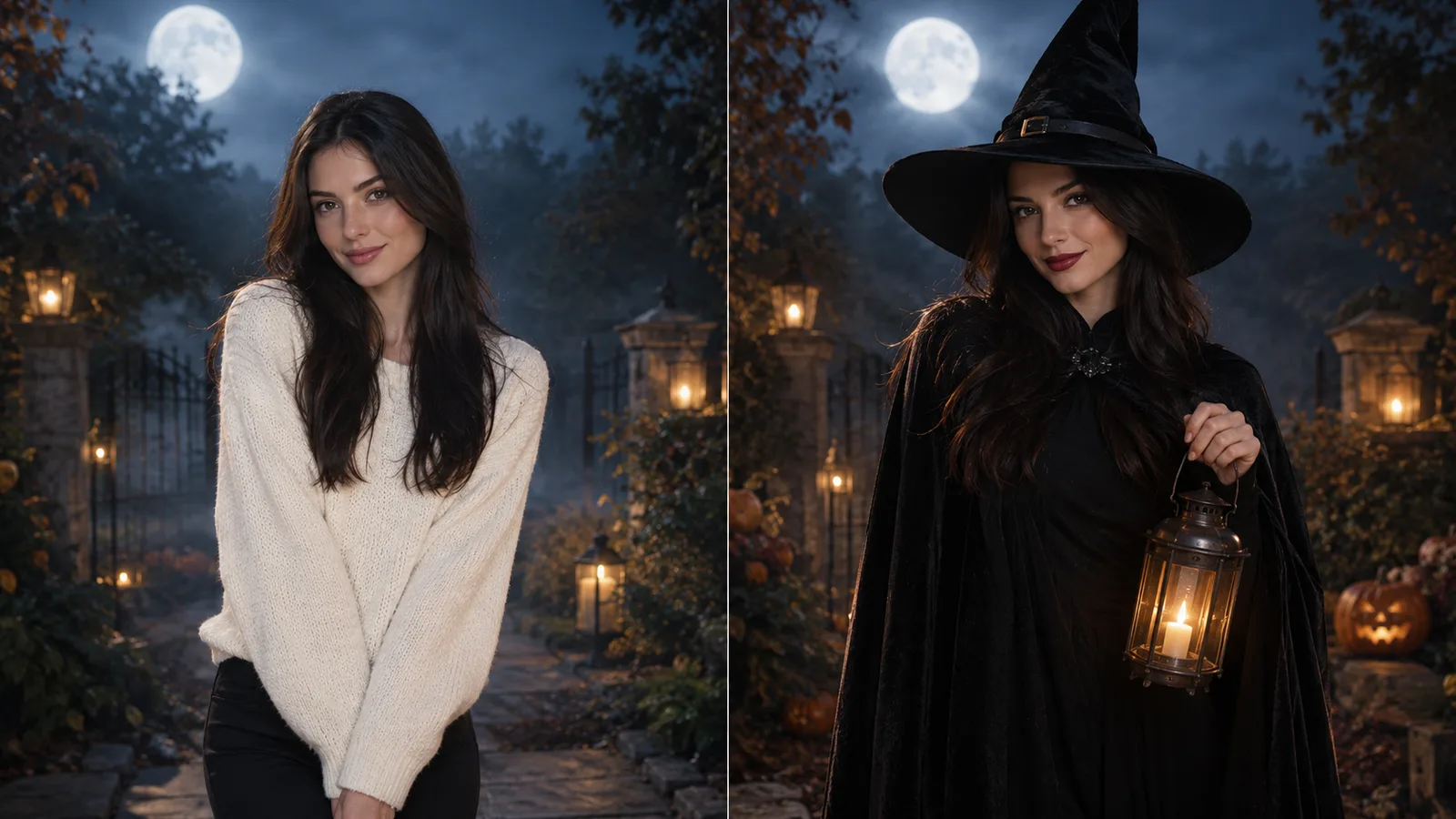
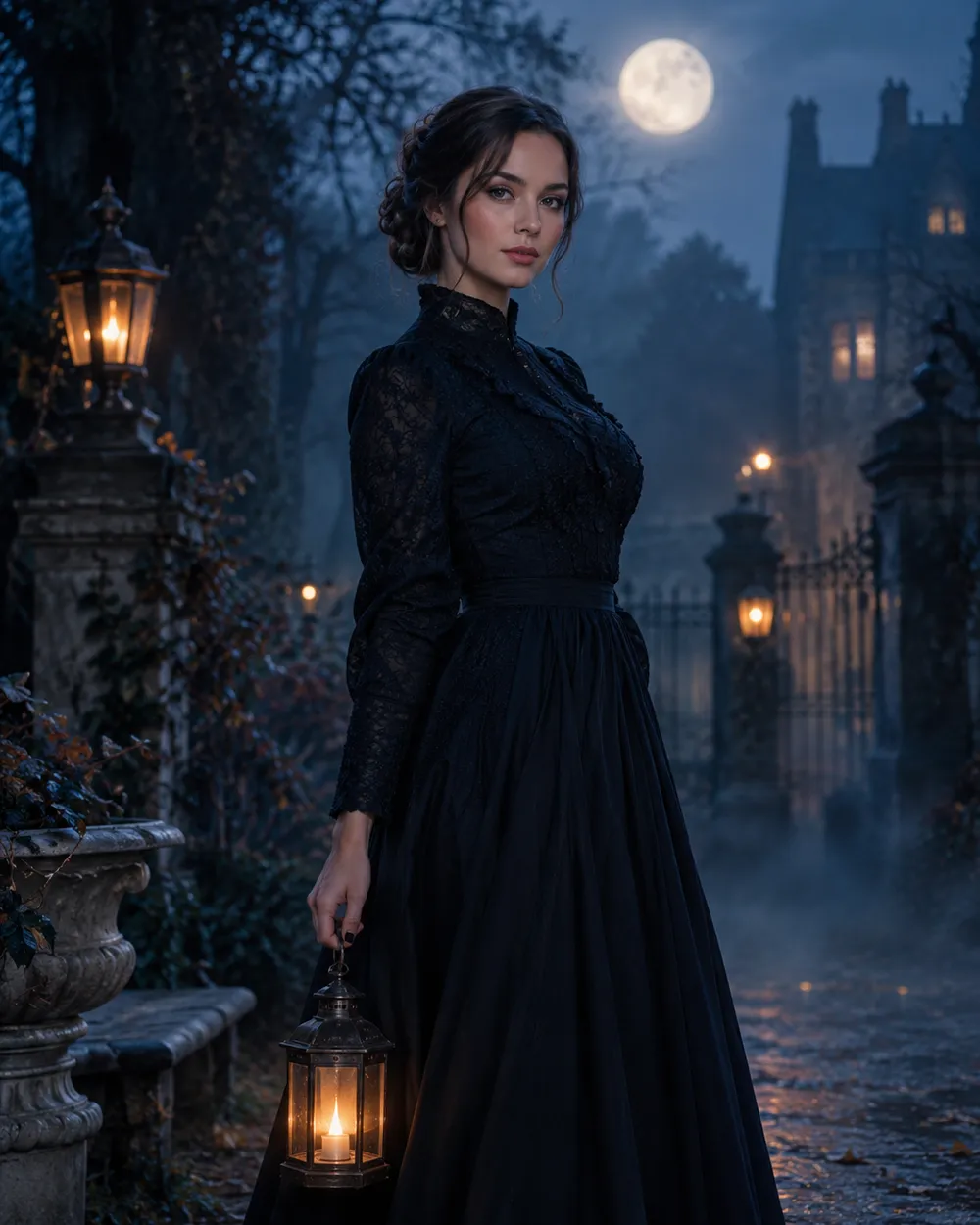
  • Moonlit garden Halloween AI photo edit

    Moonlit Garden

    Blue hour, fog and warm lantern light.

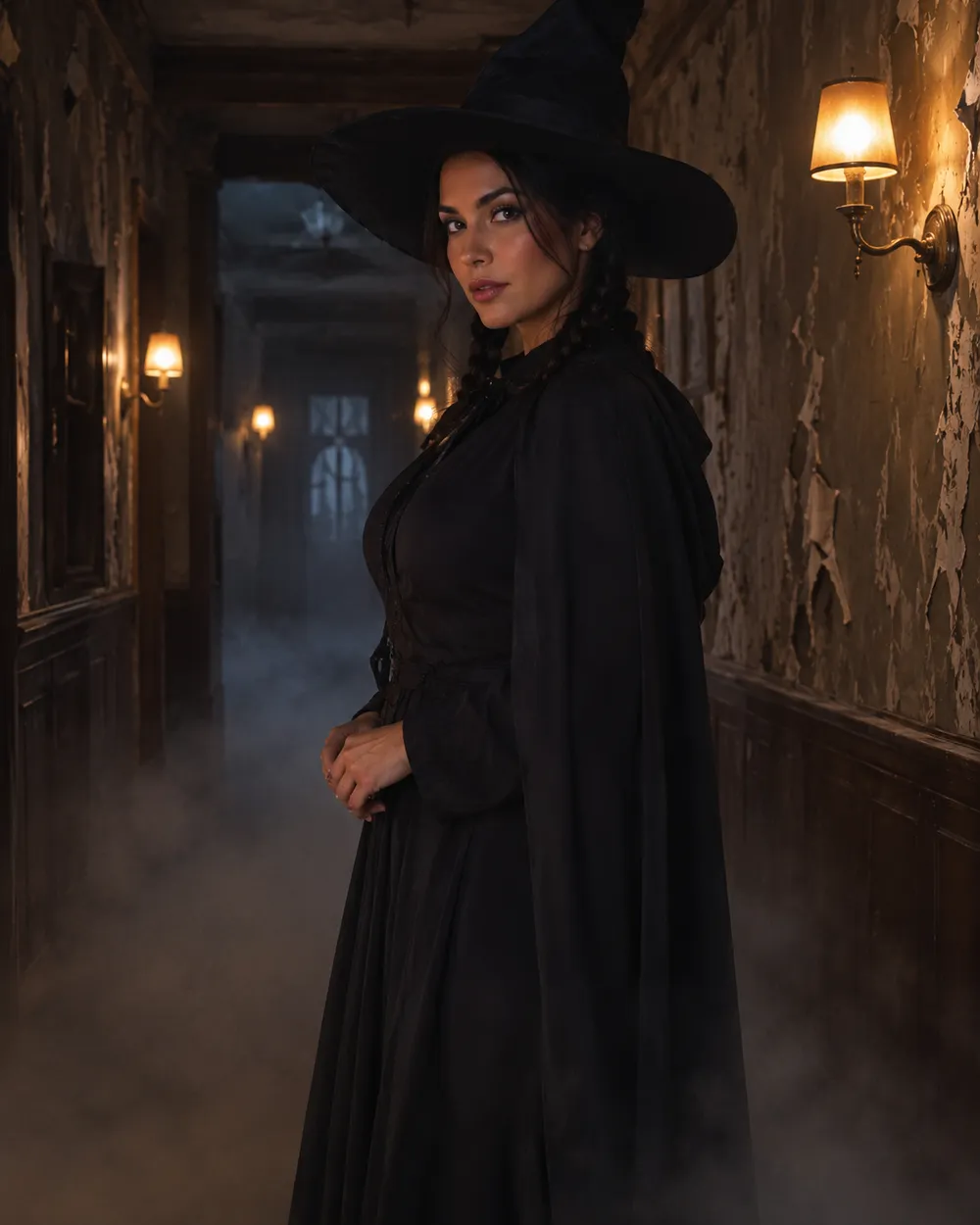
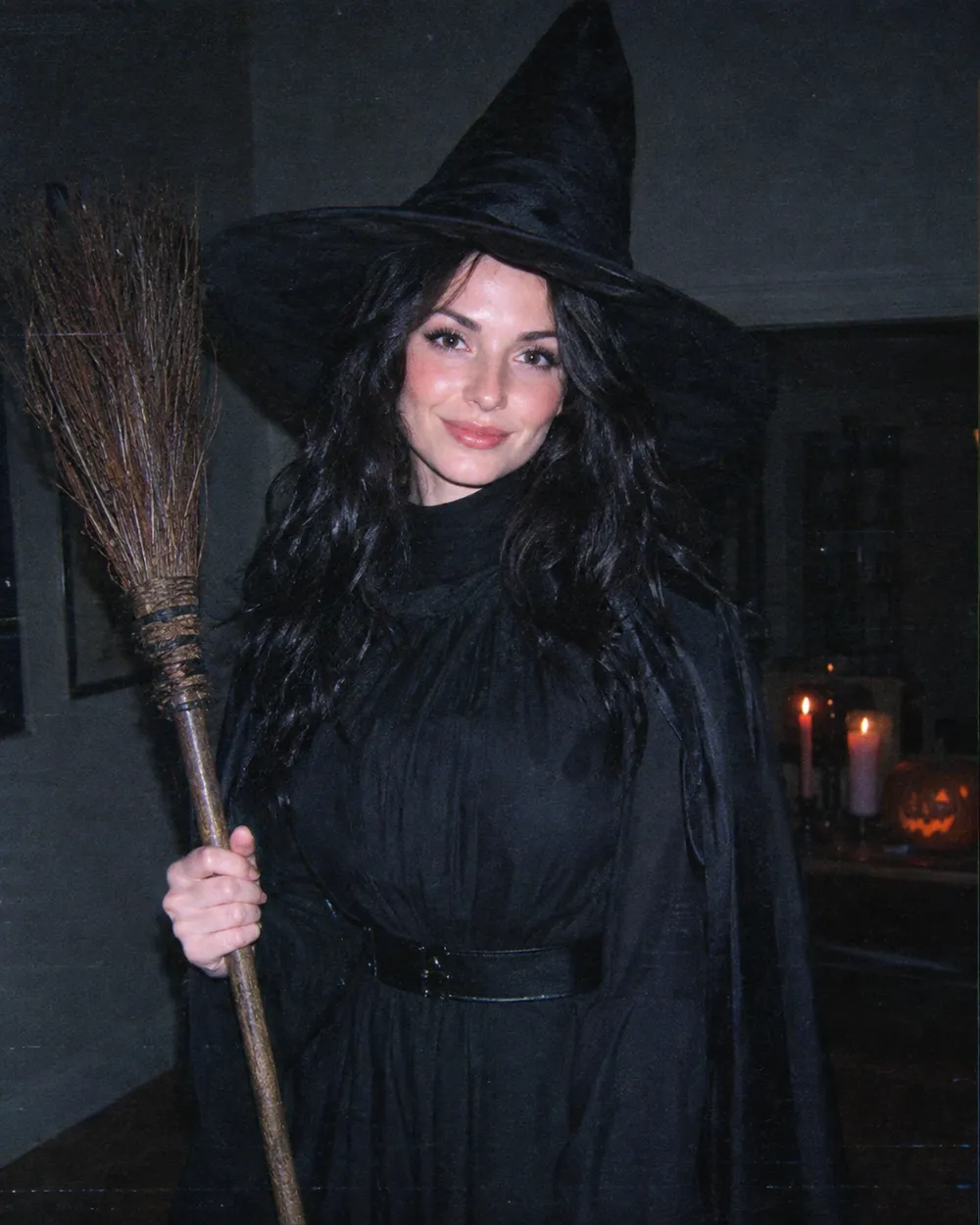
  • Haunted hallway Halloween AI photo edit

    Haunted Hallway

    Long corridor, practical lamps, deep shadow.

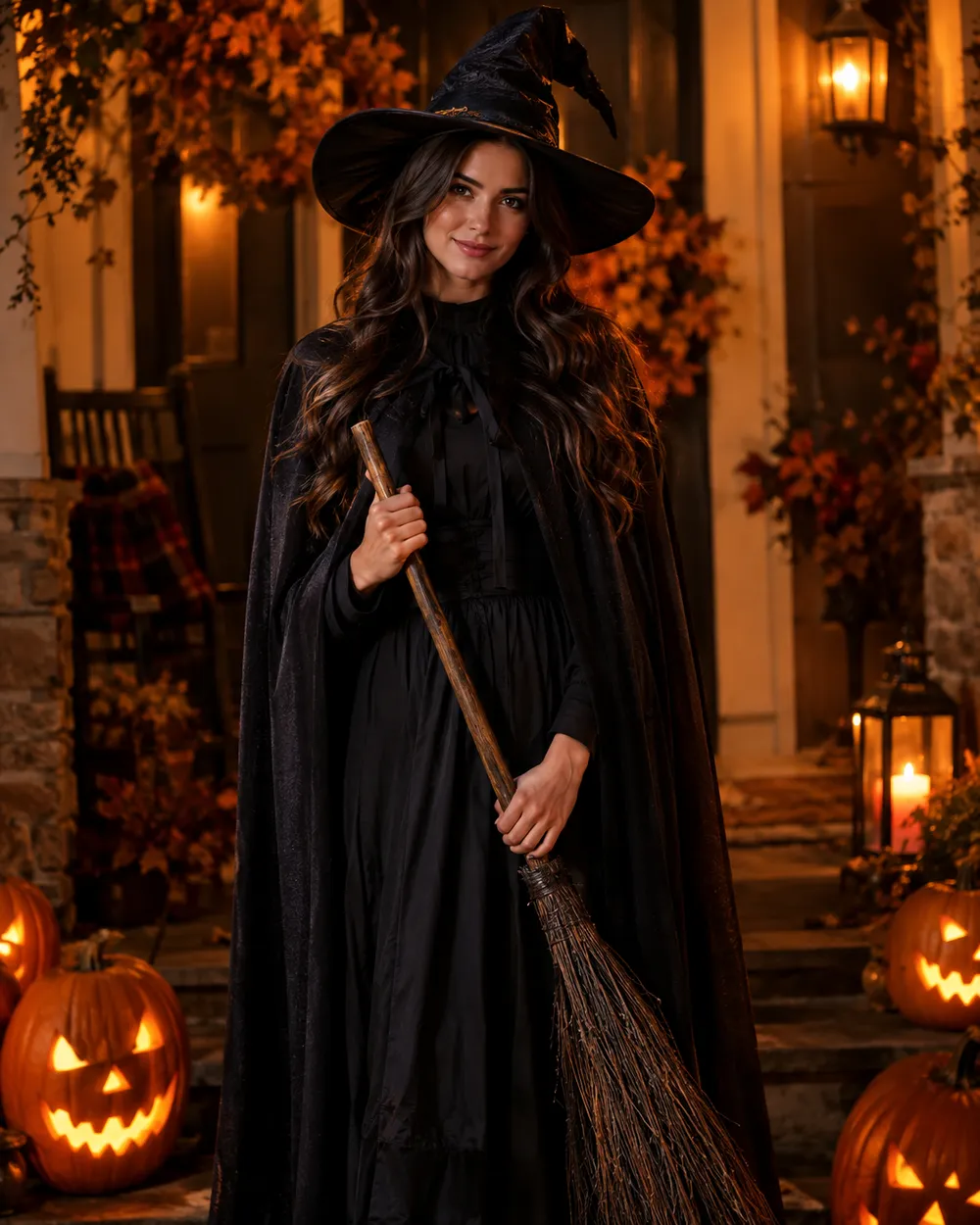
  • Pumpkin glow Halloween AI photo edit

    Pumpkin Glow

    Warm carved-pumpkin light on the face.

  • VHS horror Halloween AI photo edit

    VHS Horror

    Analog grain, scan lines, cold flash.

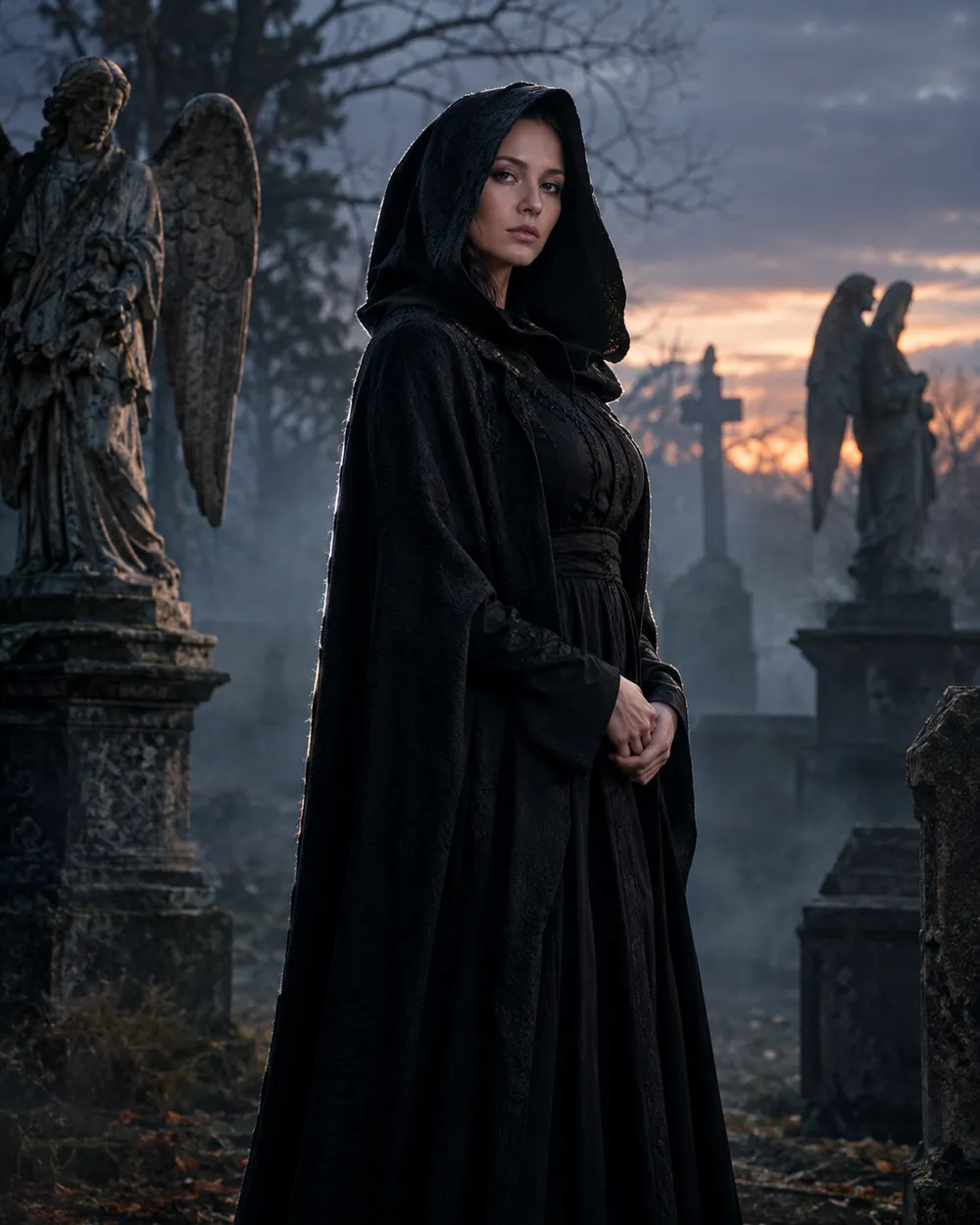
  • Graveyard portrait Halloween AI photo edit

    Graveyard Portrait

    Stone angels, mist and a silver rim light.

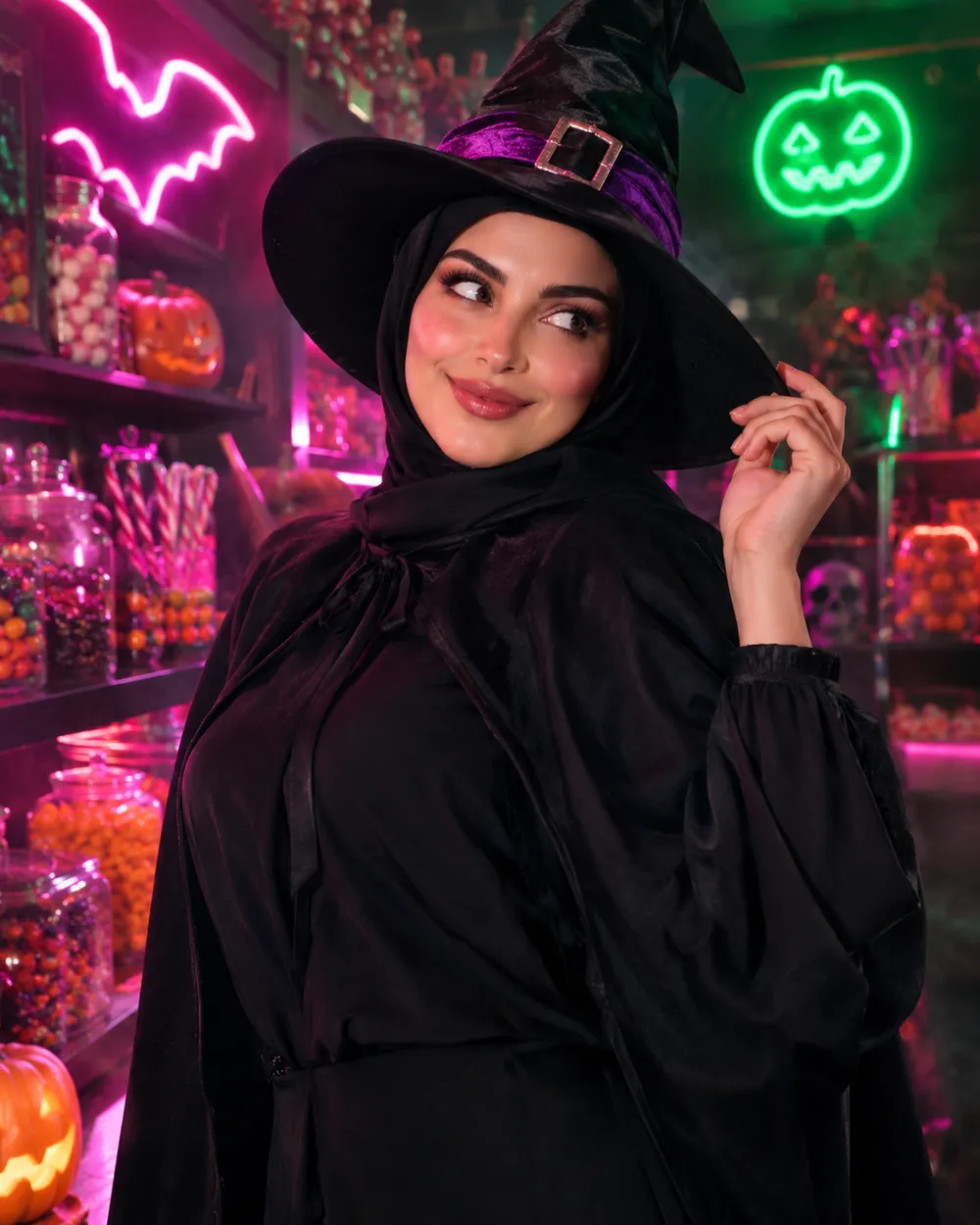
  • Candy neon Halloween AI photo edit

    Candy Neon

    Pink and green neon for a playful edit.

生成模式

模型

快速选择

源图片 URL

上传支持 JPEG、PNG 或 WEBP 格式,最大 10MB。
or
(可选)

消耗 1 积分

0 / 4000

分辨率

画幅比例

输出格式

联网搜索

当上游支持时,允许模型调用联网搜索获取当前信息。

消耗 5 积分剩余 0 积分
预览
示例示例 Animate AI 静帧

在你第一次真正生成之前,这里会显示一张示例图。

使用流程

  1. 1

    选择造型

    从预设开始,或写下你自己的方向。

  2. 2

    上传照片

    使用清晰的正面照片,并确保你有权编辑这张照片。

  3. 3

    生成并微调

    运行任务,检查结果,每次重试只改一个变量。

What to edit first

Edit the background before the face. A new background changes the light story, and the face should respond to that light. If you start with skin retouching, the result can look pasted onto the scene. Replace the background, set the key light, then adjust the grade.

Keep the source photo simple. A plain wall, a window or an outdoor background gives the model less to remove. Busy backgrounds with many people are harder to replace cleanly. If the source has strong colored light on the face, describe that light in the prompt so the new scene matches it.

Background, light, grade

A scene preset has three layers. The background tells the model where the person is. The light tells it how the person is lit. The grade tells it how the final image should feel. Write all three, but keep them short. One sentence per layer is usually enough.

For a Halloween edit, warm practical lights against a cool background are reliable. Fog adds depth but can wash out the face, so ask for soft fog behind the subject rather than in front of it. If the result looks too dark, raise the key light instead of adding more exposure words.

When to use image-to-video instead

If the still looks good and you want motion, send it to the video workspace. A five-second clip with a slight head turn, drifting fog and a slow push-in is usually more convincing than a complicated action scene. The video preset pages include motion prompts that are written for still-image animation.

常见问题

  1. 1

    Does the editor change my face?

    The presets ask the model to keep the face unchanged. Some models still alter details. Review the result and reduce the scene description if the face drifts.

  2. 2

    Can I replace a busy background?

    Yes, but a simpler source background produces a cleaner edge. If the source has many people or strong clutter, crop to the subject before uploading.

  3. 3

    Can I add fog or glowing lights?

    Yes. Describe where the fog and lights should sit relative to the subject. “Soft fog behind the subject” is easier to control than “add fog everywhere.”

  4. 4

    Can I make the result look like film?

    Yes. Add a film-stock description, grain level and color grade. The VHS Horror preset is a starting point for an analog look.

  5. 5

    Does this work for pet photos?

    Yes. Use the pet preset page for a costume, or describe the scene without changing the animal’s breed and markings.

  6. 6

    Which model should I choose?

    Use an image-edit model for background replacement. GPT Image 2 and Nano Banana Edit are the usual starting points; the workspace shows the credit cost for each option.

指南与提示词拆解

相关工作流

从一个测试过的预设开始

打开工作台,应用预设,并在生成前查看积分估算。