メインコンテンツへ移動
季節のプリセットパック

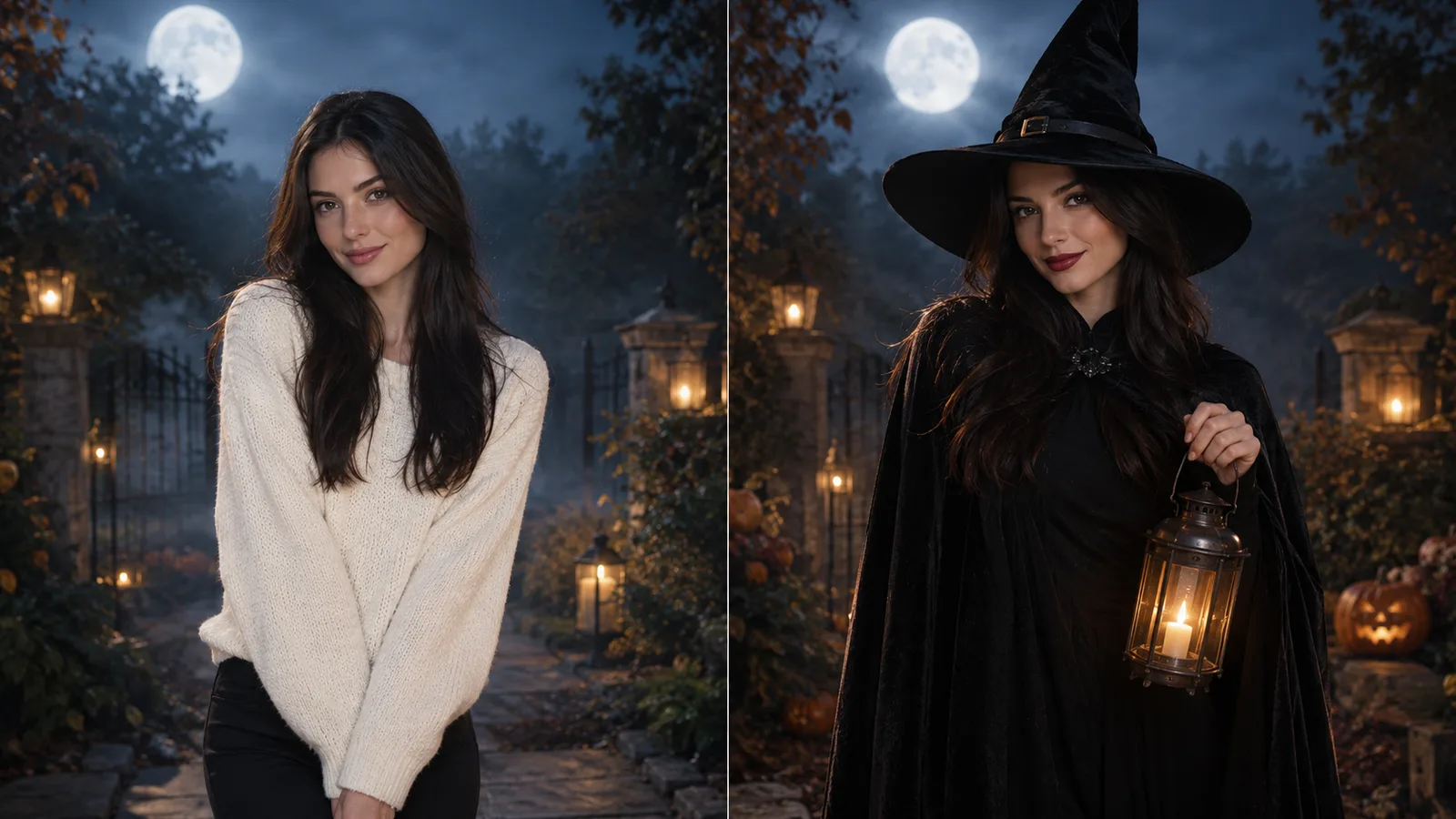
ハロウィンAI写真エディター

顔と衣装を保ち、背景を置き換えて、霧やランタン、アナログ風の色調を既存の写真に加えます。

既存の写真の背景を置き換え、霧やランタン、VHS風の色調を追加。顔と衣装はそのままに、シーンだけを編集して生成できます。

  • ブラウザで動作、インストール不要
  • 安全な決済
  • 有料書き出しは透かしなし

生成には購入済みクレジットを使用します

Halloween AI photo edit with fog, lanterns and a moonlit background
6 presets

プリセットを選ぶ

方向性を選び、プロンプトをワークスペースに適用して、一度に1つの詳細だけを編集します。

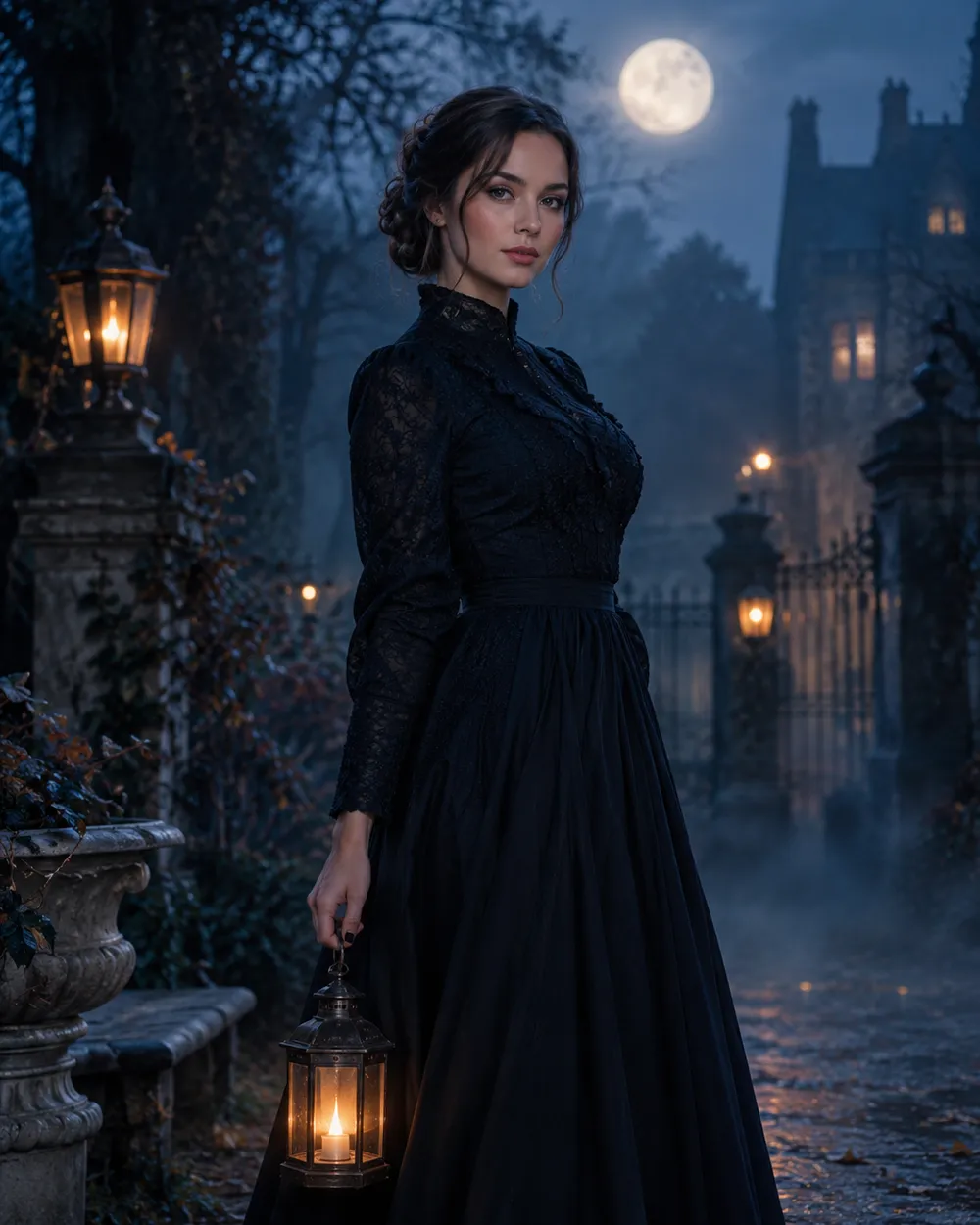
  • Moonlit garden Halloween AI photo edit

    Moonlit Garden

    Blue hour, fog and warm lantern light.

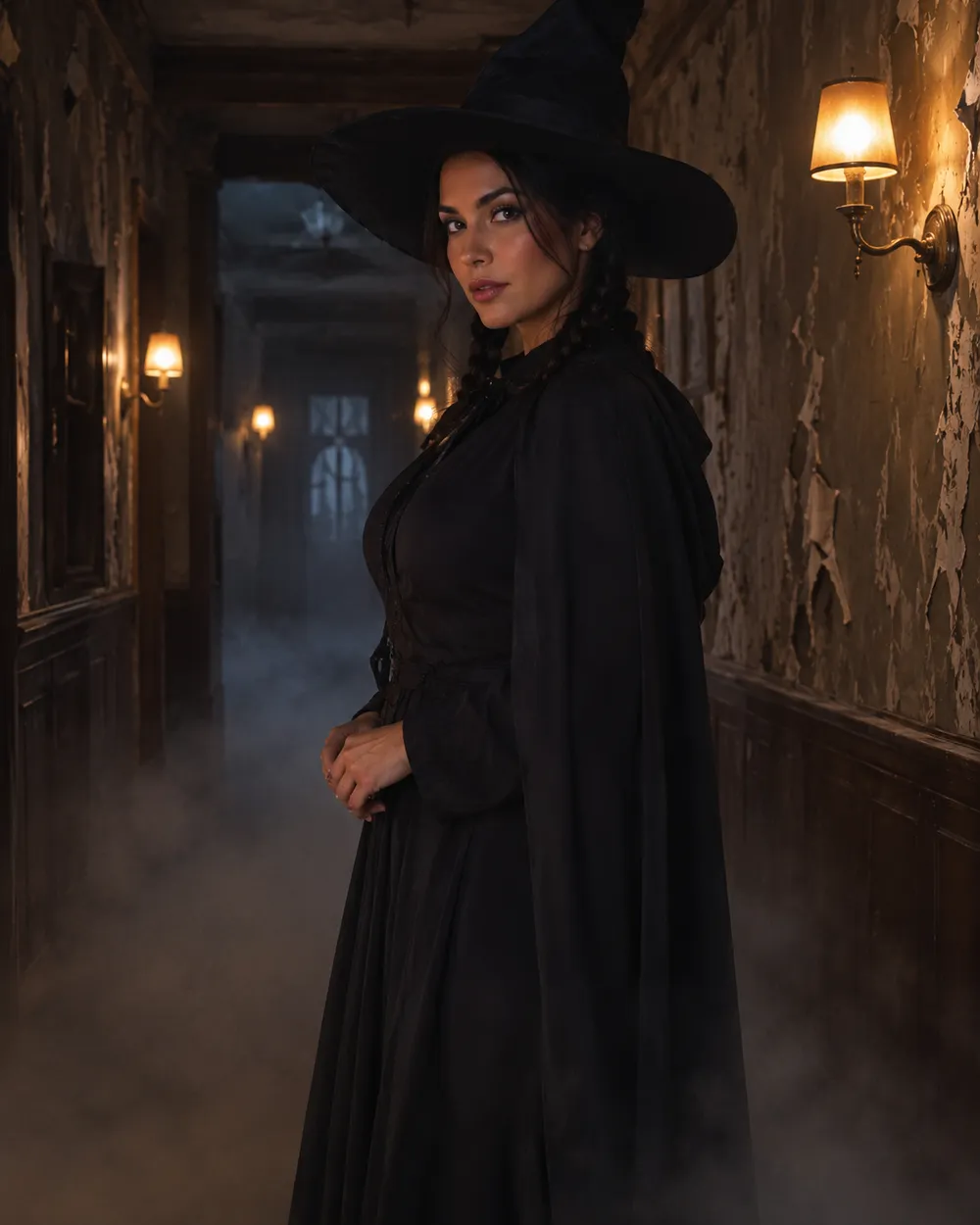
  • Haunted hallway Halloween AI photo edit

    Haunted Hallway

    Long corridor, practical lamps, deep shadow.

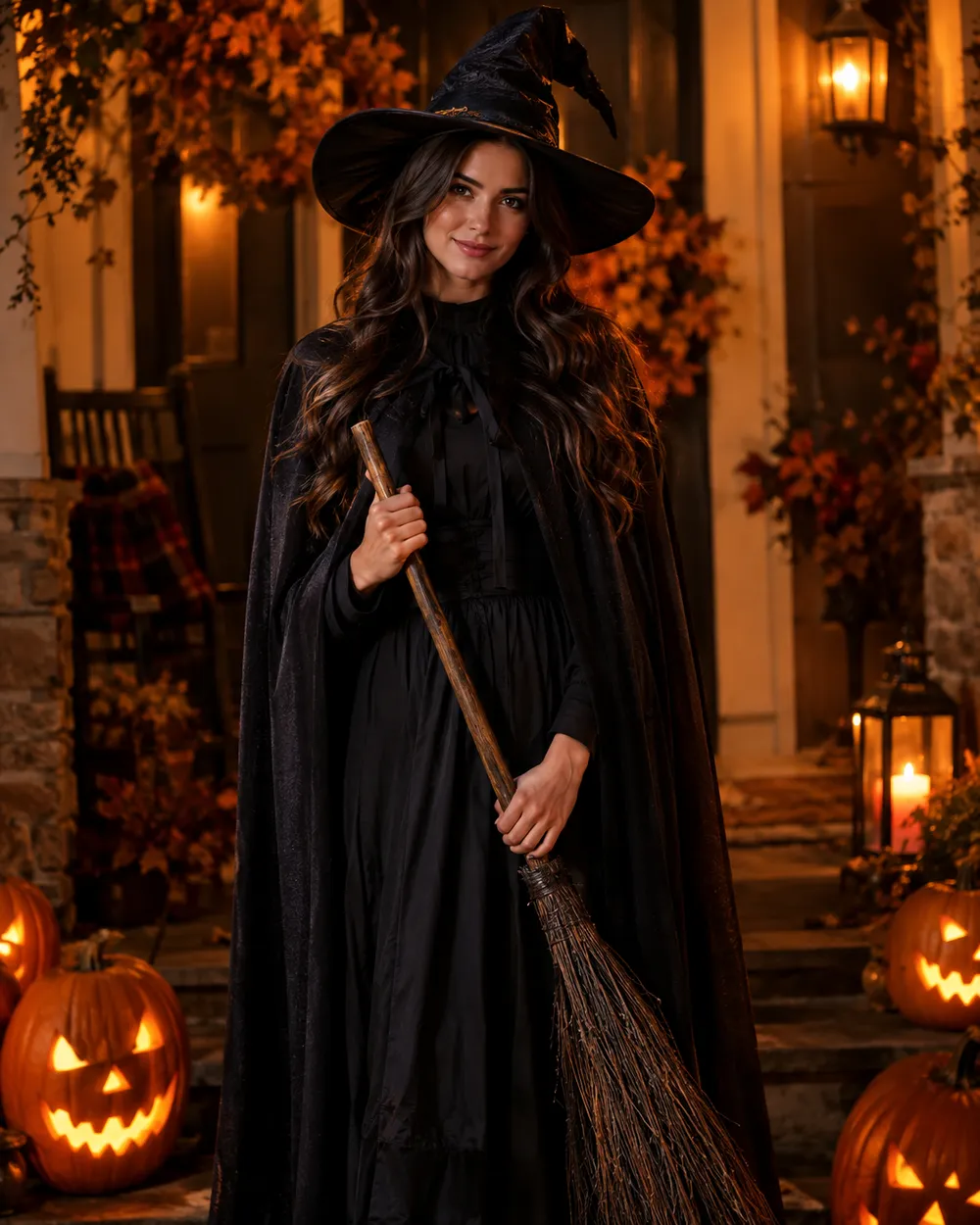
  • Pumpkin glow Halloween AI photo edit

    Pumpkin Glow

    Warm carved-pumpkin light on the face.

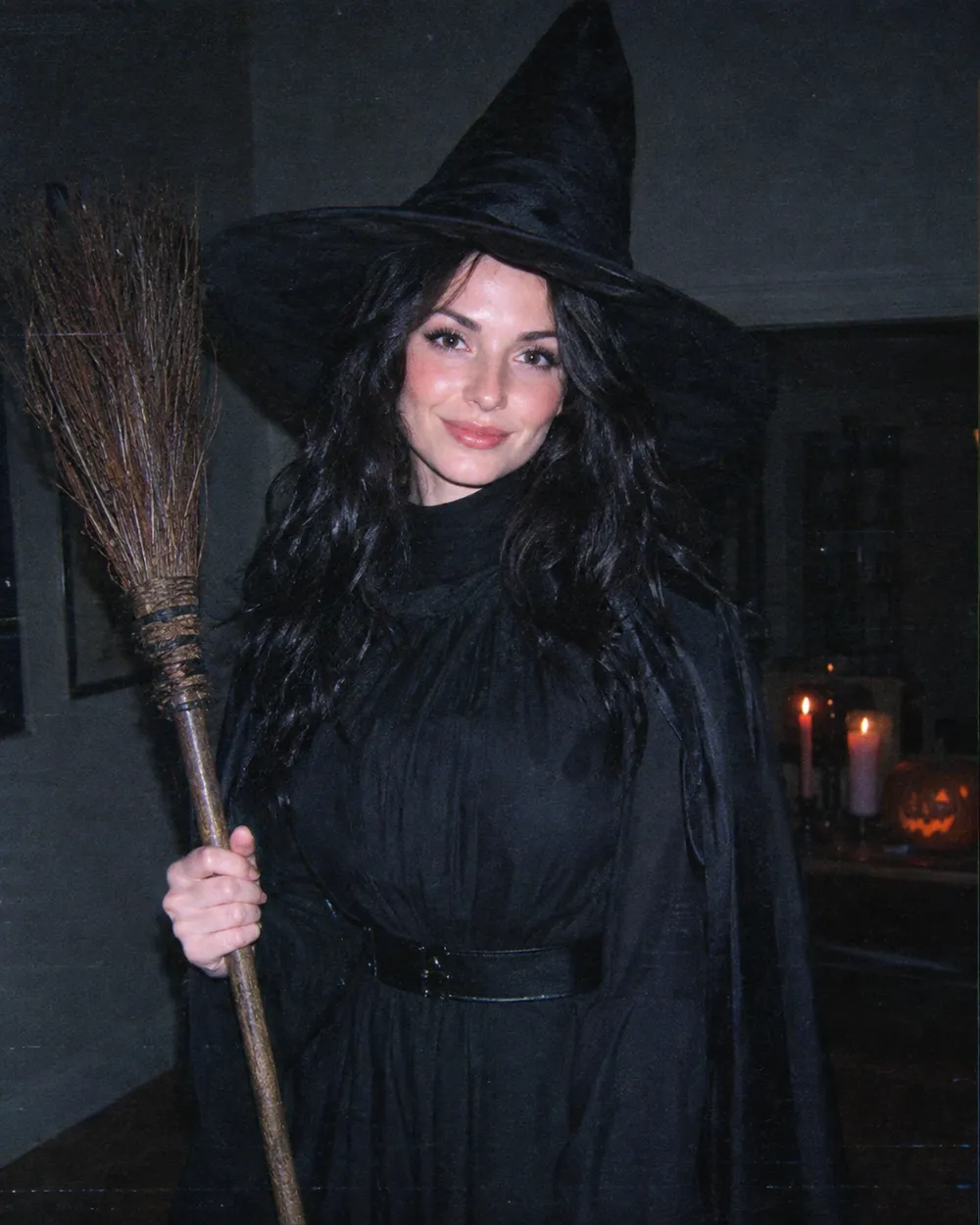
  • VHS horror Halloween AI photo edit

    VHS Horror

    Analog grain, scan lines, cold flash.

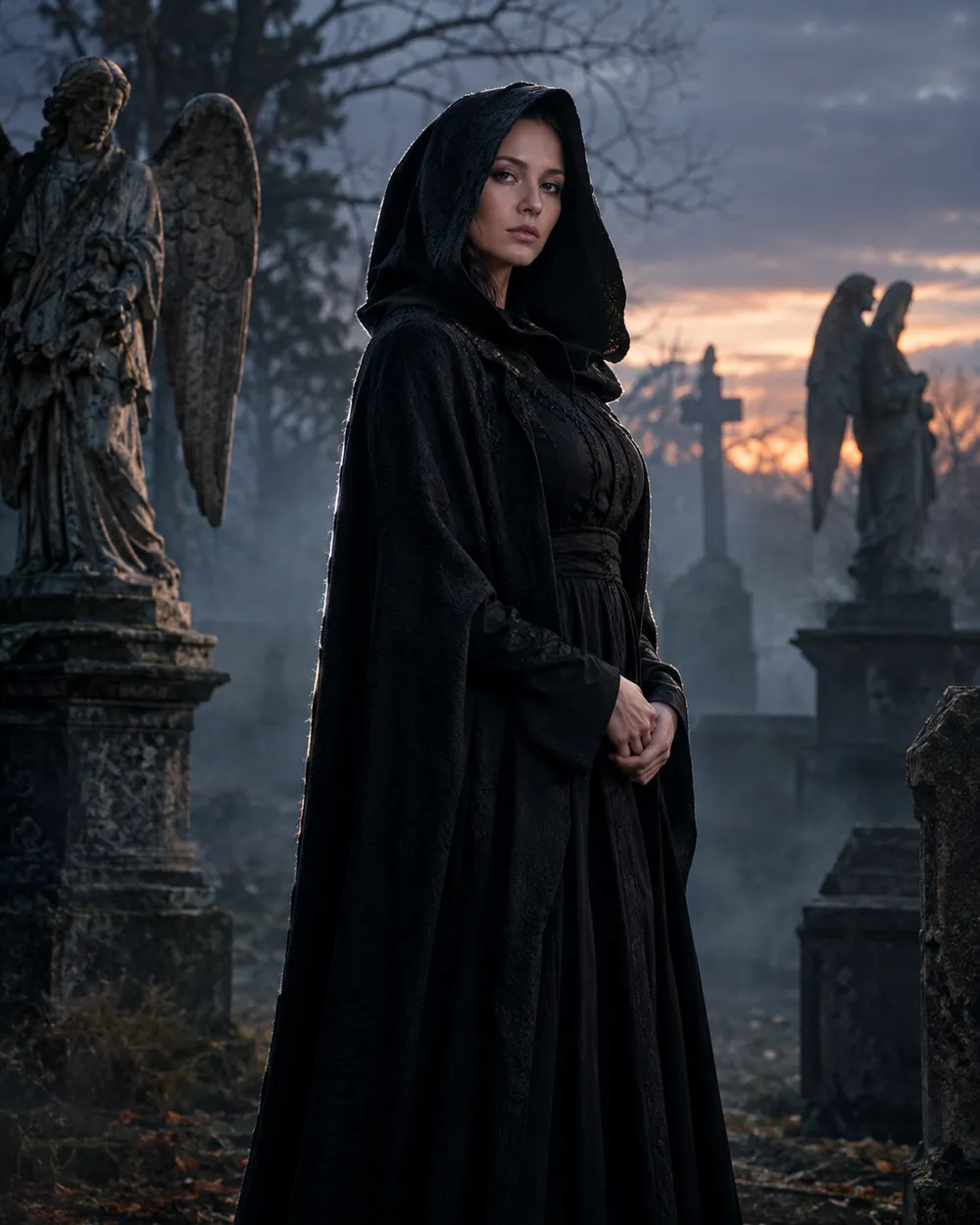
  • Graveyard portrait Halloween AI photo edit

    Graveyard Portrait

    Stone angels, mist and a silver rim light.

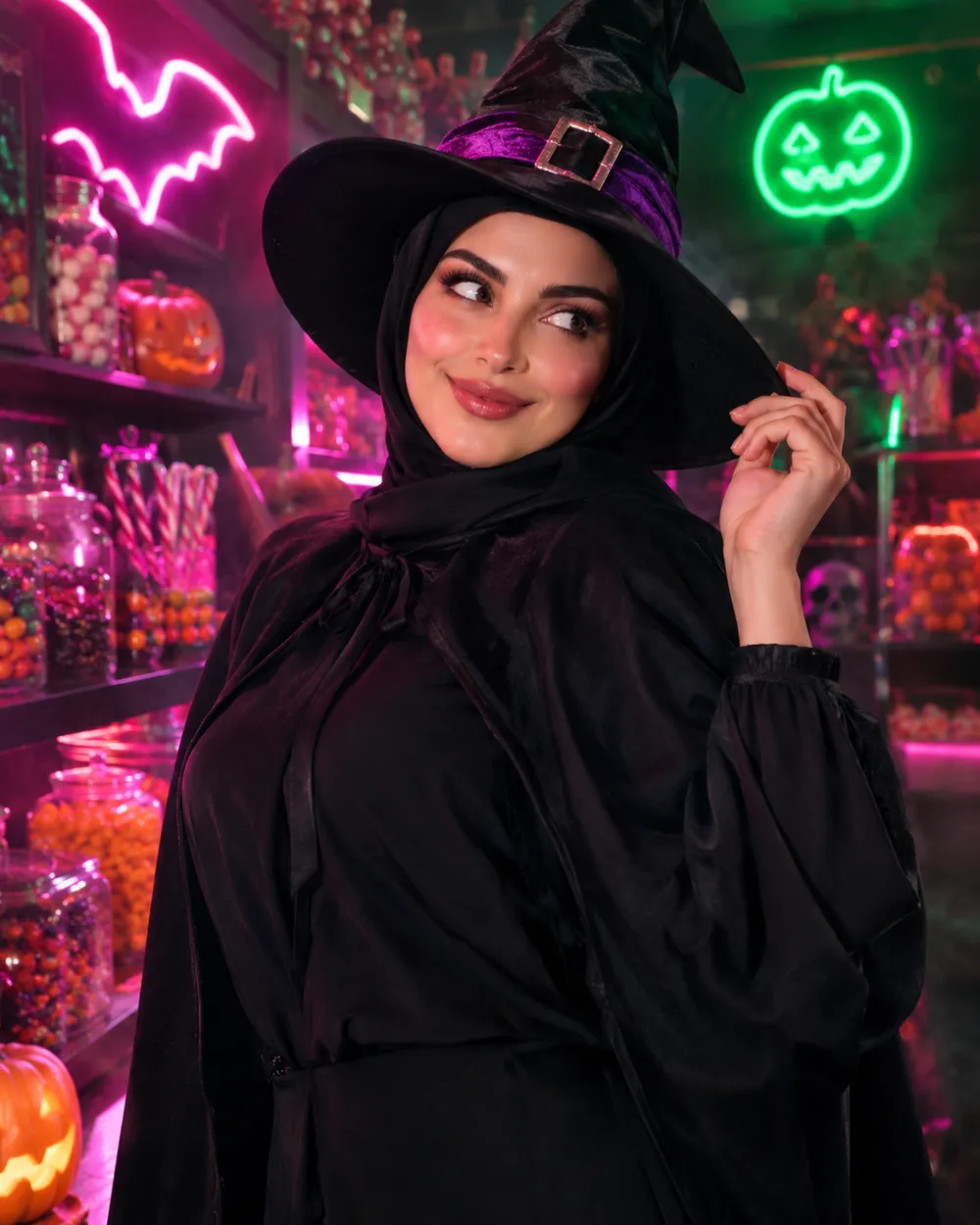
  • Candy neon Halloween AI photo edit

    Candy Neon

    Pink and green neon for a playful edit.

生成モード

モデル

クイック選択

Source Image URL

UploadJPEG、PNG、WEBP形式、最大10MBまで対応しています。
or
(Optional)

Cost 1 credits

0 / 4000

Resolution

Aspect Ratio

Output Format

Web Search

Allow the provider to call web search for current information when supported.

Cost 5 creditsRemaining 0 credits
Preview
SampleSample Animate AI still

A sample image stays here until you run your first generation.

使い方

  1. 1

    ルックを選ぶ

    プリセットから始めるか、自分の方向性を書きます。

  2. 2

    写真をアップロード

    編集する権限がある、正面の鮮明な写真を使用してください。

  3. 3

    生成して調整

    ジョブを実行し、結果を確認し、再試行ごとに1つの変数だけを変えます。

What to edit first

Edit the background before the face. A new background changes the light story, and the face should respond to that light. If you start with skin retouching, the result can look pasted onto the scene. Replace the background, set the key light, then adjust the grade.

Keep the source photo simple. A plain wall, a window or an outdoor background gives the model less to remove. Busy backgrounds with many people are harder to replace cleanly. If the source has strong colored light on the face, describe that light in the prompt so the new scene matches it.

Background, light, grade

A scene preset has three layers. The background tells the model where the person is. The light tells it how the person is lit. The grade tells it how the final image should feel. Write all three, but keep them short. One sentence per layer is usually enough.

For a Halloween edit, warm practical lights against a cool background are reliable. Fog adds depth but can wash out the face, so ask for soft fog behind the subject rather than in front of it. If the result looks too dark, raise the key light instead of adding more exposure words.

When to use image-to-video instead

If the still looks good and you want motion, send it to the video workspace. A five-second clip with a slight head turn, drifting fog and a slow push-in is usually more convincing than a complicated action scene. The video preset pages include motion prompts that are written for still-image animation.

よくある質問

  1. 1

    Does the editor change my face?

    The presets ask the model to keep the face unchanged. Some models still alter details. Review the result and reduce the scene description if the face drifts.

  2. 2

    Can I replace a busy background?

    Yes, but a simpler source background produces a cleaner edge. If the source has many people or strong clutter, crop to the subject before uploading.

  3. 3

    Can I add fog or glowing lights?

    Yes. Describe where the fog and lights should sit relative to the subject. “Soft fog behind the subject” is easier to control than “add fog everywhere.”

  4. 4

    Can I make the result look like film?

    Yes. Add a film-stock description, grain level and color grade. The VHS Horror preset is a starting point for an analog look.

  5. 5

    Does this work for pet photos?

    Yes. Use the pet preset page for a costume, or describe the scene without changing the animal’s breed and markings.

  6. 6

    Which model should I choose?

    Use an image-edit model for background replacement. GPT Image 2 and Nano Banana Edit are the usual starting points; the workspace shows the credit cost for each option.

ガイドとプロンプト解説

関連ワークフロー

テスト済みのプリセットから始める

ワークスペースを開き、プリセットを適用して、生成前にクレジットの見積もりを確認できます。