Vai al contenuto principale
Pacchetto preset stagionali

Editor foto Halloween IA

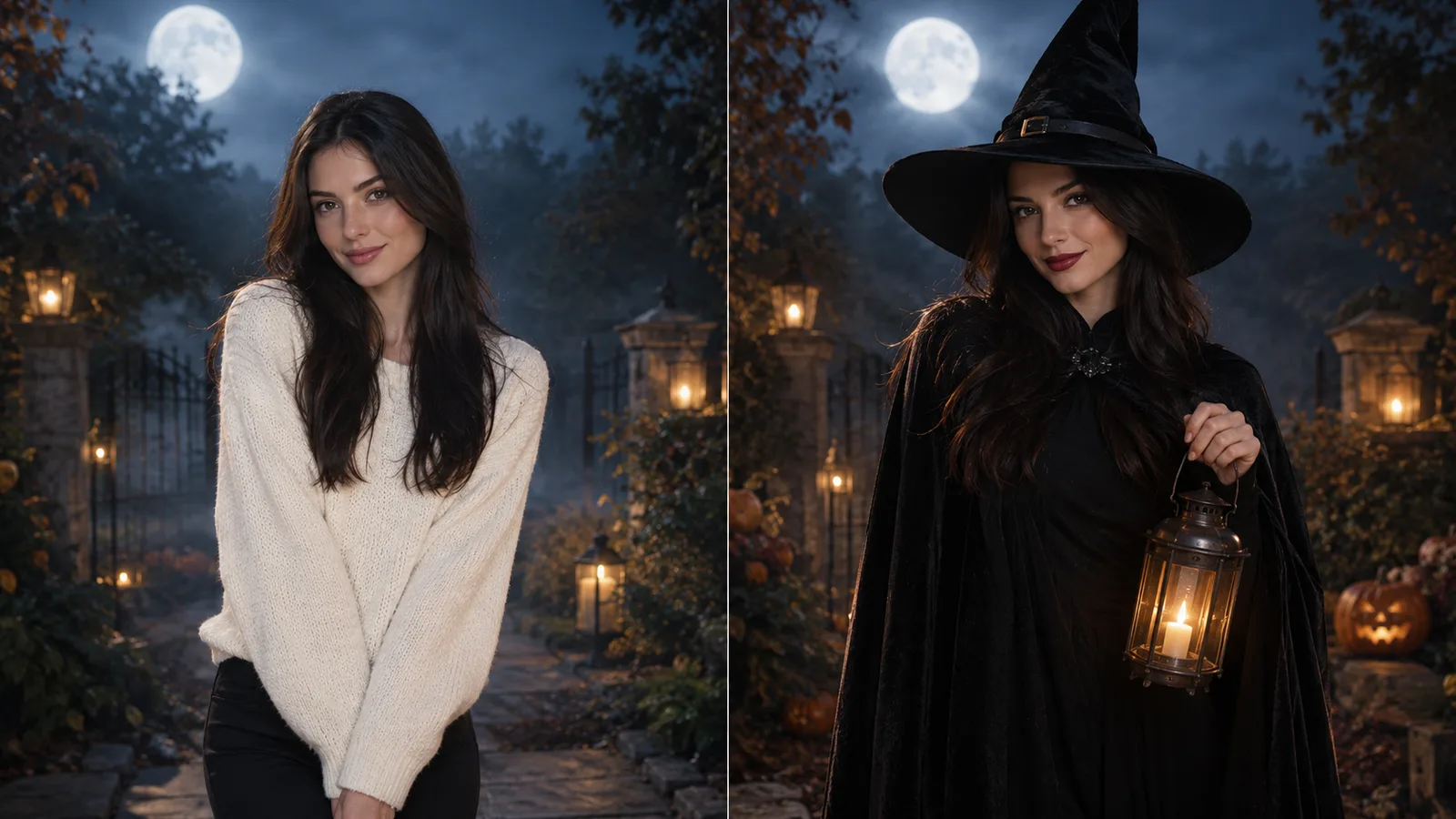
Mantieni volto e outfit, sostituisci la scena e aggiungi nebbia, lanterne o un look analogico a una foto esistente.

Sostituisci lo sfondo, aggiungi nebbia, lanterne o un look VHS a una foto di Halloween. Mantieni volto e outfit, modifica la scena e genera.

  • Nel browser, senza installazione
  • Pagamento sicuro
  • Nessuna filigrana sugli export a pagamento

La generazione usa crediti acquistati

Halloween AI photo edit with fog, lanterns and a moonlit background
6 presets

Scegli un preset

Scegli una direzione, applica il prompt allo spazio di lavoro e modifica un dettaglio alla volta.

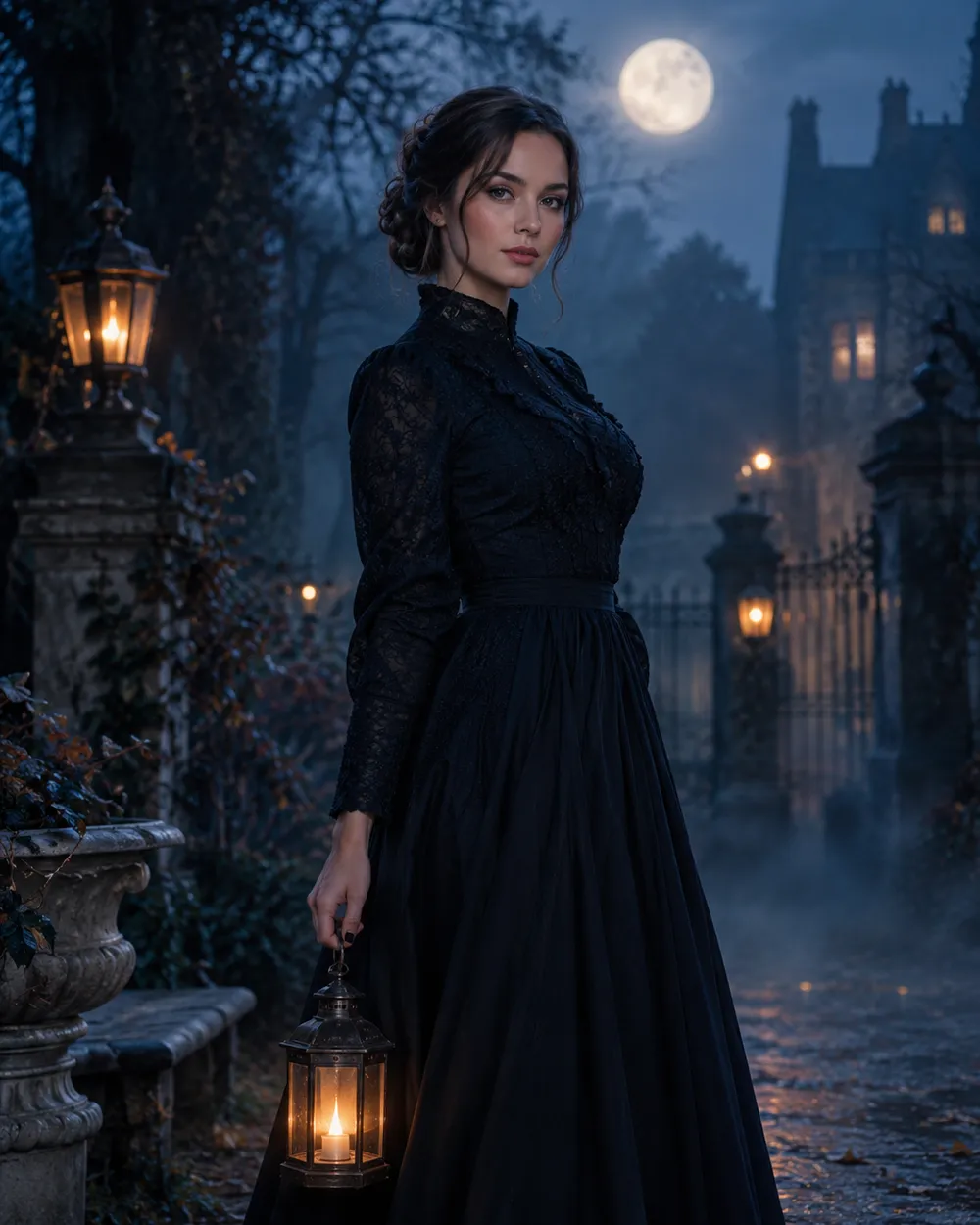
  • Moonlit garden Halloween AI photo edit

    Moonlit Garden

    Blue hour, fog and warm lantern light.

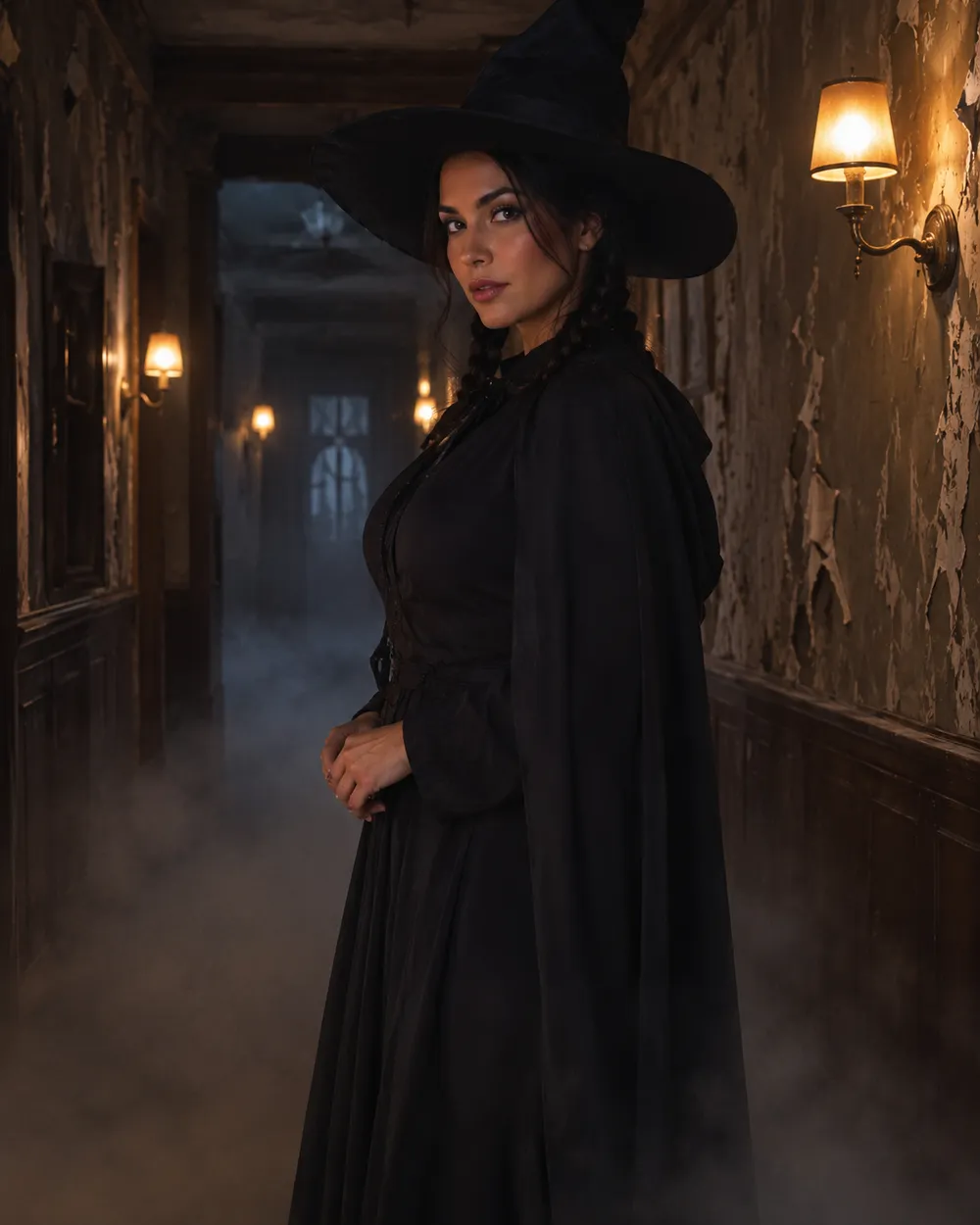
  • Haunted hallway Halloween AI photo edit

    Haunted Hallway

    Long corridor, practical lamps, deep shadow.

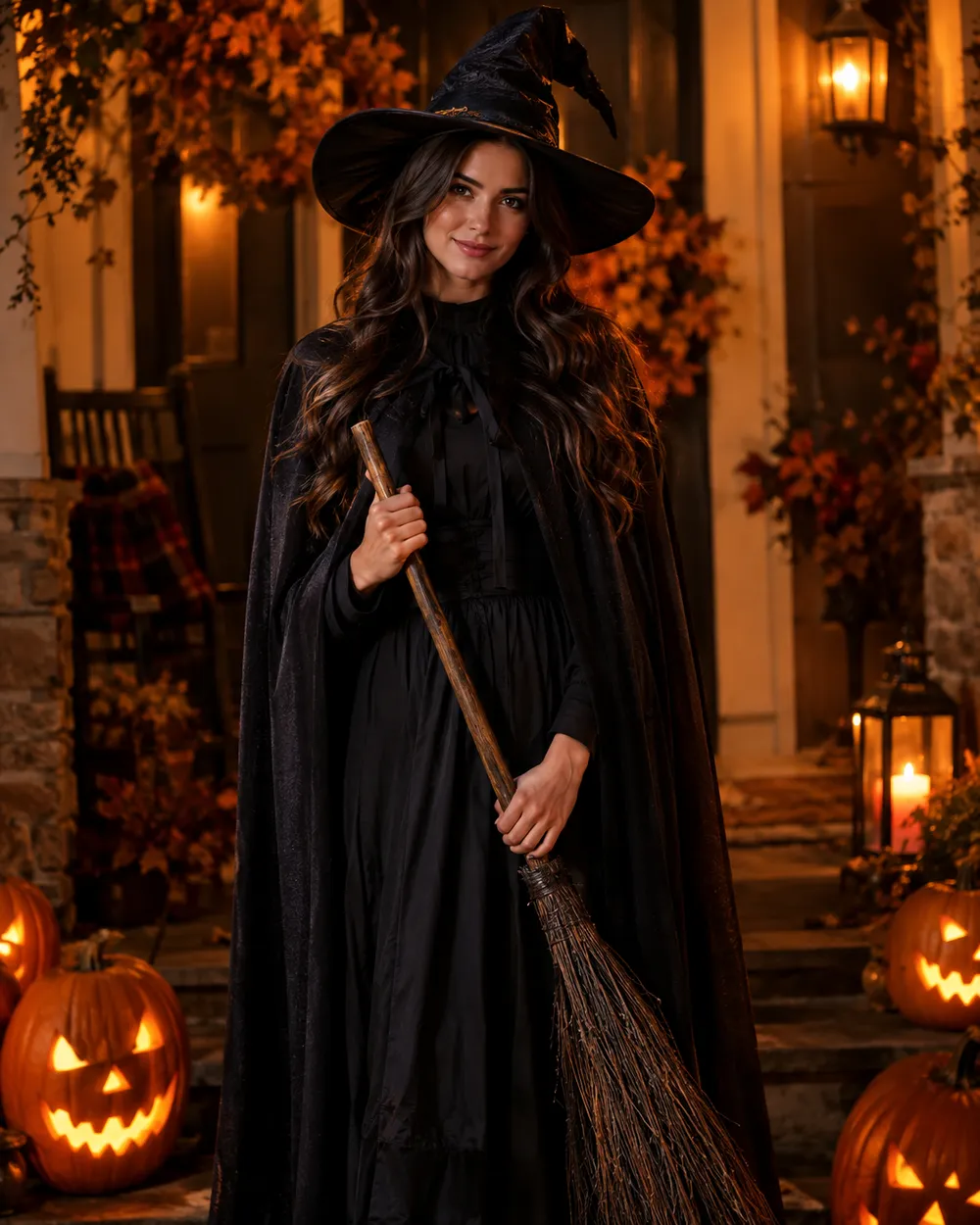
  • Pumpkin glow Halloween AI photo edit

    Pumpkin Glow

    Warm carved-pumpkin light on the face.

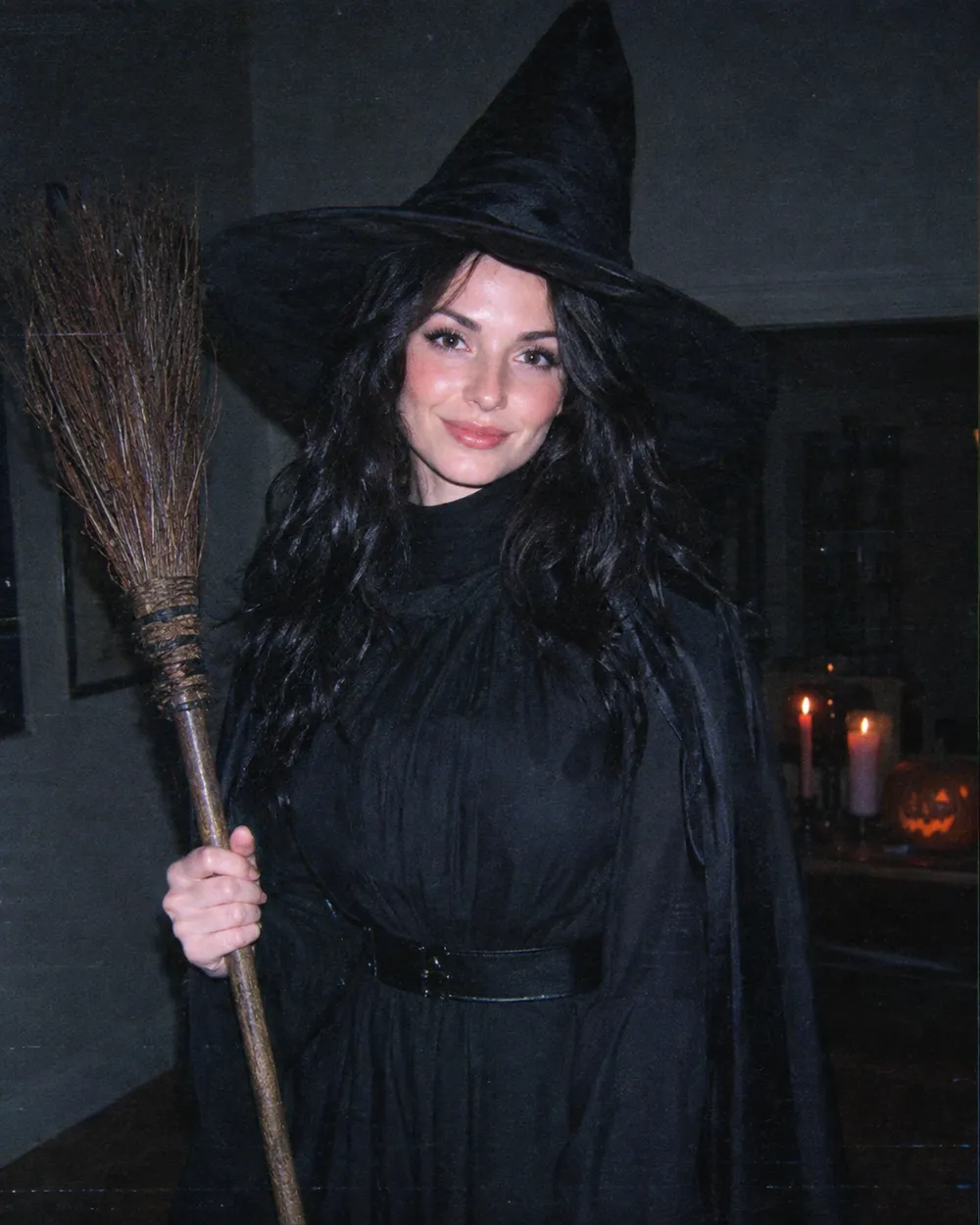
  • VHS horror Halloween AI photo edit

    VHS Horror

    Analog grain, scan lines, cold flash.

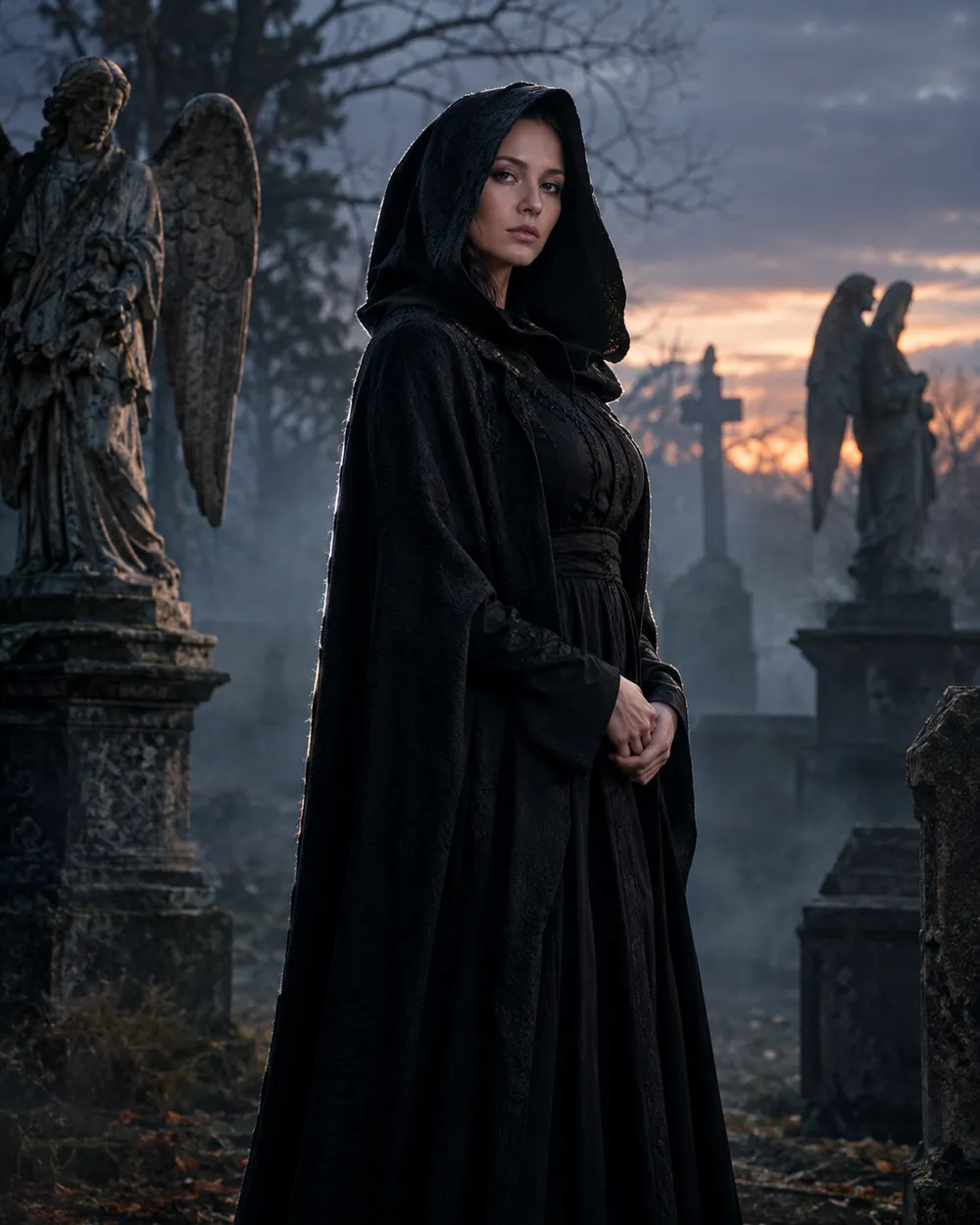
  • Graveyard portrait Halloween AI photo edit

    Graveyard Portrait

    Stone angels, mist and a silver rim light.

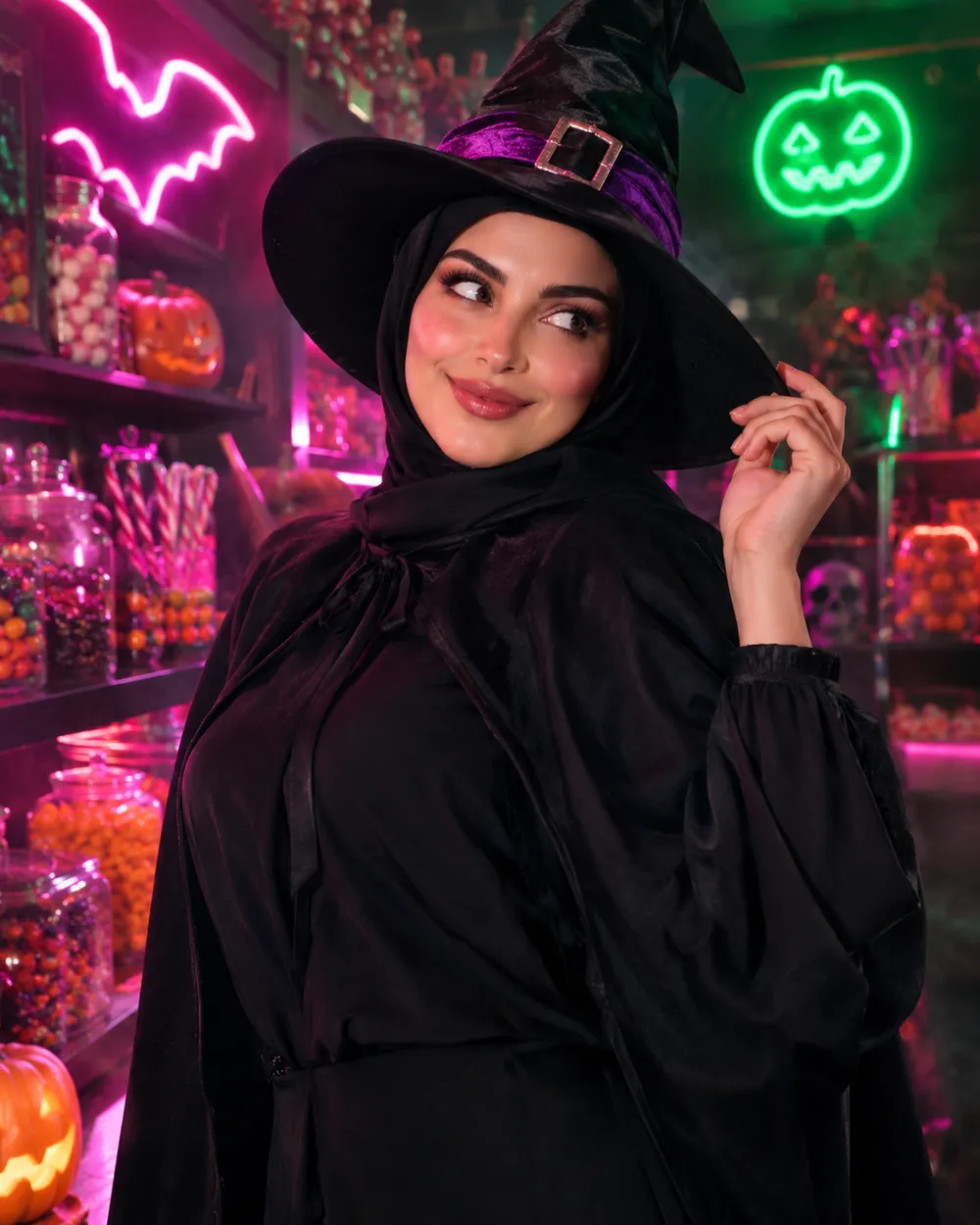
  • Candy neon Halloween AI photo edit

    Candy Neon

    Pink and green neon for a playful edit.

Modalita di generazione

Modello

Selezione rapida

Source Image URL

UploadAccettiamo formati JPEG, PNG o WEBP fino a 10 MB.
or
(Optional)

Cost 1 credits

0 / 4000

Resolution

Aspect Ratio

Output Format

Web Search

Allow the provider to call web search for current information when supported.

Cost 5 creditsRemaining 0 credits
Preview
SampleSample Animate AI still

A sample image stays here until you run your first generation.

Come funziona

  1. 1

    Scegli un look

    Parti da un preset o scrivi la tua direzione.

  2. 2

    Carica una foto

    Usa una foto frontale nitida che hai il permesso di modificare.

  3. 3

    Genera e perfeziona

    Avvia il job, controlla il risultato e cambia una sola variabile per tentativo.

What to edit first

Edit the background before the face. A new background changes the light story, and the face should respond to that light. If you start with skin retouching, the result can look pasted onto the scene. Replace the background, set the key light, then adjust the grade.

Keep the source photo simple. A plain wall, a window or an outdoor background gives the model less to remove. Busy backgrounds with many people are harder to replace cleanly. If the source has strong colored light on the face, describe that light in the prompt so the new scene matches it.

Background, light, grade

A scene preset has three layers. The background tells the model where the person is. The light tells it how the person is lit. The grade tells it how the final image should feel. Write all three, but keep them short. One sentence per layer is usually enough.

For a Halloween edit, warm practical lights against a cool background are reliable. Fog adds depth but can wash out the face, so ask for soft fog behind the subject rather than in front of it. If the result looks too dark, raise the key light instead of adding more exposure words.

When to use image-to-video instead

If the still looks good and you want motion, send it to the video workspace. A five-second clip with a slight head turn, drifting fog and a slow push-in is usually more convincing than a complicated action scene. The video preset pages include motion prompts that are written for still-image animation.

Domande frequenti

  1. 1

    Does the editor change my face?

    The presets ask the model to keep the face unchanged. Some models still alter details. Review the result and reduce the scene description if the face drifts.

  2. 2

    Can I replace a busy background?

    Yes, but a simpler source background produces a cleaner edge. If the source has many people or strong clutter, crop to the subject before uploading.

  3. 3

    Can I add fog or glowing lights?

    Yes. Describe where the fog and lights should sit relative to the subject. “Soft fog behind the subject” is easier to control than “add fog everywhere.”

  4. 4

    Can I make the result look like film?

    Yes. Add a film-stock description, grain level and color grade. The VHS Horror preset is a starting point for an analog look.

  5. 5

    Does this work for pet photos?

    Yes. Use the pet preset page for a costume, or describe the scene without changing the animal’s breed and markings.

  6. 6

    Which model should I choose?

    Use an image-edit model for background replacement. GPT Image 2 and Nano Banana Edit are the usual starting points; the workspace shows the credit cost for each option.

Guide e analisi dei prompt

Workflow correlati

Inizia con un preset testato

Apri lo spazio di lavoro, applica un preset e controlla la stima dei crediti prima di generare.