
Halloween Photo Editing With AI: Backgrounds, Fog and Film Looks
How to edit an existing photo for Halloween without changing the face: background replacement, practical lights, fog placement and grade.
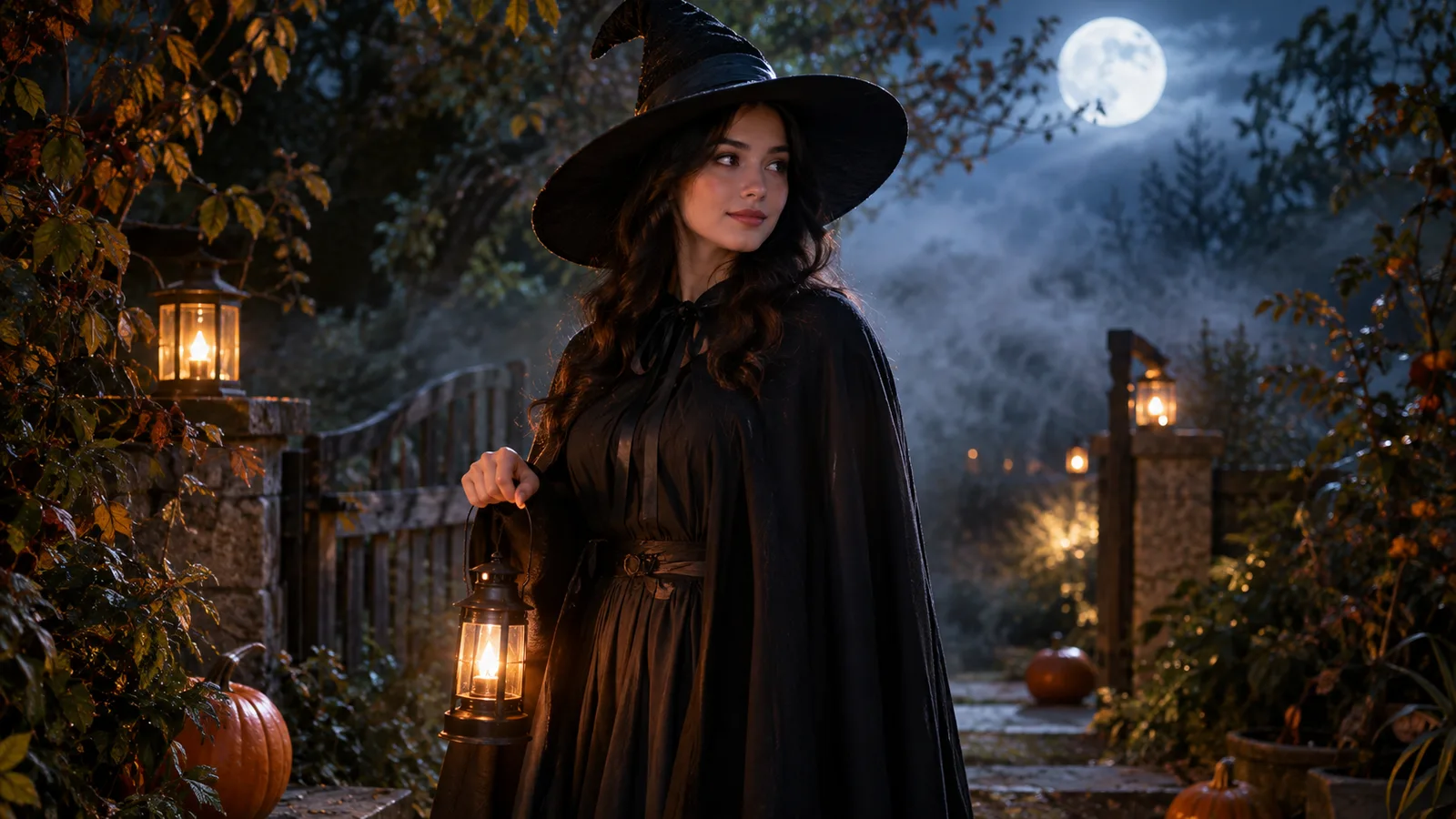
Not every Halloween photo needs a costume. Sometimes the photo is already good and the scene is wrong. The person is in a living room, the light is flat, and the background says “Tuesday,” not “Halloween.” That is a job for an AI photo editor, not a costume generator.
This guide covers the workflow behind the Halloween AI photo editor. The goal is to change the scene while keeping the face, pose and outfit intact.
Edit the background first
A background replacement changes the light story. If the new scene is a moonlit garden, the face should be lit by cool ambient light and warm lanterns. If the new scene is a pumpkin porch, the face should carry warm orange highlights. Editing the face first and the background second usually produces a cutout look.
The order we use:
- Replace the background.
- Set the key light direction and color.
- Add atmosphere: fog, dust, practical lights.
- Grade the whole image.
- Check the face and edges.
Choose a source photo that is easy to cut
A plain wall, a window, or a simple outdoor background gives the model less to remove. Busy backgrounds with many people are harder. If the source is cluttered, crop to the subject before uploading.
Avoid photos with strong colored light on the face unless you want to keep that color. A green neon light on one side of the face will fight a warm lantern scene. You can describe the existing light and build the scene around it, but it is easier to start with neutral light.
Try a scene preset
Prompt lab
6 tested directions
Pick a preset, edit the prompt, then copy it or open the workspace with the prompt already loaded.
538 characters · La generación usa créditos comprados
The lab above includes a moonlit garden, haunted hallway, pumpkin glow, VHS horror, graveyard portrait and candy neon. Pick one, edit the scene sentence, and open the workspace with the prompt loaded.
The three-layer scene prompt
A good scene prompt has three layers:
Background: Where is the person? A Victorian garden, an abandoned hallway, a porch, a graveyard.
Light: Where does the light come from? Warm lanterns from camera left, a cold moon behind, a single wall lamp.
Grade: How does the image feel? Blue hour, amber highlights, film grain, deep shadows.
Write one sentence per layer. If the result looks flat, the light sentence is usually the weak one. “Cinematic lighting” is not a direction. “Warm lantern light from camera left” is.
Fog placement matters
Fog adds depth, but it can wash out the face. Ask for “soft fog behind the subject” instead of “fog everywhere.” If the fog is in front of the face, the model may reduce contrast and make the skin look gray.
For a hallway, ask for fog along the floor. For a garden, ask for fog between the trees. For a graveyard, ask for low mist around the stones. The location tells the model where the fog belongs.
What to do when the face changes
If the face drifts, the scene description is probably too strong. Shorten it. Keep the identity sentence at the start and repeat it at the end. Remove any words that imply a new character: “transform,” “become,” “costume.” Use “keep the subject and outfit unchanged” instead.
If the skin looks plastic, add “natural skin texture, visible pores, realistic shadows.” If the edges look cut out, add “match the light direction on the face to the background” and “realistic contact shadows.”
Film looks without losing the face
A film grade is a fast way to make a photo feel intentional. For a Halloween edit, try:
- VHS horror: cold direct flash, mild grain, slight scan lines, a dark room.
- 1970s film: warm highlights, soft contrast, gentle halation.
- Modern editorial: neutral skin, deep shadows, a cool background.
- Polaroid: soft corners, low contrast, a slight color shift.
Keep the face readable. A heavy grade can hide identity. If the grade is the point, generate a clean version first, then apply the grade in a second edit.
Before and after checks
- Does the face still look like the person?
- Does the light direction match the background?
- Are the edges clean around hair and shoulders?
- Is the fog behind the subject, not on the face?
- Are there any invented objects or text?
- Is the image still readable on a phone screen?
A five-minute retouch order
Work in a fixed order and you will stop guessing. First replace the background; it sets the light story. Second, adjust the face light so the subject still reads as the same person. Third, place the fog behind the shoulders, never across the eyes. Fourth, apply one grade to the whole image so the subject and background share a palette. Last, check the result at phone size.
This order matters because each step changes the next one. A background replaced after the grade will look pasted in. Fog added before the face light will wash out the skin. A grade applied before the background will leave the subject and the scene in two different color worlds.
If a step fails, undo that step instead of adding more words to the prompt. Most bad Halloween edits are not under-prompted; they are over-layered.
Frequently asked questions
Will the editor change my face?
The presets ask the model to keep the face unchanged. Some models still alter details, so review the result at full resolution.
Should I replace the background first?
Yes. The background sets the light story. Replace it first, then adjust the face light and the grade.
Can I add fog without washing out the face?
Ask for soft fog behind the subject instead of fog in front of the face. Raise the key light rather than adding exposure words.
Can I make the result look like film?
Yes. Add a film-stock description, grain level and color grade. The VHS Horror preset is a starting point.
Does this work for pet photos?
Yes. Use the pet preset page for a costume, or describe the scene without changing the animal's breed and markings.
The bottom line
A Halloween photo edit is a light problem before it is a costume problem. Replace the background, set one key light, place the fog behind the subject, and grade the whole image. The Halloween AI photo editor has six scene presets to start from; the Halloween AI prompts page has more prompt patterns.
Was this guide useful?
Editor de fotos de Halloween con IA
Mantén el rostro y el outfit, cambia la escena y añade niebla, faroles o un tono analógico a una foto existente.
Leer guía